

8 Advanced Ragic Database Security Settings for Enterprises with Stricter Requirements
Security is usually one of the first things that comes up when a company is evaluating Ragic. Where does the data live? How is it backed up? Is Ragic certified? Fair questions, especially in the era where AI adoption is expanding, and ones we're happy to answer. You can find the full breakdown of Ragic's security infrastructure here — certifications, compliance, access controls, backup systems, all of it.
But that page covers what Ragic does for everyone by default. This article is about something different: the advanced security settings you can layer on top, configured to your workflow, sheet, and database, depending on what your company actually needs. So if your enterprise is one with stricter requirements, here are 8 of them:
1. AI Agent guardrails to prevent unintended changes
Handing off tasks to an AI agent with just a few sentences prompt is genuinely useful. The problem is that plain-language instructions can only do so much. There's always a chance something slips through.
You’ve probably heard stories of AI agents asked to organize folders, projects, or emails, only for someone to later discover the agent started deleting things on its own. The causes vary — the model misreads the instructions, the context is too large, the rules weren't specific enough — but the result is the same: unintended changes that are hard to undo. The more reliable fix isn't more instructions. It's guardrails built into the system itself.
Ragic's AI Agent feature has this built in. Say you want an agent to review outgoing quotes for issues like conflicting line items, pricing errors, or delivery dates that don't add up, and log its findings in a specific field. Without guardrails, a misjudgment could send that output anywhere. Instead of patching that with more prompt engineering, you can just restrict what the agent is allowed to touch:
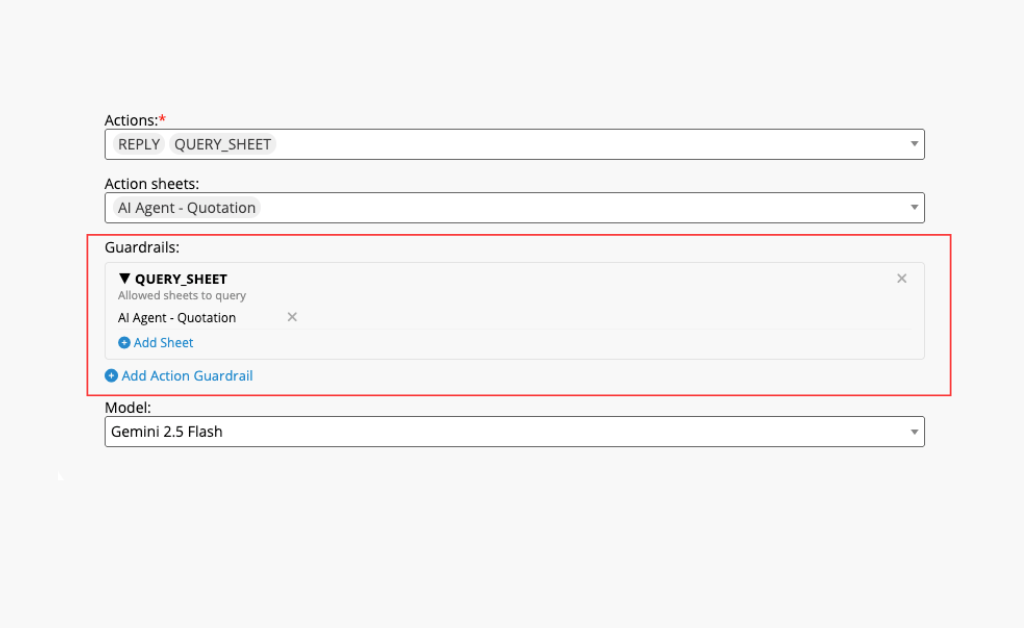
If an AI agent attempts to perform an action outside the approved scope, the system automatically blocks it.
This provides a reliable safeguard against unintended data modifications.
Note: Ragic typically suggests appropriate guardrails automatically when configuring AI Agents, but administrators can review and customize them as needed.
2. Restrict file format to reduce virus risk
Ragic supports file uploads through a dedicated file upload field — but not all file types are safe. Certain formats like .exe can carry malware, especially when submissions come from outside your organization.
If your database is internal only, say for employees sharing files or attaching receipts, this is less of a concern. But if you have forms open to the public, you'll want control over what people can actually submit.
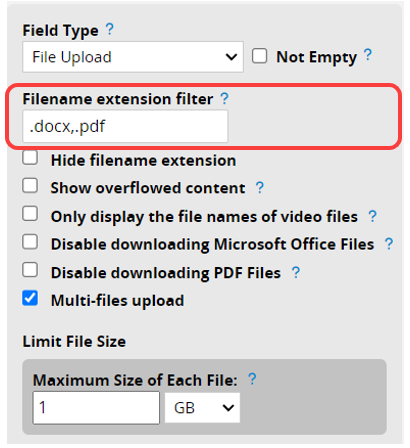
You can set this directly on the upload field. To allow only PDFs, enter ".pdf". To block a specific type while allowing everything else, enter "!.exe". It also doubles as a way to standardize incoming files, which makes downstream processing a lot cleaner.
3. Send encrypted PDFs for sensitive documents
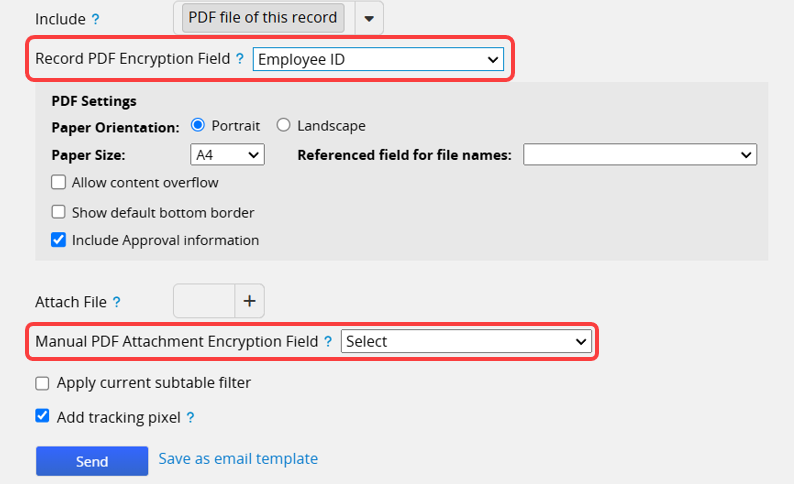
Sometimes you need to send formal documents by email, things like payslips or contracts that contain sensitive information. Adding a layer of encryption to these PDFs means that even if a file ends up somewhere it shouldn't, it can't be opened without the right password.
For example, when sending monthly payslips, you can set the ID number field on your HR database as the encryption key. Each employee's payslip PDF would then be locked with their own ID number as the password.
Strengthening account security
Files aren't the only vulnerability. Employee accounts are just as much of an entry point — weak passwords and careless habits are some of the most common causes of data breaches. Here's what you can configure at the company level to tighten things up.
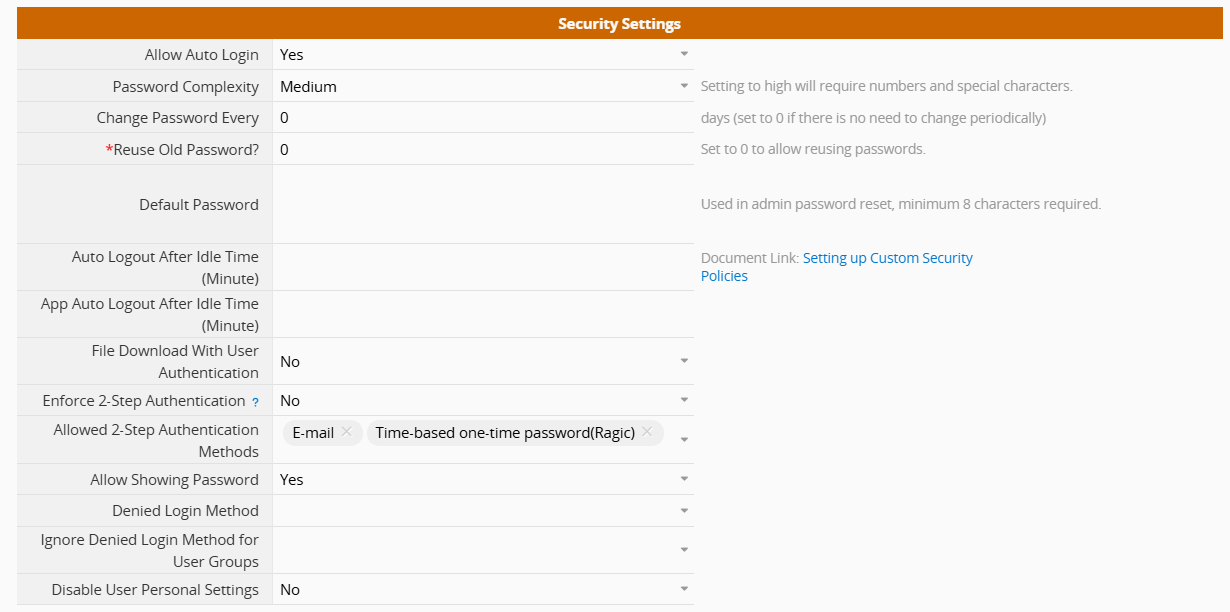
4. Enforce stronger password requirements
One of the simplest ways to improve account security is by strengthening password requirements.
Ragic offers two security levels. The default, Medium, requires passwords to be at least 8 characters. You can switch this to High, which requires a mix of uppercase letters, lowercase letters, and numbers, making passwords much harder to crack through brute force.
5. Require regular password changes
If you're concerned about long-term password exposure, you can require users to update their passwords periodically using the "Change password every X days" setting. You can also prevent password recycling — setting the history value to 2, for example, means users can't reuse either of their last two passwords.
Worth noting though: forced rotation can backfire. When passwords expire too frequently and old ones can't be reused, people tend to default to something simple enough to remember — which usually means less secure, not more.
If that tradeoff concerns you, two-factor authentication is a more effective solution for most teams, and we'll cover that next.
6. Enforce two-factor authentication for an extra layer of protection
Even a strong password can be compromised. Two-factor authentication (2FA) adds a second line of defense that a stolen password alone can't bypass.
Once 2FA is enabled, every login triggers a time-limited code sent to a second device — Ragic mobile app, email, SMS, or an authenticator app like Google Authenticator. Users enter that code to complete the login.
For example, with email-based 2FA, users will see a verification prompt like this after entering their password:
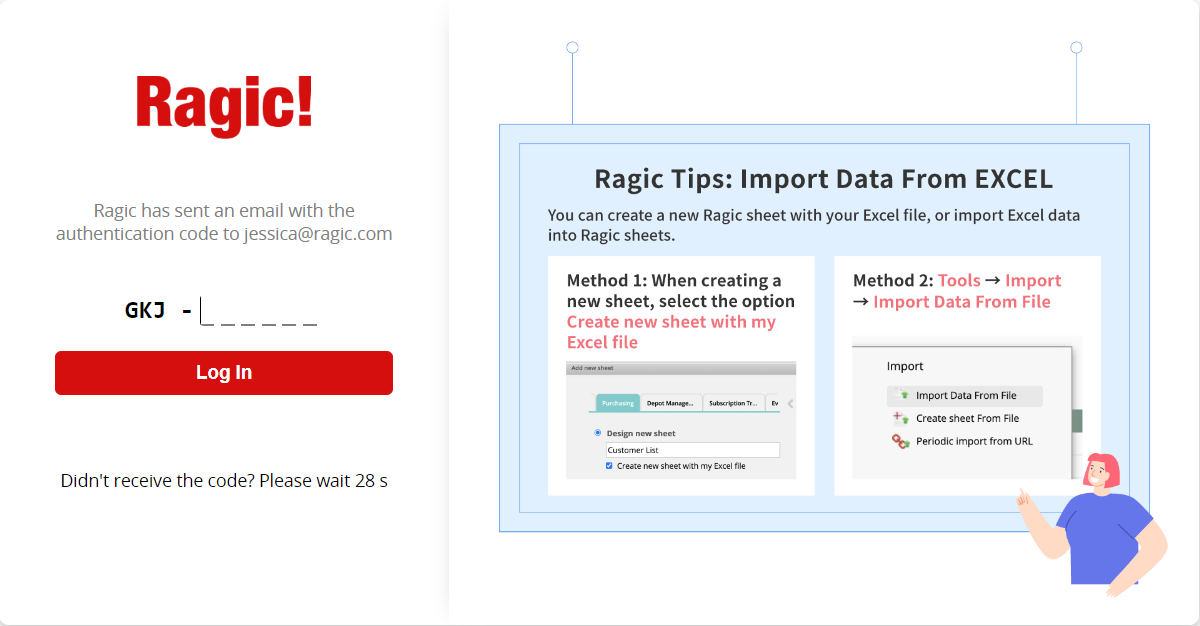
The benefit of 2FA is that it shifts the burden away from password complexity alone. Even if a password is compromised, an attacker still can't get in — and for the actual user that needs to log in, the extra step is barely noticeable. It also buys you valuable time to respond before any real damage is done.
7. Automatic logout for idle sessions
Employees who work remotely or in public space may occasionally leave their devices unattended. If a logged-in session remains open, anyone nearby could potentially view or modify company data. That's a serious risk.
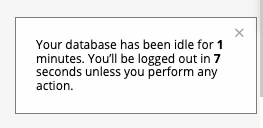
To prevent this, you can set an "Auto logout when idle time (minutes)" After a specified period of inactivity, users are automatically logged out. Even if someone forgets to close their browser or lock their computer, unauthorized users will only see the login screen, not your data.
8. On-premises: Disable mobile app access
Companies in regulated industries like insurance or finance often choose to host Ragic on their own servers for greater control. But with that comes an additional consideration: if the mobile app can access the database, it falls within the scope of security reviews and ongoing maintenance too.
For organizations that don't need mobile access, that's an easy thing to eliminate. On-premises users can disable app access entirely — once turned off, no one can log into the database through the Ragic mobile app, which keeps your security surface smaller and your compliance overhead lower.
Category: Talking Ragic > Learn Ragic

