

5 Quick Ragic Settings Every SYSadmin Should Know (to Make Things Easier — and Harder to Break)
Every system admin cares about the same two things: how easy the system is for people to use, and how well it's guarded against accidental mistakes. Both point to the same payoff — less time spent firefighting.
Think about the small stuff that quietly eats up an admin's time: a regional team can't find the form they need, someone downloads a report in the wrong format, or a simple personal-info update throws off an approval chain that was working fine yesterday. None of these are disasters on their own, but they add up.
The good news is Ragic already has the tools to fix most of this, and none of it requires touching a line of code. Below are five settings worth knowing about — a few that make things easier for your users, and a few that keep them out of trouble.
📌 Making Things Easier for Users
1️⃣ Set up dedicated homepages for different departments or regions
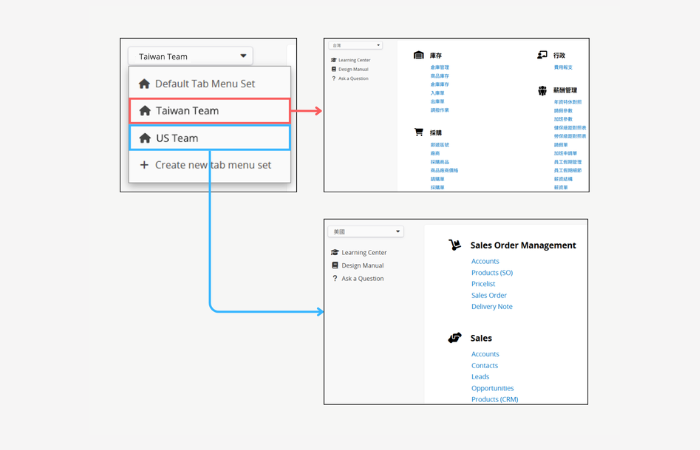
If your company has multiple departments, branch offices, or international teams, each team usually needs different forms. By using Tab Menu Sets to organize database tabs into separate groups, and pairing this with the default Tab Menu Sets for Specific User Group, you can make sure each department or region lands directly on the forms they need when they log in — without irrelevant clutter in the way.
Pair this with Custom Homepage to go a step further, tailoring the charts, shortcuts, and info blocks each team sees the second they sign in.
2️⃣ Restrict users to downloading only pre-designed report formats
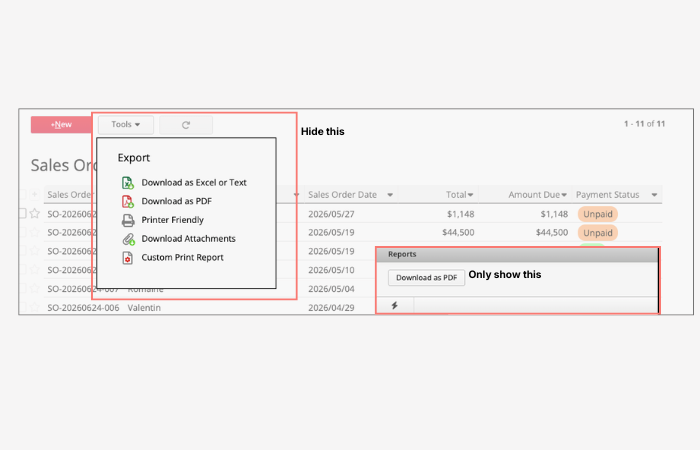
Plenty of companies use Custom Print Report to build report layouts that match their internal needs. The catch: users often click the toolbar's default "Download PDF" or "Download Excel" out of habit, pulling raw, unformatted data instead of the report you designed.
The fix is in Feature Access Settings — remove the general user role's "Download Listing Page" and "Download Form Page" rights, and those buttons vanish from the toolbar automatically. From then on, the only download option left is the one you built for them.
3️⃣ Let users batch-download attachments that match specific conditions
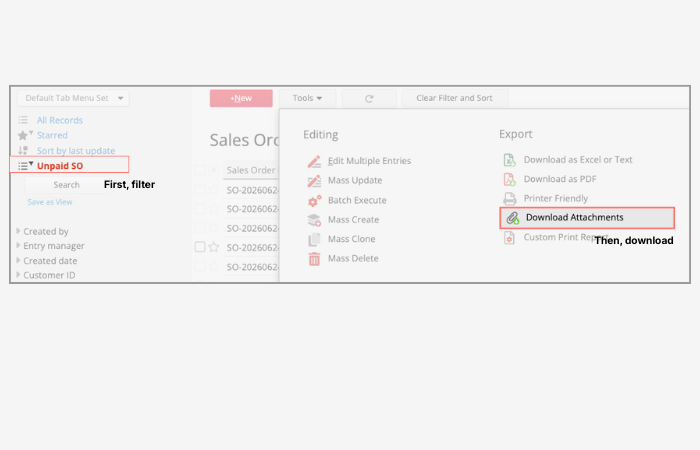
Sometimes users need to download a large batch of attachments at once — say, invoices from a certain month, contracts for a specific project, or documents tied to a particular client. Opening each record individually to download attachments one by one is slow and easy to miss files with.
By enabling the "Download Files From Listing Page" rights under Feature Access Settings, admins let users set filter conditions first, then download all attachments from matching records in one go.
📌 Reducing the Risk of Mistakes
4️⃣ Prevent users from editing their own personal information
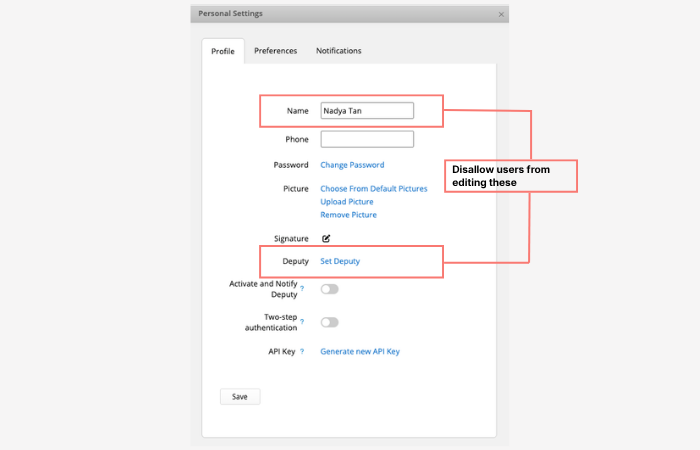
Approval flows and clock-in systems often rely on a user's name as a key reference point. If people can freely change their own name, phone number, or delegate, records get harder to track and existing workflows can quietly break.
Through Company Security Settings, admins can block users from editing their name, phone number, delegate, and other fields in their personal settings — keeping data consistent and reducing management risk from unexpected personal info changes.
5️⃣ Don't let people clear a dynamic filter by accident
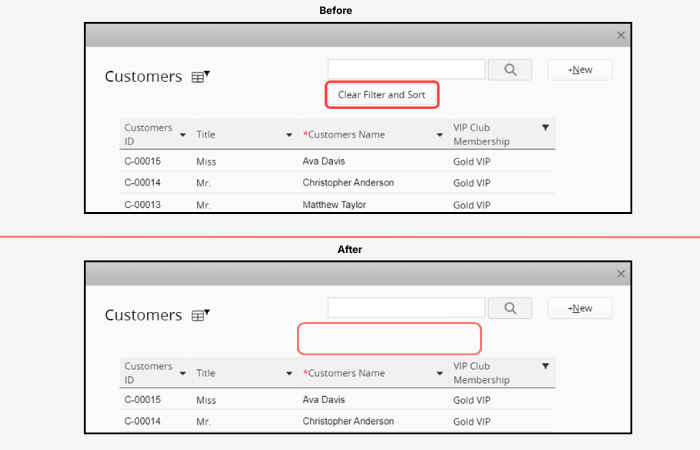
Dynamic filters are great for keeping people on the rails — say, a salesperson should only see promotions that match their client's tier. But one accidental click on "Clear Filter & Sort" undoes all of that, and now they're picking from the wrong list entirely. Check "Don’t allow dynamic filter removal" and that escape hatch disappears.
None of these take more than a few minutes to set up, but together they cut down on the two things that eat up an admin's day: answering the same question twice, and cleaning up after a mistake that shouldn't have been possible.
If your org spans multiple departments or regions, our earlier piece on Ragic features for mid-to-large organizations covers more ground for managing that kind of complexity.
Category: Talking Ragic > Learn Ragic