 Learning center
Learning center
Learning center
You can use the "Customer Service Tickets" template to manage all of your support emails in a Ragic sheet. The following sections explain how to use this template and how to customize it to meet your needs.
If you don’t have a Ragic account, click here to sign up and install the "Customer Service Tickets" template. This entire process is free, and we will not charge you without your consent.
If you are already a Ragic user, you can find the "Customer Service Tickets" template under the "Support" category in Install Templates and click "Install" to download it.
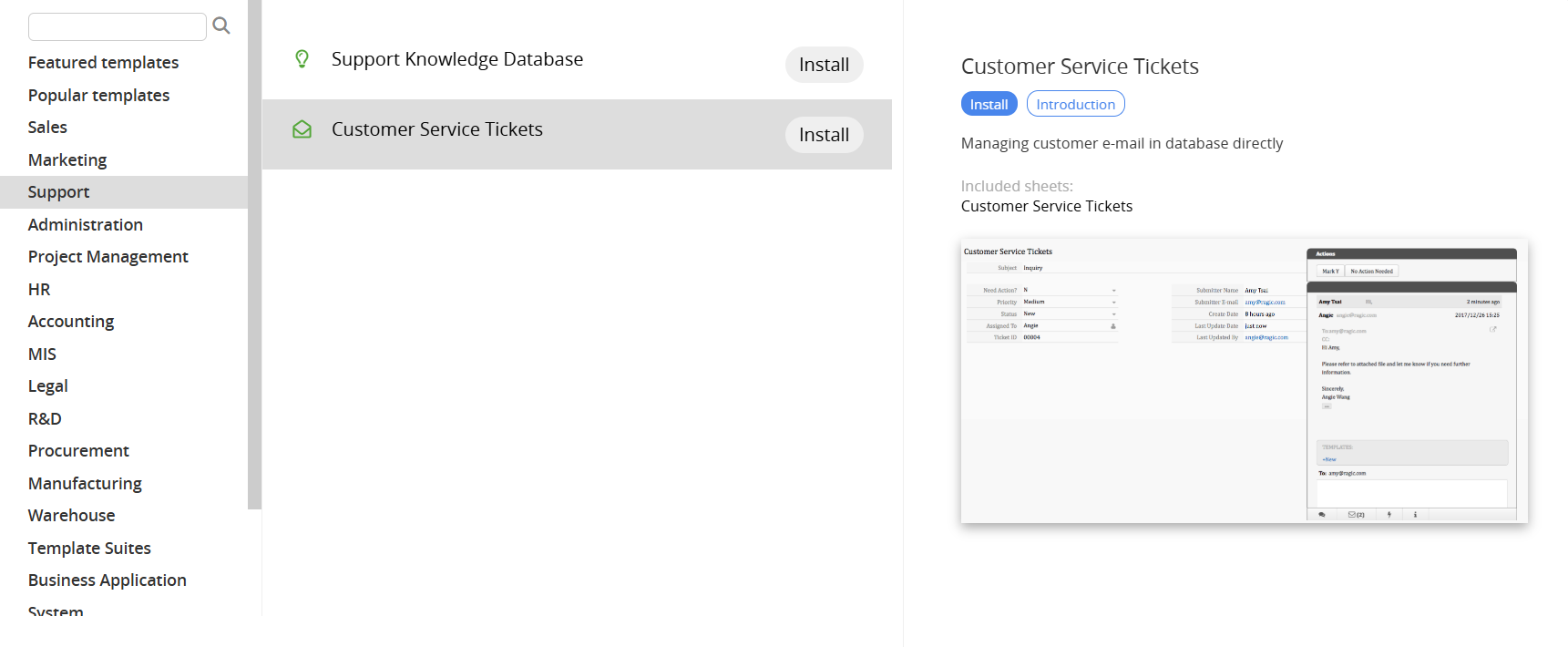
The corresponding email address format for this template follows the structure:
AccountName.TabPathParameter.SheetPathParameter@tickets.ragic.com.
For example, if the URL of your "Customer Service Tickets" template is
https://www.ragic.com/accountname/support1/1,
the Account Name is accountname, the Tab Path Parameter is support1, and the Sheet Path Parameter is 1.
Based on this information, the corresponding email address for this template would be: accountname.support1.1@tickets.ragic.com.
After completing the setup, it is recommended to send a test email to this address to confirm that it has been configured correctly.
After installing the template and obtaining the corresponding email address, you can either add this address to your company email group or mailing list, or configure automatic forwarding for your mailbox. Once set up, emails sent to your customer support inbox will be automatically imported into the sheet.
By default, the filter displays records where the "Need Action? " field is set to "Y". If needed, you can adjust the filter or change which fields are displayed on the Listing Page.


| Field Name | Descriptions |
|---|---|
| Status | The ticket status, which can be changed by selecting an option from the drop-down menu. The default setting for new tickets is "New". |
| Need Action? | The default value for this field is "Y" for new tickets. Once you reply to an email, it will automatically change to "N". This value can also be set to "N" by clicking the "No Action Needed" button in the Actions panel. |
| Priority | Used to indicate the priority level of the ticket, helping with collaboration among users. |
| Assigned To | Allows you to assign this ticket to another user. The assigned user will receive a notification in Ragic as well as via email. |
You can click on the mail icon in the lower-right corner to view an email thread.

You can send a reply to an email after scrolling down an email thread. An email draft will be saved even if you leave this page.
BBCode tags can also be used here, which are useful for inserting images and links.

Tip: You can paste an image from your clipboard directly into an e-mail, and the system will help turn this into an inserted image using BBCode.
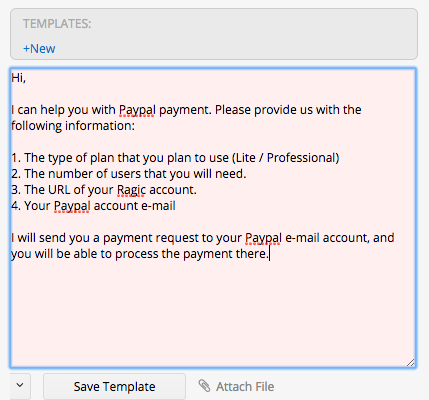
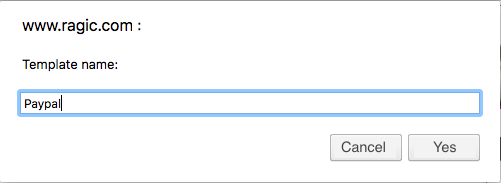
You can create templates for frequently used reply content. Simply click + New under the TEMPLATES section, add your reply content, and then click Save Template.
Please note that reply templates are shared across the account, meaning all users will be able to view and use any reply templates that have been created.

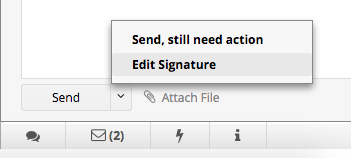
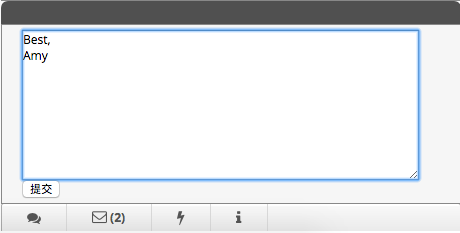
You can add/edit your signature by clicking the arrow next to the Send button > Edit Signature.
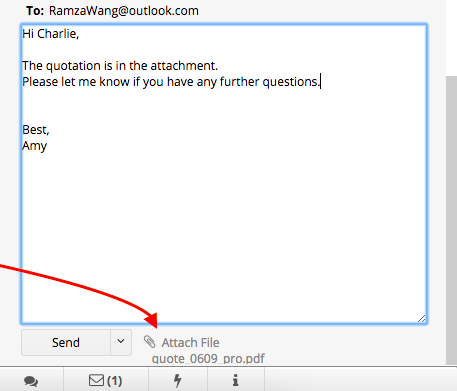
You can attach files by clicking Attach File. The size limit for each email is 1 GB, so please make sure your attachments do not exceed this limit.
 Thank you for your valuable feedback!
