 Learning center
Learning center
Learning center
Well-organized work notes help team members quickly find answers to recurring questions, improving day-to-day productivity. A shared Knowledge Database also reduces repeated questions and duplicated work, helping teams operate more efficiently.
In the past, knowledge management systems were often associated with large enterprises and required significant resources. In fact, small teams often need a shared Knowledge Database even more, because:
(1) Roles are less specialized.
Team members need to cover a wider range of tasks and topics. Shared notes prevent everyone from repeatedly figuring out and documenting the same information across different areas.
(2) Knowledge is easier to lose.
With fewer employees, important know-how and practical tips can disappear when someone leaves. Limited time for one-on-one training also makes shared documentation a critical resource for onboarding and knowledge transfer.
In these situations, a complex or feature-heavy system is unnecessary. What matters is a tool that is easy to set up, affordable, intuitive to use, and flexible enough to grow with your team.
Ragic is an online tool that lets you build custom database applications without writing any code. It also offers a wide range of free templates you can install directly, including a "Knowledge Database" template.
The "Knowledge Database" template is simple to set up and easy to use. Creating and editing records feels similar to working in Excel, while still allowing you to access and update data across devices through web and mobile apps. Multiple users can view or edit content at the same time, with flexible access control to manage editing and viewing permissions.
Powerful search and filtering features make it easy to find and organize information. The template is free to install and well-suited for small and medium-sized teams.
If you already use Ragic for orders, inventory, customer data, or project management, you can manage everything on the same platform using other free templates.
The "Knowledge Database" template can be used in various scenarios. We provide corresponding "Knowledge Database" templates under both the "Support" and "R&D" categories. You can choose either one and customize it for different departments or purposes.
If you don’t have a Ragic account, click here to sign up and download the "Support Knowledge Database" template, or click here to download the "RD Knowledge Database" template. This entire process is free, and we will not charge you without your consent.
If you are already a Ragic user, you can find the "Support Knowledge Database" template under the "Support" category in Install Templates and click "Install" to download it.
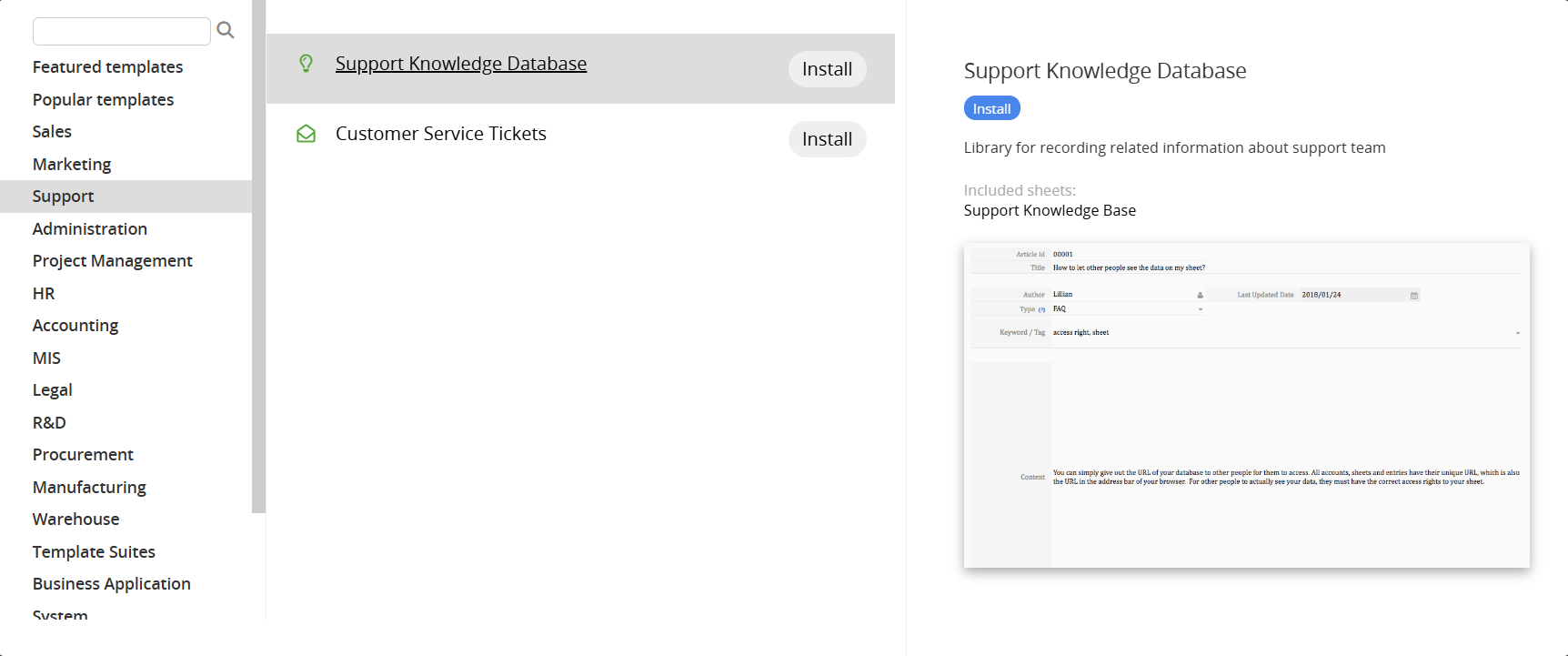
Alternatively, you can find the "RD Knowledge Database" template under the "R&D" category.
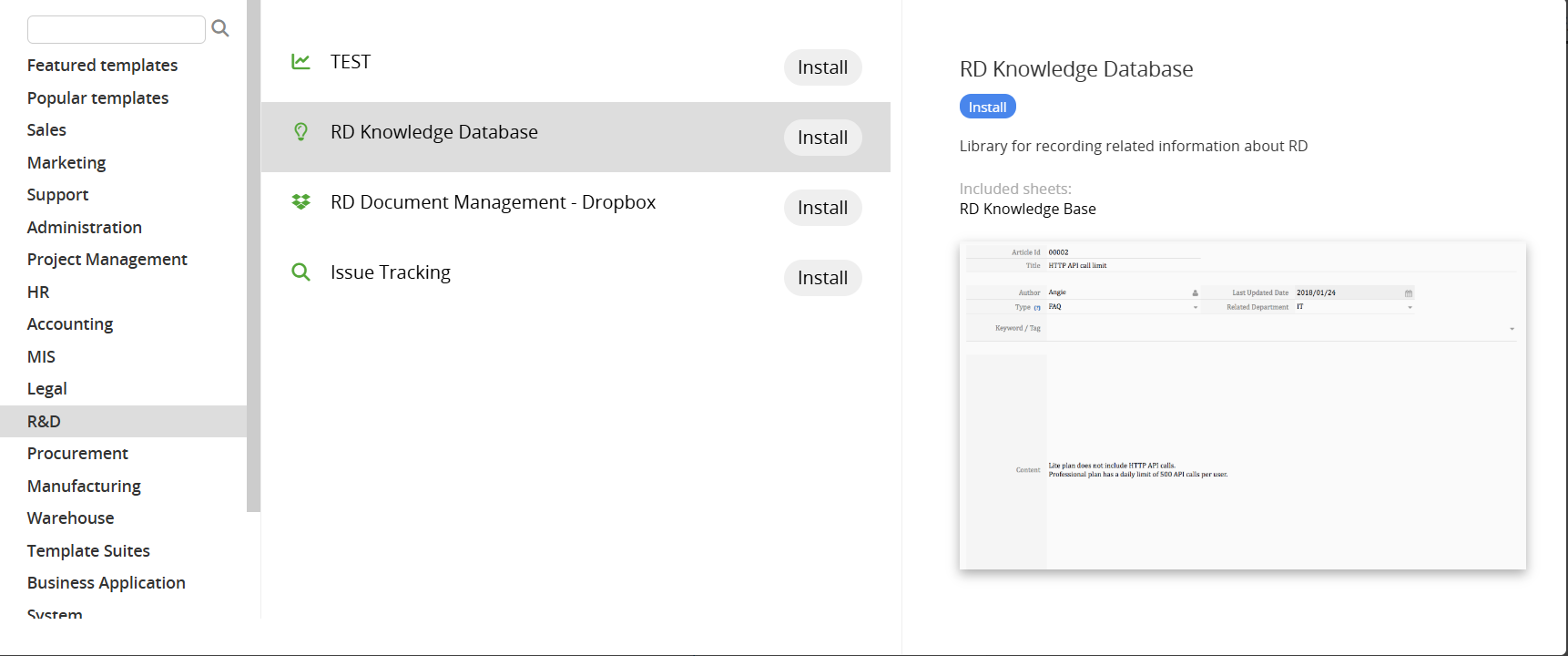
These two templates are essentially the same. Compared with other Ragic templates, the "Knowledge Database" template is relatively simple, containing only one sheet with essential preconfigured fields and no complex linking relationships.
When you open a record, the Form Page looks like the following example. Sample data can be deleted before use.

The sheet includes fields for ID, Title, Author, Last Updated Date, Type, Tags, and Content.
The "Article ID" field is set to Auto Generated Field Values by default, but you can edit it manually if needed. The "Type" field is a Selection field that you can customize based on your needs, for example, pricing issues, usage questions, or maintenance issues.
The "Tags" field is a Multiple Select field. Unlike "Type", a single record can have multiple tags, making it easier to organize content without limiting it to "one category". Tags can also be added at any time and used for searching.
Once "Type" and "Tags" are set up, you can start adding knowledge records in an organized way. We recommend creating Shared Views based on major "Types" and displaying them in the sidebar.
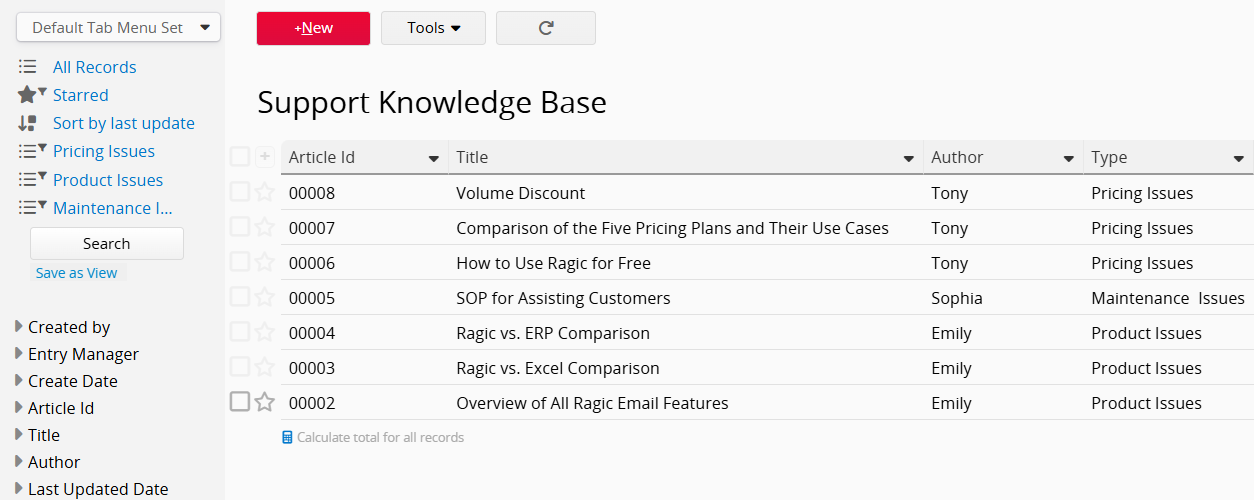
In the example above (the Listing Page of this sheet, which shows multiple records at once), several main types are created, for example, "Pricing Issues", "Product Issues", and "Maintenance Issues". Shared Views are then saved based on these types and displayed in the sidebar.
These Shared Views work like a table of contents. Clicking a type shows the corresponding records. Shared Views can be sorted for easier browsing and can also be created based on "Tags".
In addition to using Shared Views, team members can find information through Full Text Search or other filtering and sorting options. Important records can be starred.
For information on adding users and assigning access rights, please refer to this section.
If you have additional customization needs, you can modify the template design directly to better match your team’s workflow.
If some users should be able to edit the "Knowledge Database" while others can only view it, you can assign them to different user groups and configure sheet Access Rights accordingly.
If you want some users to edit the "Knowledge Database" while others can only view it, assign them to different User Groups. Then, in the "Knowledge Database" template sheet, set the editable group’s Access Rights to Bulletin User or Admin, and set the view-only group’s access level to Viewer.
If you need type-based access control, for example, allowing Group A to view only Type A content and Group B to view only Type B content, you can use Multiple Versions of the sheet combined with Fixed Filters and Access Right settings.
Although the "Knowledge Database" template has a simple structure, you can build a more advanced system similar to public documentation or wiki-style knowledge bases, with multi-level structures and extensive cross-linking.
You can create multi-level types by adding a "Subtype" field and configuring it as a Cascaded Selections linked to the main "Type" field.
Ragic fields support BBCode for hyperlinks. You can insert a hyperlink using the following format: [url=URL]Description[/url]

After saving, it will appear as a clickable link.

If you want to link to another "Knowledge Database" record but do not know its URL, please refer to the related documentation.
You can also insert images using [img]Image URL[/img]. Pasting an image directly into a text field will automatically generate the corresponding BBCode.
 Thank you for your valuable feedback!
