 Learning center
Learning center
Learning center
Manufacturing companies typically manage large number of materials, and as a result, they often face a common problem when managing their material records. New records are consistently created in the system despite a similar material record already existing, due to slight differences in the name, dimensions, or specifications. In some cases, it may also be because the employee entering the data wasn't able to find the existing record.
Traditionally duplicate checks are useful in identifying records that are exactly the same. However, material specifications aren't always straightforward. For example, let's say the system already includes a record for an aluminum tube with a 2,000mm standard length and an acceptable 10% tolerance. This means that the aluminum tube can have a length anywhere from 1,980mm to 2,020mm. If a 2,010mm aluminum tube comes in, it may not be necessary to create a new material ID for it. In circumstances like these where existing specifications and tolerances are both considered, data can be difficult to manage with just the Unique setting.
Imagine employees having to manually search existing records to check whether a new material's dimensions fall within the specified tolerance range— that process can be time consuming and tedious.
This is where AI Agent can help. You can create a "Duplicate Material Checker" and instruct the Agent to review existing material records whenever new material information is entered. The Agent checks whether the new material's specifications fall within the tolerance range of an existing record and issues a warning if it detects a potential duplicate entry.
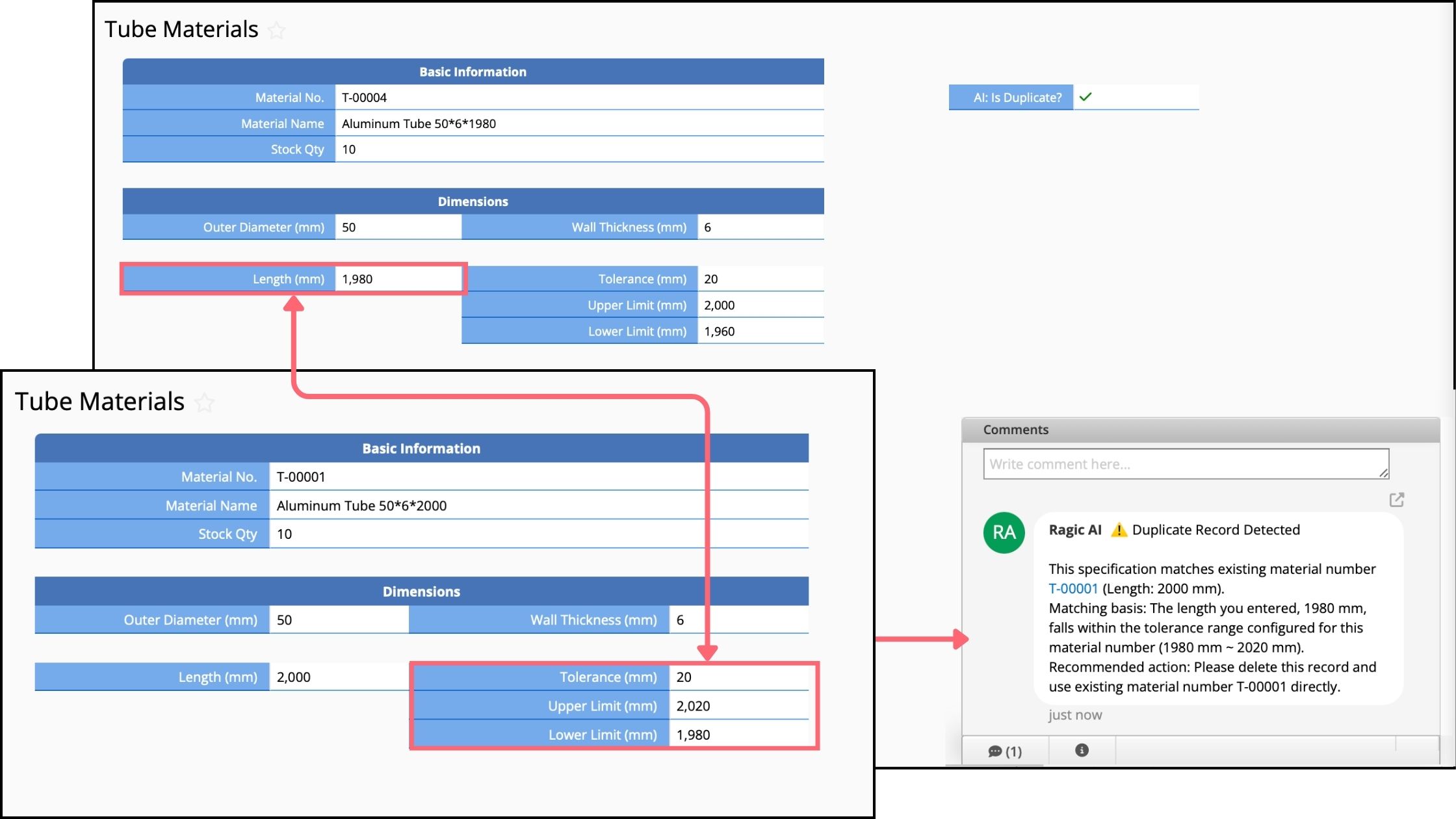
In this article, we'll use aluminum tube management as an example to demonstrate how to configure an AI Agent that automatically flags new material records that fall within the tolerance range of an existing record.
If you don't already have a Ragic account, we recommend signing up for an account. After signing up, you'll be able to start using the Free Plan. If you'd like to explore and test the platform more thoroughly, you can also upgrade and experience a 30-day free trial of the Professional Plan— no credit card information required.
Ragic will never charge you without your consent, so you can freely and confidently try it out. For more information about plans and pricing, please refer to our pricing page.
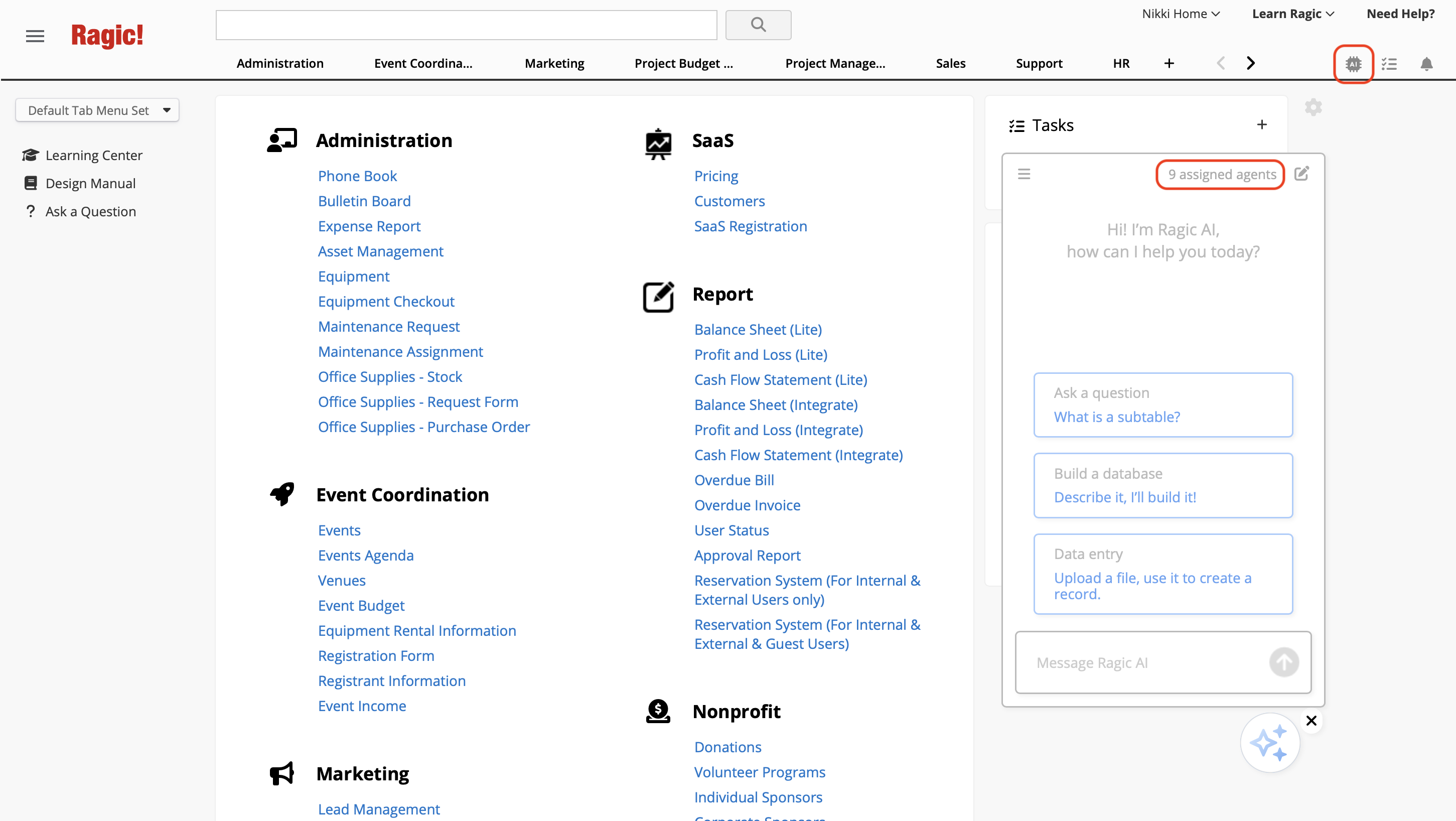
After logging in, click on the AI icon  in the upper-right corner to open up the AI panel, then select AI Agent.
Before you begin using AI Agent, please take note of the following:

For more information pease refer to this article.
To help the AI Agent check the tolerance of each material, you'll need to add the relevant fields to the sheet you're using to manage materials: "Tolerance," "Upper Limit," and "Lower Limit." These fields store the information your Agent needs to compare material specifications.
For this example, we'll keep things relatively simple. When a new record is created, the Agent will first check for existing records with the exact same "Dimensions" then determine whether the new record's length fall within the tolerance range of an existing record. The sheet will look something like this:
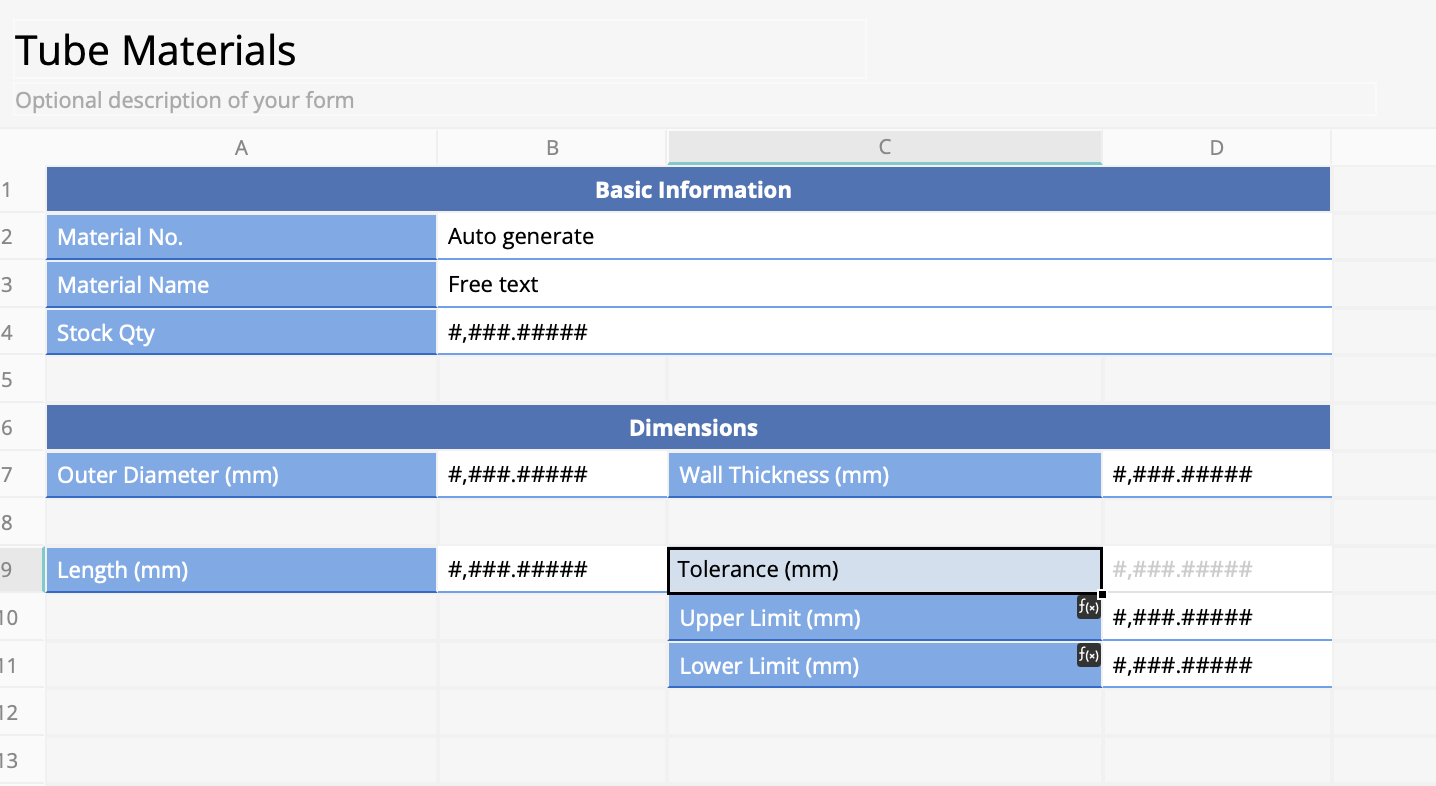
You can also set up formulas for the Upper Limit and Lower Limit. For example, that can look something like Length + Tolerance and Length - Tolerance, respectively. This allows the system to calculate these limits automatically for convenience.

Additionally, we recommend adding a field for the AI Agent to record whether the material is a duplicate entry and set this field to "Read Only."
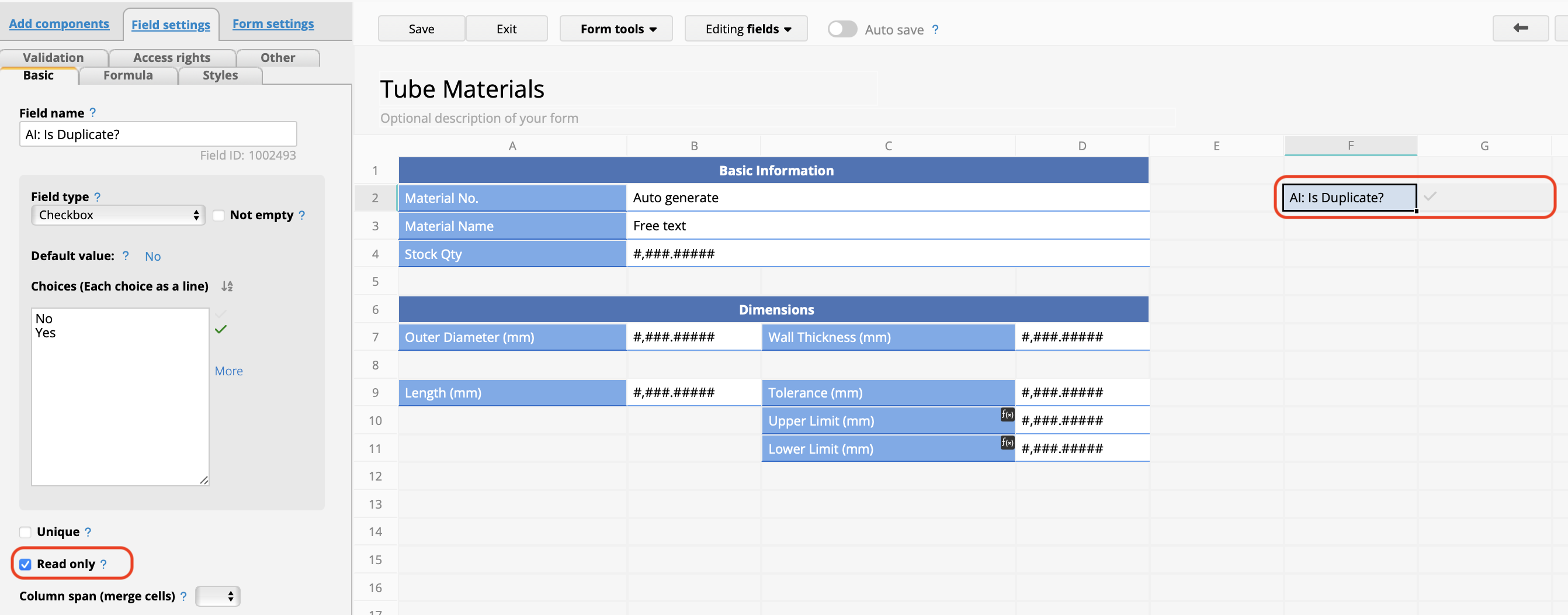
Here's why this field is needed: Using the same scenario where the tolerance range is 1,980mm to 2,020mm, if someone creates a record with a length of 1,980mm, the system should flag it as a duplicate record.
Let's say the user doesn't remove the record even after the warning and we later create a record for an aluminum tube with a length of 1,960mm. Supposedly, our new record should be allowed, since it falls outside of the first tolerance range. Without additional instructions, however, the Agent might tell us to merge this into the existing 1,980mm record that was previously flagged as a duplicate.
With this field in place, we can instruct the Agent to also check whether the "Is Duplicate?" field is checked. If a record has already been flagged by the Agent as a duplicate, the Agent will exclude the duplicate's tolerance values from future duplicate checking.
In this example, we'll create aluminum tube records with different outer diameters and wall thickness. If either the outer diameter or wall thickness is different, the tubes should be treated as different materials, even if their lengths are similar. However, if both the Outer Diameter and Wall Thickness are the same and the lengths are similar (within the tolerance range), they should be considered the same material.
To achieve this, copy the following prompt:
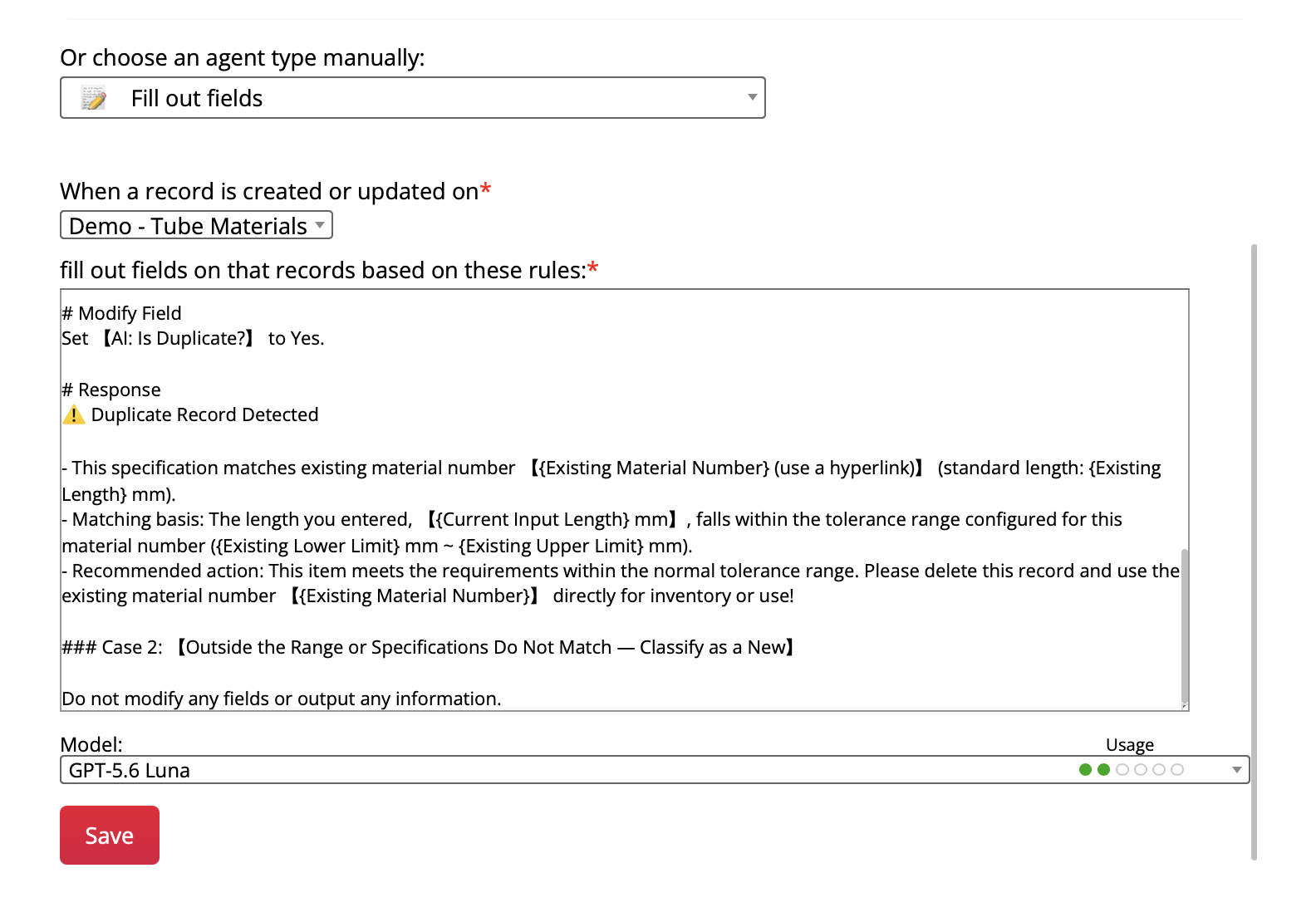
# Role and Task
You are an assistant that reviews pipe material specifications to prevent duplicate records.

When a user is entering or modifying a pipe record, review whether the record is substantially identical to any other existing pipe records in the database.

---

# Matching Rules (Execute in Order)

When the user enters a new record, compare it against existing records where 【AI: Is Duplicate?】 is set to No:

1. 【Specification and Material Comparison】:
   - Check whether【Outer Diameter】and 【Wall Thickness】 exactly match those of an existing record.
   - If the outer diameter and wall thickness do not match, immediately classify the record as a new or non-duplicate. There is no need to check the length.

2. 【Dimensions Comparison】:
   - If all fields in Step 1 match an existing record, read the 【Upper Limit】 and 【Lower Limit】 fields of the existing record.
   - Check whether the newly record's 【Length】 falls within the range of the existing record's upper and lower limit:
     【Existing Record's Lower Limit】 <= New Record's Length <= 【Existing Record's Upper Limit】

---

# Output Results

### Case 1: 【Within the Range — Classify as a Duplicate Record】

# Modify Field
Set 【AI: Is Duplicate?】 to Yes.

# Leave a Comment
⚠️ Duplicate Record Detected

- This specification matches existing material number 【{Existing Material Number} (use a hyperlink)】 (Length: {Existing Length} mm).
- Matching basis: The length you entered, 【{New Record's Length} mm】, falls within the tolerance range configured for this material number ({Existing Lower Limit} mm ~ {Existing Upper Limit} mm).
- Recommended action: This item meets the requirements within the normal tolerance range. Please delete this record and use the existing material number 【{Existing Material Number}】 directly for inventory or use!

### Case 2: 【Outside the Range or Specifications Do Not Match — Classify as a New】

Do not modify any fields or output any information.
Select “Fill Out Fields” as the AI Agent type, then configure the settings as shown in the image below:
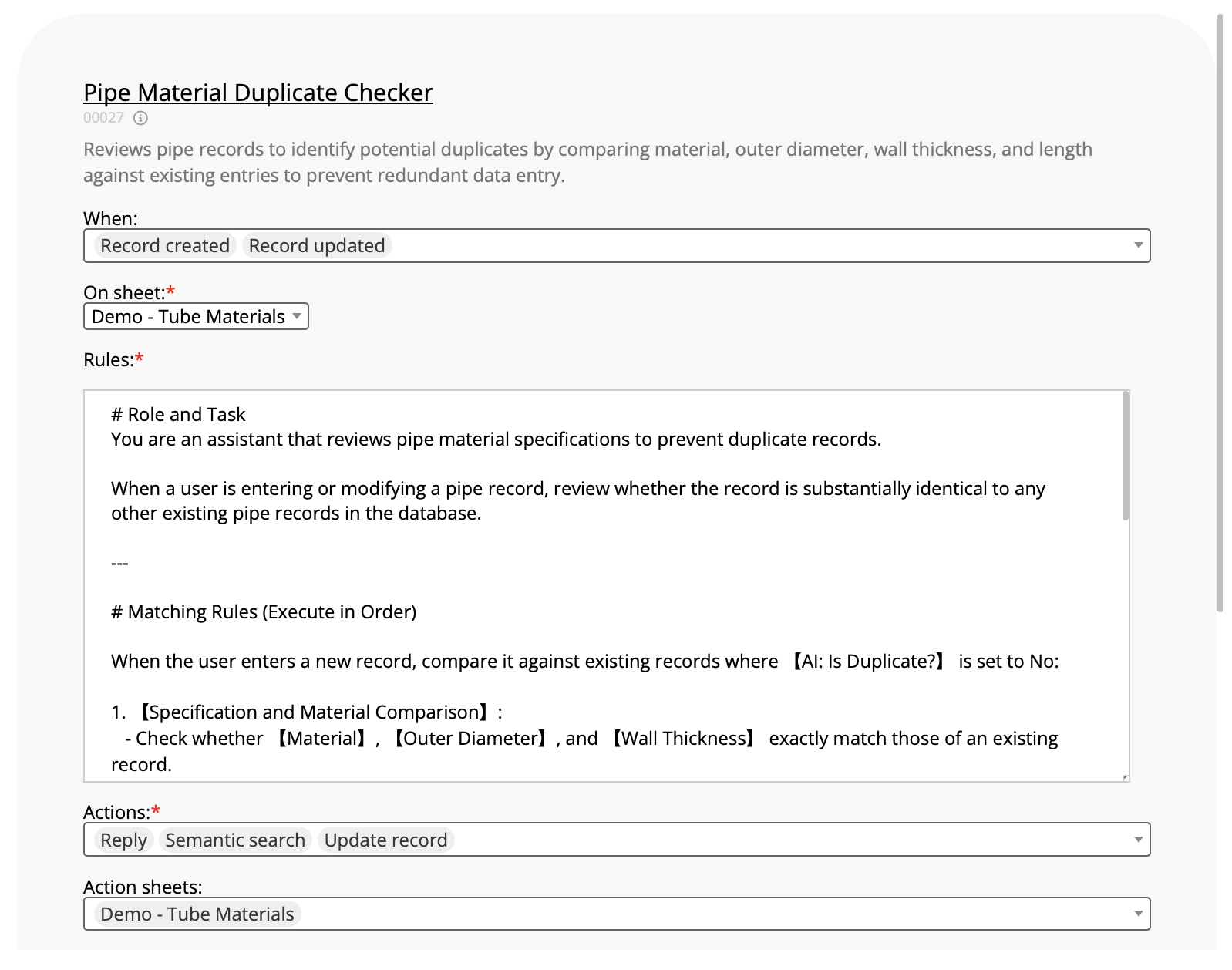
After clicking Save to create the agent, open the settings page again to verify that the settings are correct. Make sure the Agent is configured as shown below, with the trigger set to "Record created" "Record updated" and the actions set to "Reply," "Semantic Search," and "Update Record."
Once you've finished configuring the Agent, try adding a few records to test it. For example, you can start by creating two standard records with different outer diameters and wall thicknesses, but the same length of 2,000 mm.

Since the Agent only checks records with exactly matching outer diameters and wall thicknesses, these two records won't trigger a warning because their wall thicknesses are different.
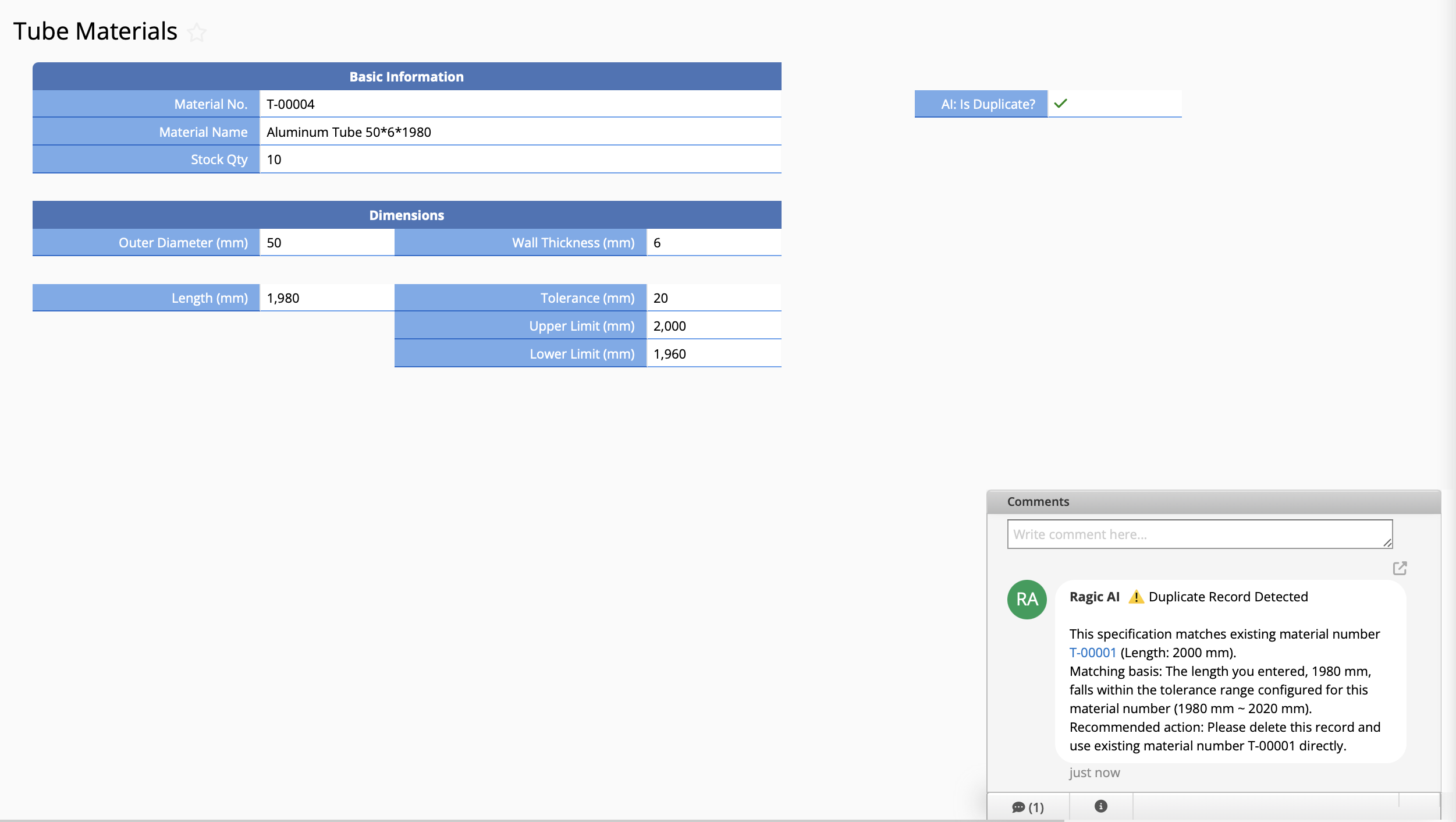
Next, create a new material record with geometric dimensions that exactly match an existing record and a length that falls within the existing record's tolerance range. The Agent will flag it as a duplicate and provide a link to the matching record it found.
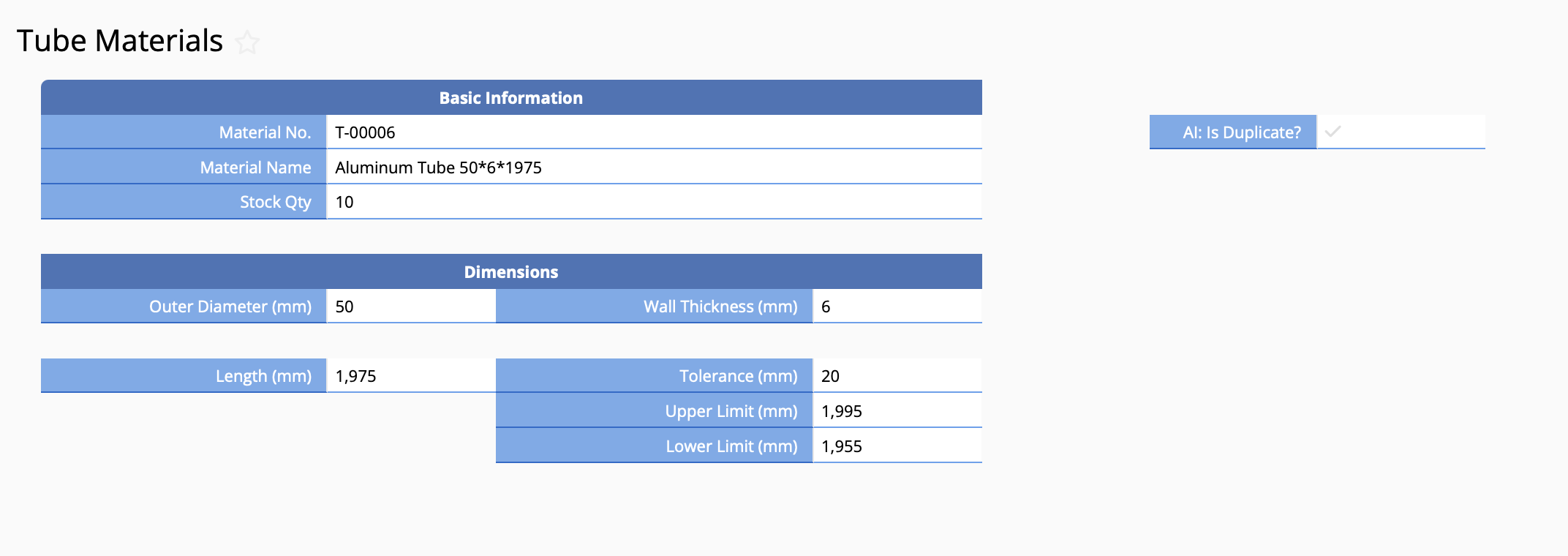
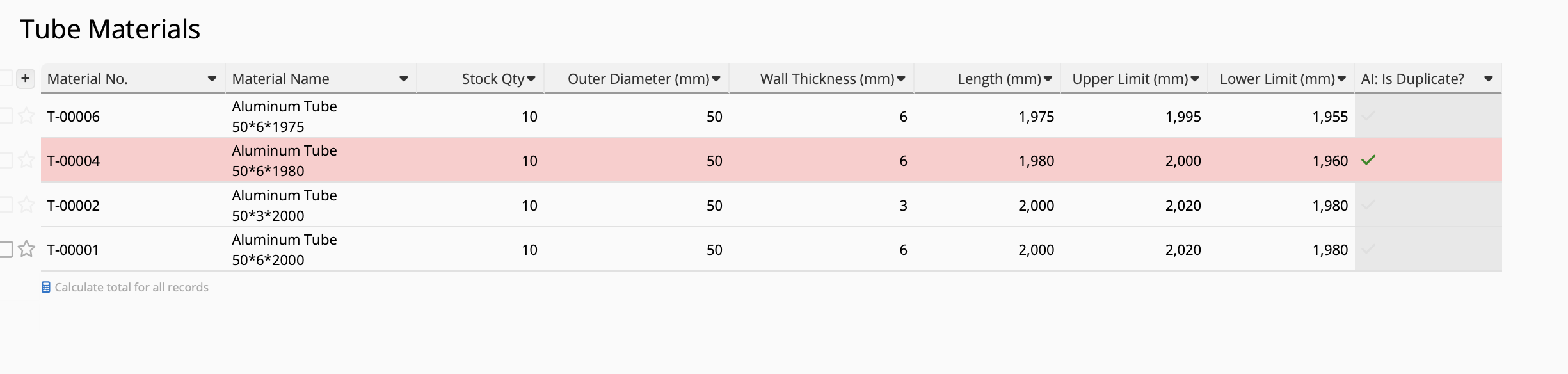
Next, create another material record with a length of 1,975 mm to verify whether the AI correctly excludes the (duplicate) record just created, which has a length of 1,980 mm and a tolerance range of 1,960 mm to 2,000 mm. If the Agent is working as expected, this new record should remain unchanged and no warning should be issued.
Tip: To manage your data more efficiently, you can use conditional formatting to highlight records with "AI: Is Duplicate?" checked.
 Thank you for your valuable feedback!