 Design guide
You can set Access Rights for user groups to determine what users in each group can do on each sheet, such as viewing, creating, or editing records.
The table below compares each access right:
| Setting | View | Create | Modify | Description | Level |
|---|---|---|---|---|---|
| No Rights | Nothing | No | No | Unable to view this sheet. | |
| Survey User | Records they created or that are assigned to them | Yes | Records they created or that are assigned to them | Can create, view, and edit their own records but cannot see others' records (except assigned records). | ** |
| Viewer | All records | No | No | Can view all records but cannot edit or create records. | *** |
| Bulletin User | All records | Yes | Records they created or that are assigned to them | Can create and edit their own records and view all records, but cannot edit others' records (except assigned records). | **** |
| Admin | All records | Yes | All records | Can create, edit, and view all records in the sheet. | ***** |
Note:
1. You can assign specific users as Entry Managers.
2. You can create multiple versions of the same sheet and assign different rights to each version.
| Permission Type | Description | Capabilities |
|---|---|---|
| SYSAdmin | The SYSAdmin is the highest-level administrator in the database. By default, the account registrant is the SYSAdmin, and you can also assign other users as SYSAdmins. For more details, please refer to this section. | 1. Add and modify all sheet designs.
2. View and modify all records. 3. Configure and access all features. |
| Group Administrator | Can manage specific groups and sheets. See this section for more details. | 1. Create, update, and suspend users in their group.
2. Have SYSAdmin-level access rights to sheets under their tabs, including adding and modifying sheet designs. |
Click the hamburger menu in the upper-left corner, and select Access Rights under User Access.

You can configure access rights for each user group on this page, and search for tabs or sheet names above.

If a user is in multiple groups, the group with the highest access rights applies.
Exceptional case: If an Internal User belongs to multiple groups with different access rights, such as being in one group with Survey User access (only able to create and edit their own records) and another group with Viewer access (unable to create records but can view all), the system will automatically grant the user Bulletin User access (able to create and view all records, and only edit their own).
If a user still cannot see the data after you grant them the privilege, ask them to log out and log in again to update the access rights.
The access rights settings for sheets will also be reflected in Reports Access Rights.
If you have many groups, click Customize displayed groups to choose which group columns to display in the global access rights panel.
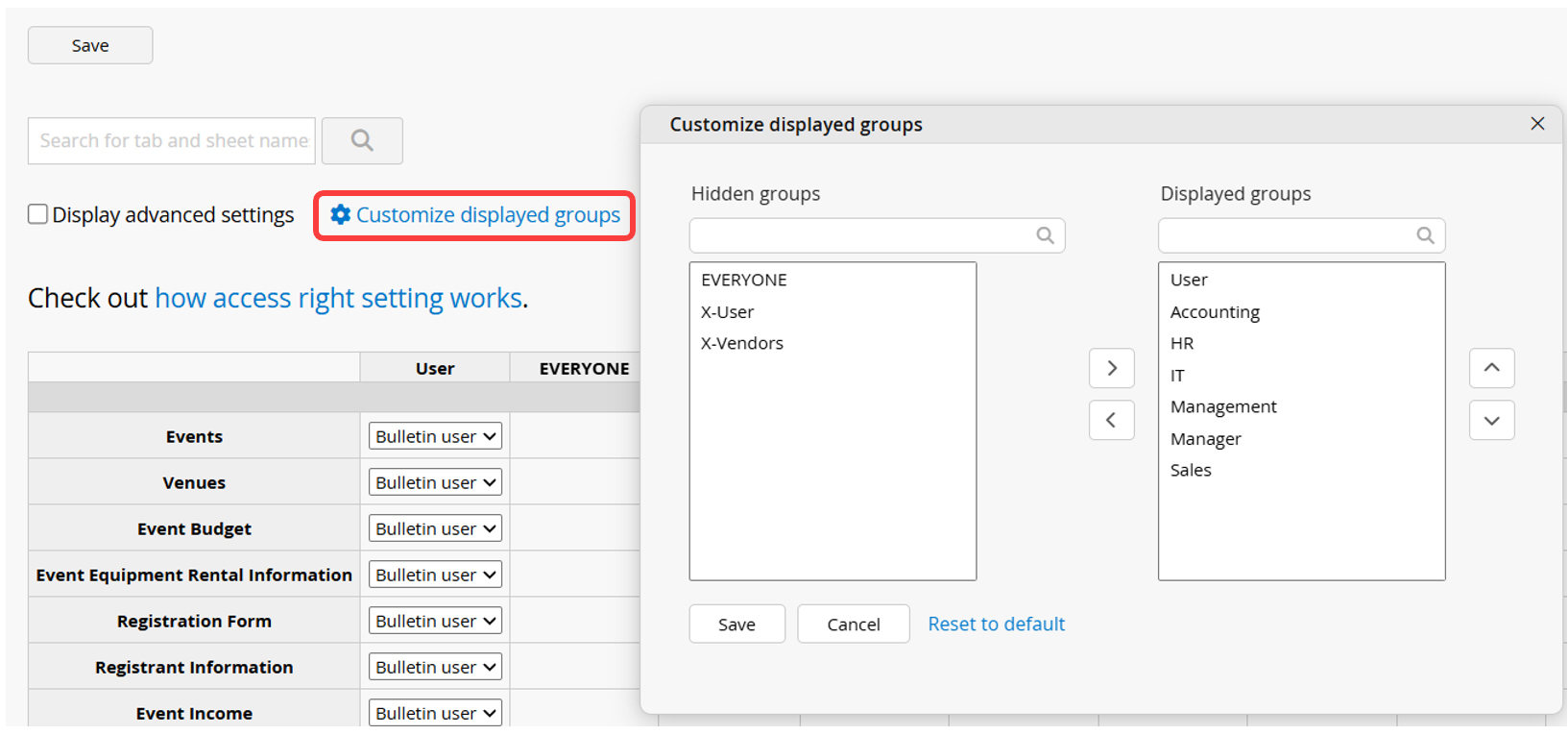
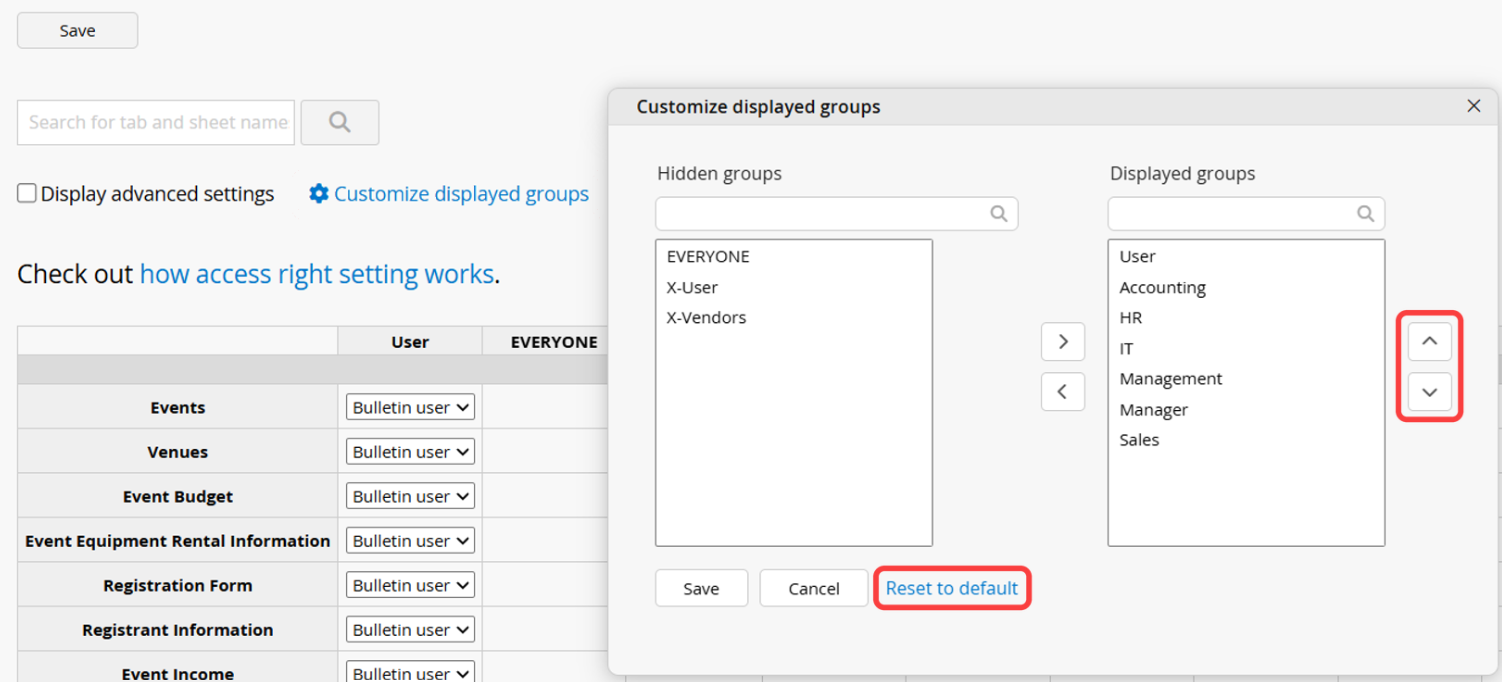
After selecting the groups to display, you can use the arrows on the right to change their display order. Click Save when you're done. Click Reset to default to restore the original display settings.
To change the access rights of a sheet, go to Design Mode. You will find the Access Rights tab under Form Settings.

All the user groups will be listed here, including an Everyone group, representing all users, including those who haven't logged in or who are not users in your account.
You can set access rights for each user group listed here for this sheet. Remember to click Save after making changes. Access rights apply to all pages of a sheet, so there's no need to set them separately for the Listing Page and Form Page.

Below the access rights setting for the individual sheet, you can find Set Individual User Access Right.

Click it to select users from the drop-down menu and set access rights for them.

You can click Set Individual User Access Right again to add a new set of users. However, the same user cannot be repeatedly selected and assigned different access rights.
By default, Bulletin Users and Survey Users can create and edit their own records. However, you may want users to perform only one of these actions. For example, you may want to assign a record to a specific Survey User without letting them create records, or let a Bulletin User create records without editing them. In such cases, you can set No create or No edit for Bulletin Users or Survey Users.
You can configure them in the global access rights panel after checking Display advanced settings.

You can also adjust the settings for individual sheets in Design Mode.

You can configure access rights for each field in Access Rights under Field Settings.

There are three levels of access rights:
| Access rights level | Description |
|---|---|
| Not Configured | No additional restrictions; follows the sheet access rights. |
| No Rights | The field will be hidden. |
| Viewer | The field will be read-only. |
This setting only applies to user groups that already have sheet access rights.
Note:
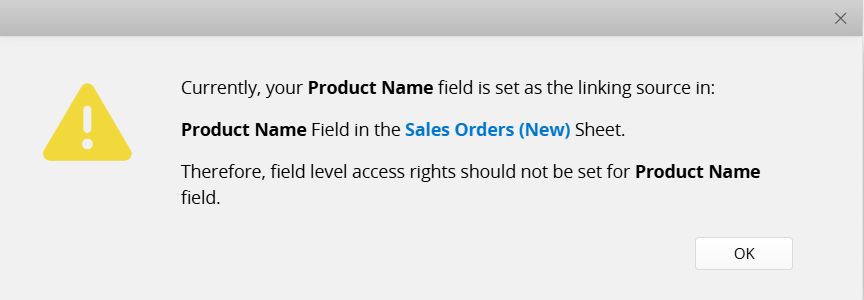
1. Fields with Field Level Access Rights cannot be used as linked fields for Select from Other Sheet, linked fields for New Sheet from Subtable, or Title Field or Selection Title Field.
2. If you select a Linked Field, a message will appear indicating that Field Level Access Rights cannot be applied to it.
Scenario 1: The "Sales" group has Admin access rights in the "Product Information" sheet, and the field level access rights for the "Cost" field are set to either No Rights or Viewer. This means that users in the "Sales" group can view and edit all records in the sheet, but the "Cost" field in all records will be either hidden or read-only based on the specified configuration.
Scenario 2: The "Sales" group has No Rights in the "Employee Management" sheet, and the field level access rights for the "E-mail" field are set to Viewer. This configuration is invalid, as users in the "Sales" group cannot access the sheet. Even if field access rights are configured, they will have no effect.
Scenario 3: When you grant sheet access rights to the "Everyone" group, all users are considered part of the "Everyone" group. In this case, if you want to further control access to specific fields, you need to adjust the field-level access rights for those fields for the "Everyone" group. Otherwise, all users will have access to the records without any restrictions on specific fields. Therefore, if you want to open the sheet to users who are not logged in (including Survey User) but need to restrict specific internal groups from accessing certain fields, it cannot be solely achieved through Field Level Access Rights. You may consider using Multiple Versions, with one version accessible to users who are not logged in, and another version accessible to the internal group, where Field Level Access Rights are set specifically for that group.
Scenario 4: Both the "Purchasing" group and the "User" group have Survey User access to the "Purchase Request" sheet, while the "Vendor" field is set to Not Configured for the "Purchasing" group. This allows members of the "Purchasing" group to view and edit the requests they create and to modify the "Vendor" field to select an appropriate supplier. In contrast, the "Vendor" field is set to Viewer for the "User" group, meaning members can create and edit their own purchase requests; however, the "Vendor" field will appear as read-only and cannot be modified. If a user belongs to both groups, their sheet access remains Survey User (able to view and edit records they created or that are assigned to them), and their access to the "Vendor" field follows the Not Configured setting.
| Feature | Description |
|---|---|
| Email and Message Notification | Based on the lowest access rights, fields set to No Rights or Viewer will not be displayed in emails. Including: Adding or editing records, Approval, emailing this entry, sending mass emails, User invitations, Shared view notifications, Entry reviews, Guest user email validation, Reminder, Sending custom emails, and Send Instant Message. |
| Entry Information | The edit history of fields with No Rights will be hidden in Entry Information according to the configuration. |
| Export (Excel, CSV, PDF, Printer Friendly) | The fields will be hidden according to the configuration. |
| Form Page and Listing Page (including app) | The fields will be hidden or read-only according to the configuration. |
| Conditional Formatting | Field access rights take precedence over conditional formatting: Fields with No Rights setting will not be displayed by conditional formatting. |
| Reports | Fields with No Rights setting cannot be selected for analysis. |
| Full Text Search | Values from fields with the No Rights setting cannot be searched. |
For more detailed information about Access Rights, you can refer to the following tutorial video.
 Thank you for your valuable feedback!