 Design guide
Dynamic Filters can be set for fields that already have Link and Load configured or are Select From Other Sheet fields. They let you filter the options from another sheet based on the value of a specific field in this sheet.
For example, if a sheet has a "Membership Level" field with "VIP" and "Regular" options, selecting "VIP" will filter members loaded via Link and Load to show only those with a "VIP" level. Similarly, selecting "Regular" will show only members with a "Regular" level. This feature allows you to load only the options you need.
To create a Dynamic Filter, navigate to your Form Page's Design Mode, and from Form Tools, click on the gear icon next to the related sheet name under Link and Load.

Select the field value from another linked sheet and the field value in this sheet, then set rules. When you load data from the other sheet, only the data that matches the rules will be displayed. Click the + button to add rules. You can also click the pencil icon on the right to enter custom criteria.
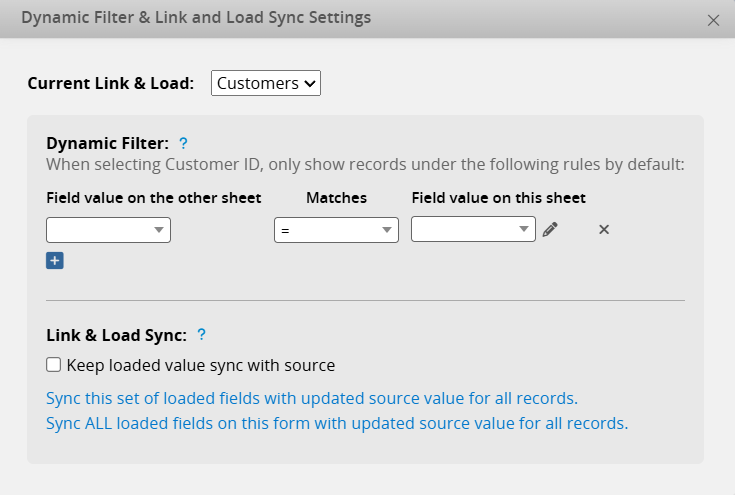
If you offer different services based on customers' VIP Club membership, you can set the "Service Request" sheet to show only customers whose "VIP Club Membership" matches the selected "Service Type".
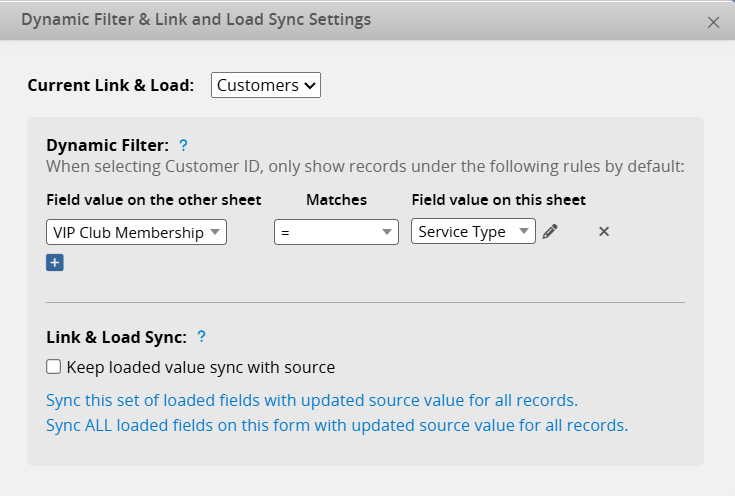
After selecting a "Service Type", only customers belonging to the associated "VIP Club" are displayed.

Note: Dynamic Filtering pre-filters data based on the criteria. Users can manually clear the filtering conditions and select data that does not meet the rules.

Dynamic Filtering can also be applied to fields linked as Subtables.
The "Sales Order" sheet has a Subtable linked to the "Product" sheet. With Dynamic Filtering, only products currently on promotion are displayed. The promotion period is set in the "Product" sheet, and the rule checks whether the Create Date falls between the promo start and end dates.
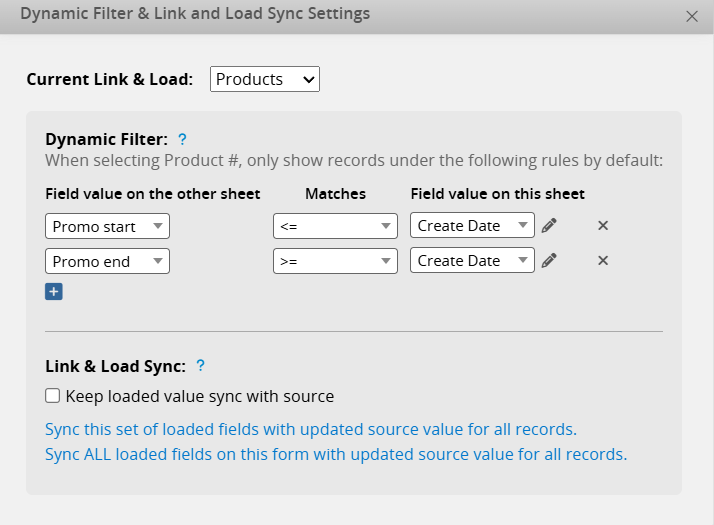
When you select a product, only items within the promotion period are listed.

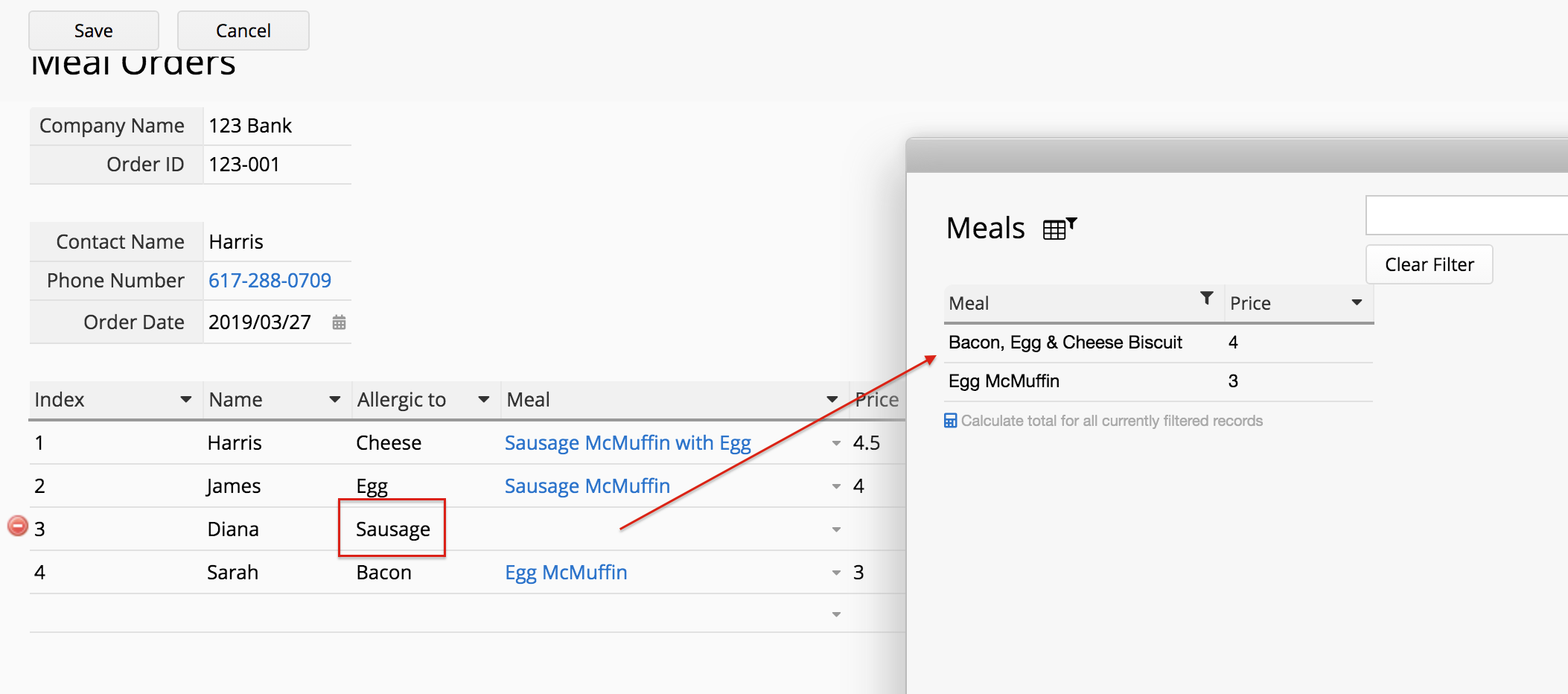
The "Meal Order" sheet includes a Subtable linked to the "Menu" sheet. By applying the "does not contain" condition, the system will only display meal choices that the person ordering is not allergic to.
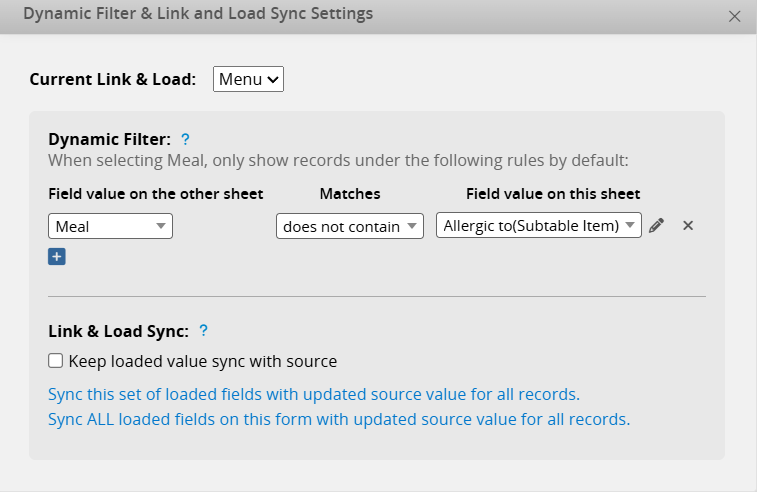
After entering allergens in the "Allergic to" field of the Subtable, meals whose names in the "Menu" sheet contain the allergen will be filtered out.
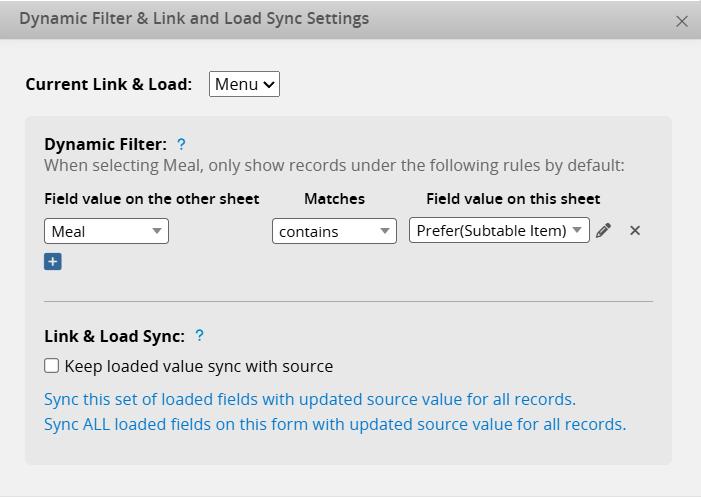
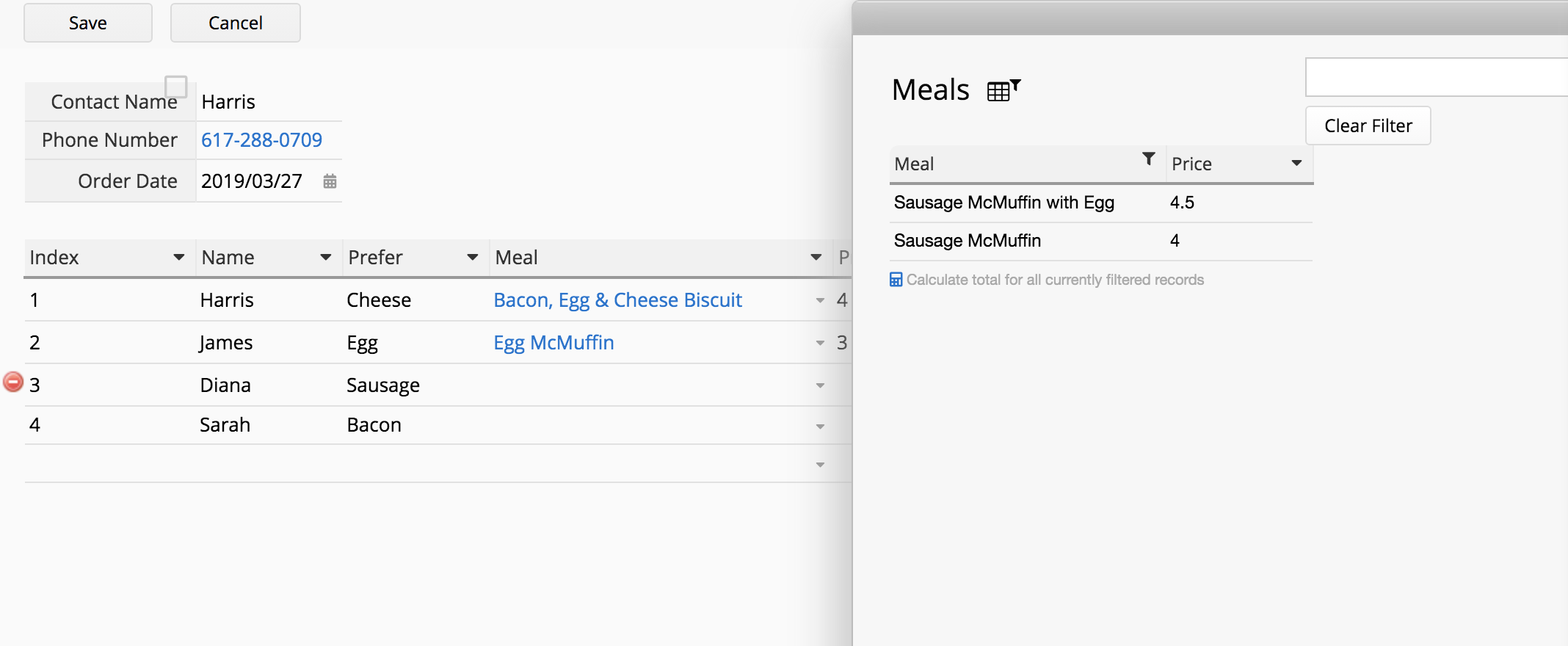
You can also apply the "contains" condition to filter records that contain specific values. For example, after entering preferred ingredients in the "Prefer" field of the Subtable, only meals whose names contain that ingredient will be displayed.
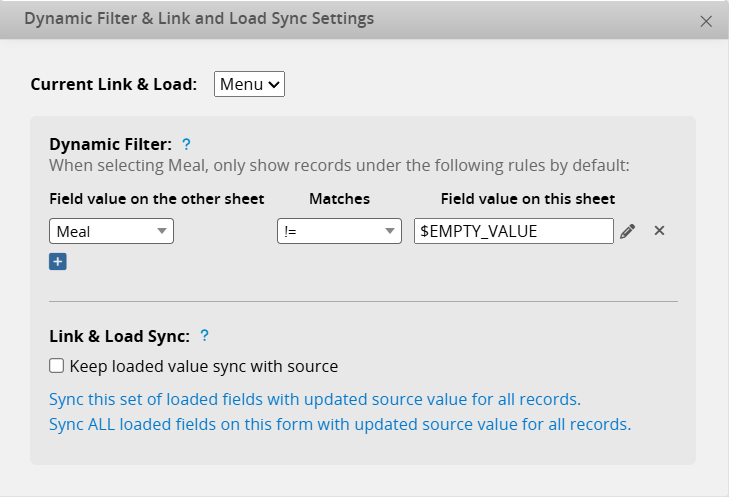
The source sheet may contain records with empty values. To filter them out, you can use the parameter $EMPTY_VALUE.
To prevent users from removing dynamic filter conditions via Clear Filter and Sort, enable Don't allow dynamic filter removal.

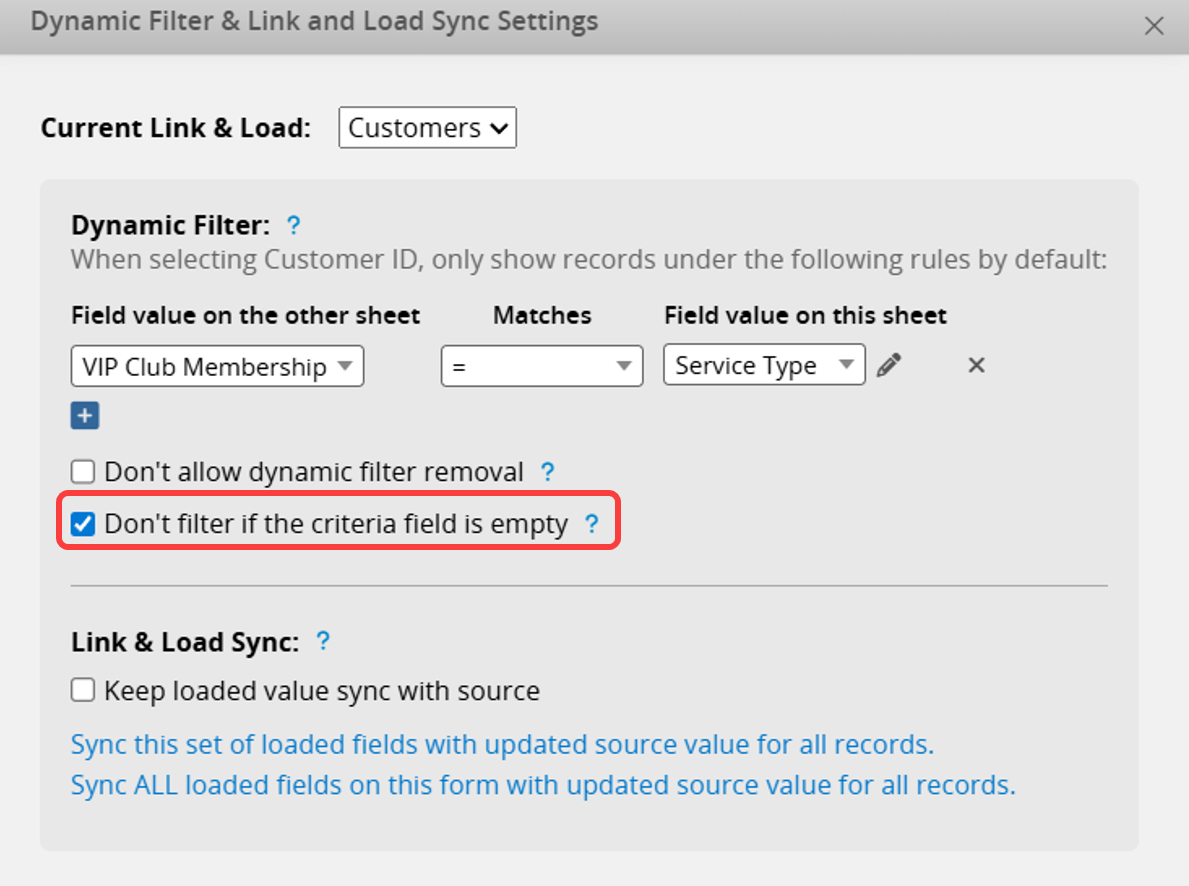
When the criteria field is empty, the dynamic filter will not be applied and all options will be displayed. To treat empty values as a filter condition, please uncheck this setting.
Note: This setting doesn't apply to the != or does not contain conditions. The filter is still applied even when the value is empty.
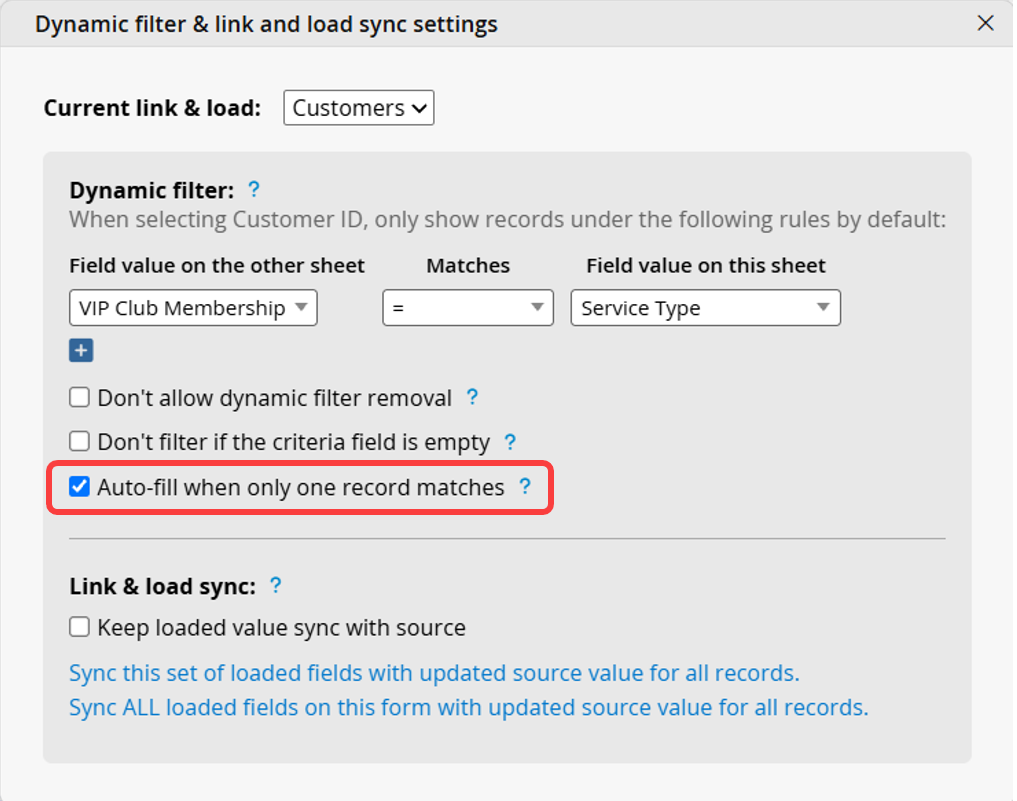
When enabled, changing a criteria field's value (including values set by default values or formulas) automatically fills this field if the dynamic filter finds only one matching record.
Note: Existing values won't be overwritten.
You can use the following variables when setting dynamic filter conditions:
| Type | Variable | Description |
|---|---|---|
| Empty value | $EMPTY_VALUE | Filters out records with empty values in the source sheet. |
| Current user | $USERID | E-mail of the current user |
| Current user | $USERNAME | Name of the current user |
| Date and time | $DATE | Today's date |
| Date and time | $DATE±N | Today's date plus or minus N days, e.g., $DATE+7, $DATE-30 |
| Date and time | $DATETIME | Current date and time |
| Date and time | $TIME | Current time |
| Date and time | $YEAR | Current year (as a number) |
| Date and time | $MONTH | Current month (as a number) |
| Date and time | $WEEKDAY | Current day of the week (as a number) |
Note: Date and time variables use the time of the current action, not the record's creation time. This is different from the variables used in Default Values.
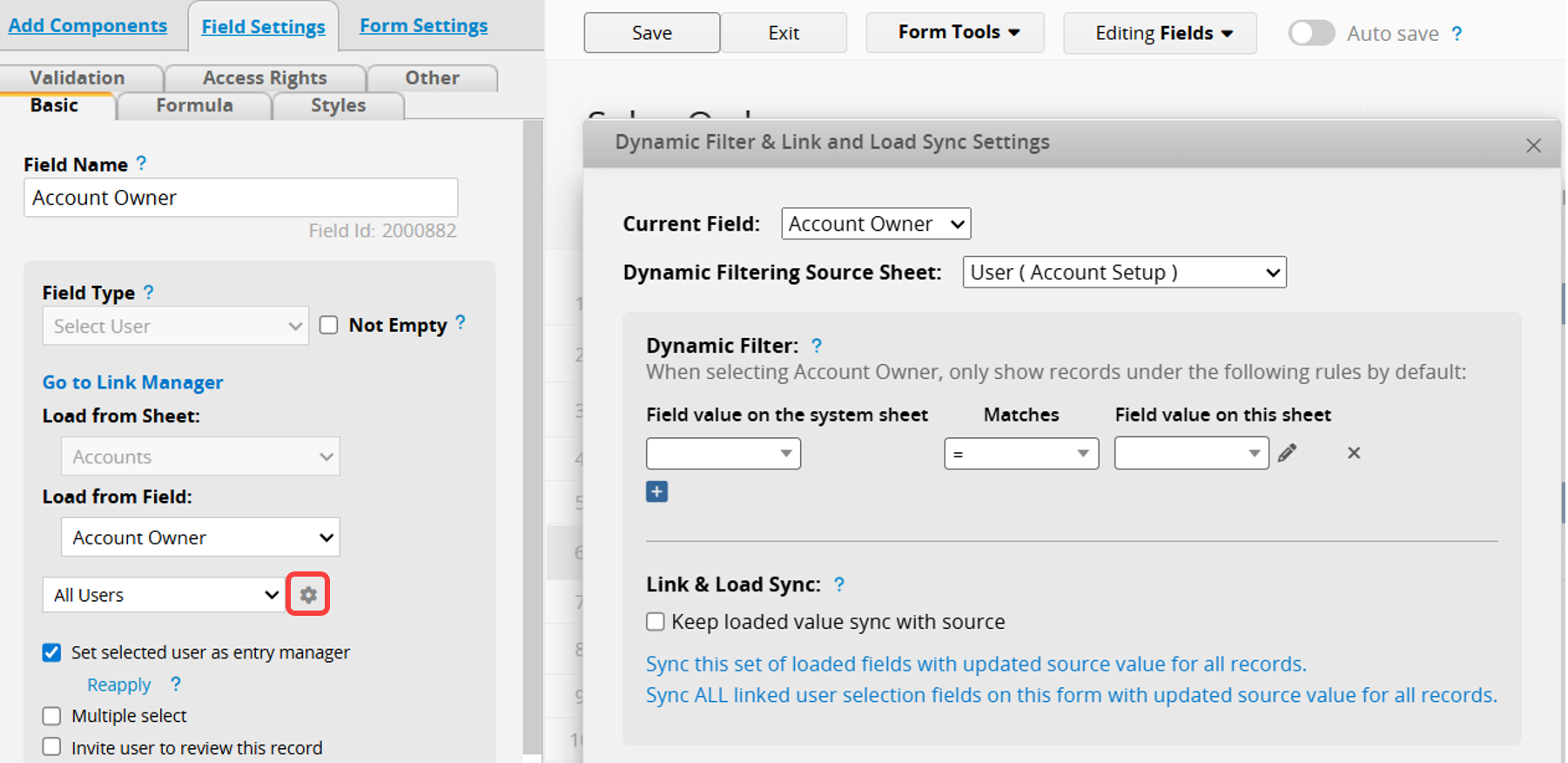
Dynamic Filtering can be applied to the Select User field linked to the system's User Sheet. You can click the gear icon next to the field's settings to open the settings window. Additionally, you can use current user variables such as $USERID and $USERNAME to filter.
You can apply Dynamic Filtering to the Select Group field in the same way.
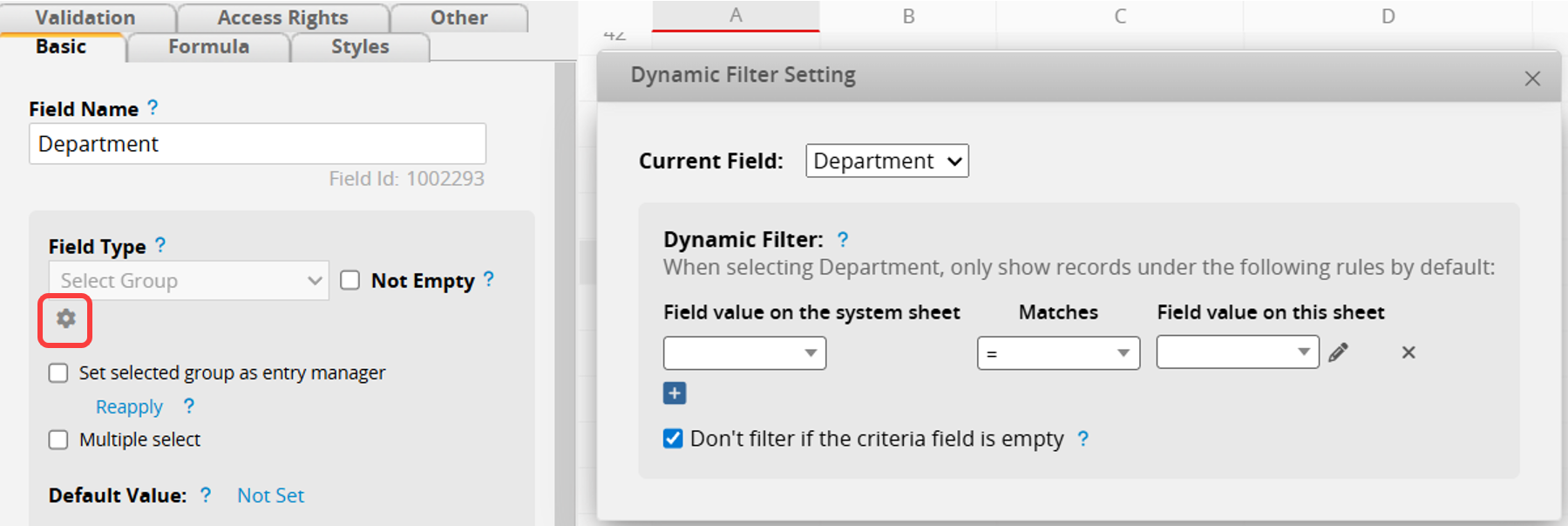
The process is the same as setting Dynamic Filters on Linked Fields.
 Thank you for your valuable feedback!