 Design guide
Design guide
Design guide
Click the hamburger icon on the upper-left of the page, and select Feature Access Settings under User Access.
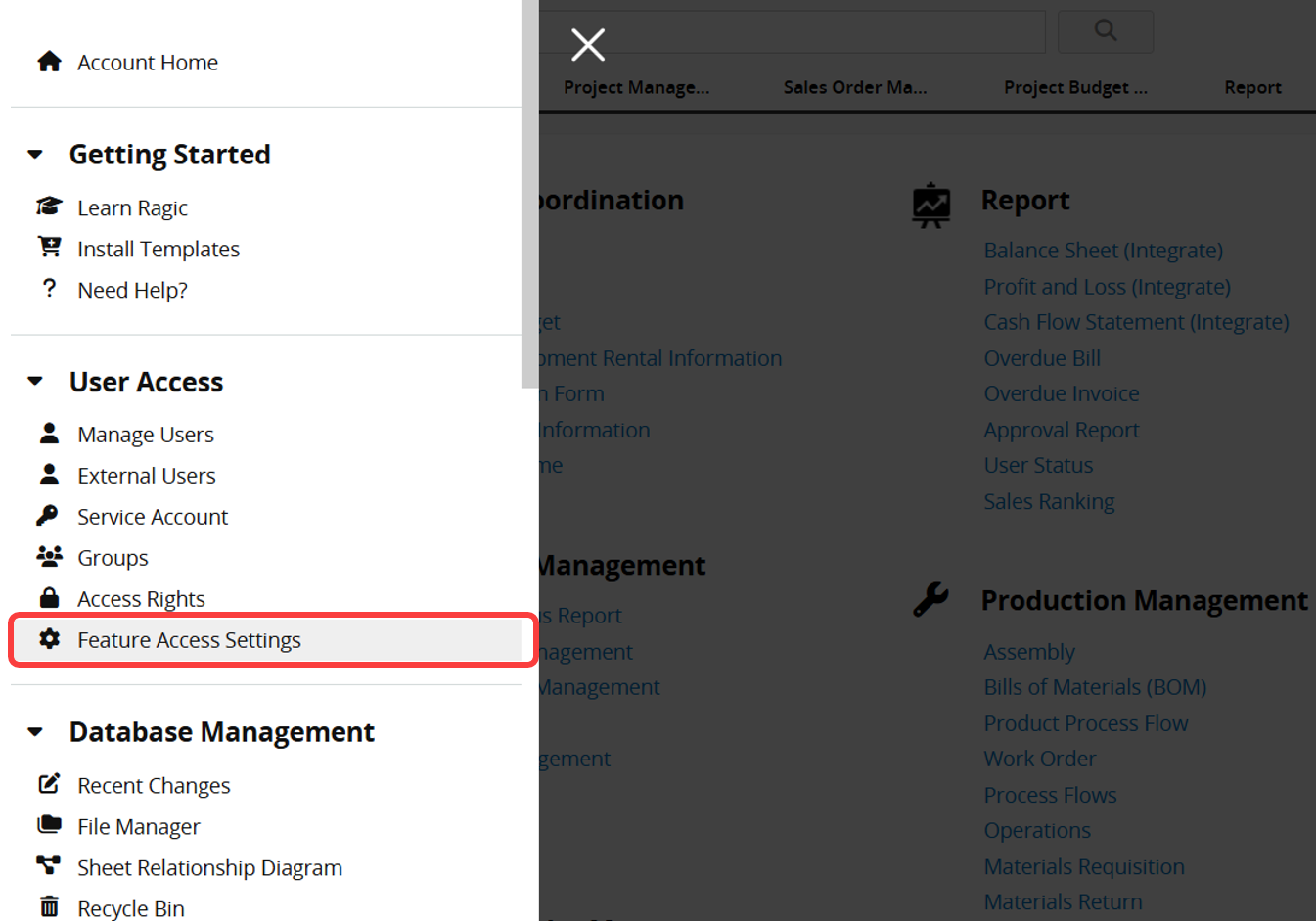
You can configure the features accessible to each user group in the Feature Access Settings.
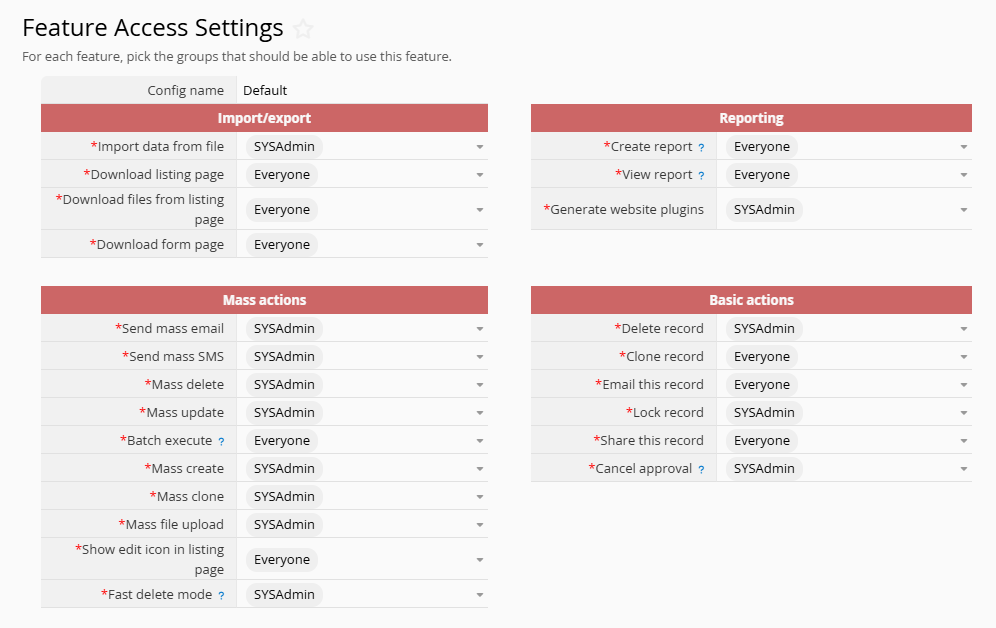
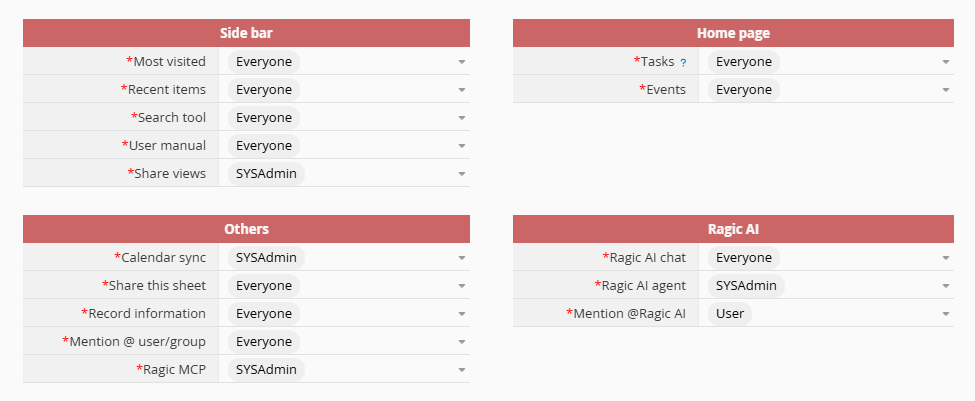
Below are the features listed in the Feature Access Settings menu:
Note: The "Edit Multiple Entries" in Listing Page tools is not supported in Feature Settings. Currently, only SYSAdmin or Survey Users (who will only be able to edit entries they have access to) can use this feature.
| Feature Access Setting | Description | Default Setting |
|---|---|---|
| Import/Export | ||
| Import Data From File | Whether the user can import data from CSV or XLS files, including updating records by importing. | SYSAdmin |
| Download Listing Page | Whether the user can export data from the Listing Page, including Exporting Data and Mail Merge. | Everyone |
| Download Files From Listing Page | Whether the user can download files from the file upload field, including Mass File Download. | Everyone |
| Download Form Page | Whether the user can download single entries from the Form Page, including Exporting Data and Mail Merge. | Everyone |
| Mass Actions | ||
| Mass Email | Whether the user can Send Mass Email. | SYSAdmin |
| Mass SMS | Whether the user can Send Mass SMS. | SYSAdmin |
| Mass Delete | Whether the user can delete multiple entries on the Listing Page. Users need to have the Admin or Survey User access right, meaning this feature can only be used if you have manager rights to all the records you can access. | SYSAdmin |
| Mass Update Records | Whether the user can execute Mass Update. Users need Admin or Survey User access rights and no No Edit restriction, meaning this feature can only be used if you have manager rights to all the records you can access. | SYSAdmin |
| Batch Execute | Whether the user can execute Batch Execute. Users need Admin or Survey User access rights and no No Edit restriction, meaning this feature can only be used if you have manager rights to all the records you can access. To perform Batch Lock/Unlock Records, you also need access to the Lock Record feature. | Everyone |
| Mass Create | Whether the user can execute Mass Create. | SYSAdmin |
| Mass Clone | Whether the user can execute Mass Clone. | SYSAdmin |
| Mass File Upload | Whether the user can upload multiple files into existing records in a sheet. | SYSAdmin |
| Show Edit Icon in Listing Page | Whether the Listing Page shows the edit icon  to enter Edit Multiple Entries mode. to enter Edit Multiple Entries mode. |
Everyone |
| Fast Delete Function | Whether the user can use Fast Delete Mode when deleting entries. Users can only use fast delete when it's allowed in Company Settings. | SYSAdmin |
| Side Bar | ||
| Most Visited | Whether the left side panel shows Most Visited (frequently visited sheets). | Everyone |
| Recent Items | Whether the left side panel shows Recent Items. | Everyone |
| Views | Whether the left side panel shows the search tool. | Everyone |
| User Manual | Whether the home page shows the User Manual, for non-SYSAdmin users. | Everyone |
| Share Views | Whether non-SYSAdmin users can create Share Views. | SYSAdmin |
| Others | ||
| Calendar Sync | Whether non-SYSAdmin users can execute Calendar Sync. | SYSAdmin |
| Share this sheet | Whether the user can use the Share This Sheet feature. | Everyone |
| Entry information | Whether the user can see entry information in the bottom-right corner. | Everyone |
| Mention @ User/Group | Whether the user can use @Mention. | User |
| MCP API | Whether the user can read sheets and fields with permission via MCP. | SYSAdmin |
| Reporting | ||
| Create Report | Whether the user can generate reports for sheets they have access to. By default, this is enabled for all internal users, cannot be granted to external user groups, and only SYSAdmin can save reports. | Everyone |
| View Report | Whether the user can view saved reports for sheets they have access to. By default, this is enabled for all internal and external users. Note: If both Create Report and View Report permissions are not granted simultaneously, users will be unable to see the "Reports" tab, resulting in system reports (e.g., approval reports) also being inaccessible. | Everyone |
| Generate Website Plugins | Whether the user can generate a website plugin through the web embed tool. | SYSAdmin |
| Basic Actions | ||
| Delete Record | Whether the user can delete an entry. When granted to groups other than SYSAdmin, users must have manager rights for the entry (consequently, Bulletin Users cannot delete entries they can view but not edit). | SYSAdmin |
| Clone Record | Whether the user can clone an entry. | Everyone |
| Email Record | Whether the user can Email This Entry. | Everyone |
| Lock Record | Whether the user can use Lock Record to prevent an entry from being edited until unlocked. | SYSAdmin |
| Share this entry | Whether the user can Share This Entry, generating a link that guest users (non-login users) can use to view or modify it. | Everyone |
| Cancel Approval | Whether the selected group of users can cancel any ongoing or completed approval process (by default, only SYSAdmin and the Group Administrator (who manages the group tab associated with the sheet) can cancel any approval process; the approval starter can only cancel ongoing approval processes). | SYSAdmin |
| Home Page | ||
| Tasks | Whether the home page shows Tasks, for non-SYSAdmin users. Restricting this feature will also affect the use of the Tasks function on the top right corner and its display on the home page. | Everyone |
| Events | Whether the home page shows Events on the right side, for non-SYSAdmin users. | Everyone |
| Ragic AI | ||
| Ragic AI chat | Whether the user can access Ragic AI. | Everyone |
| Ragic AI Agent | Whether the user can use the AI Agent feature. | SYSAdmin |
| Mention @Ragic AI | Whether the user can use @Mention Ragic AI. | User |
1. Import/Export: Download Listing Page, Download Form Page
2. Basic Actions: Clone Record, Share this entry (including sharing this entry with WhatsApp)
3. Side Bar
4. Home Page
5. Reporting: View Report, Generate Website Plugins
6. Others: Calendar Sync, Share this sheet, Entry Information, Ragic AI
SYSAdmins and Group Administrators (under group tabs) are the highest privileged users, they are not limited by feature access settings and sheet access rights. They can change the design, access all records, and use all the features.
If you have a professional plan subscription or higher, you can customize access rights for specific features across user groups. Additionally, with sheet access rights, you can determine which features each user can ultimately use on each sheet. The following two examples illustrate how this combination works.
Amy belongs to both the "Sales" and "HR" user groups. The "Sales" group has feature access to export data, while the "HR" group does not.
1. On the "Sales Order" sheet, the "Sales" group has Admin access rights, so Amy can export data on this sheet.
2. On the "Leave of Absence" sheet, the "Sales" group has No Rights, and the "HR" group has Admin access rights. Amy can view, add, and edit all entries on this sheet, but still cannot export data, since the "HR" group is not granted this feature access.
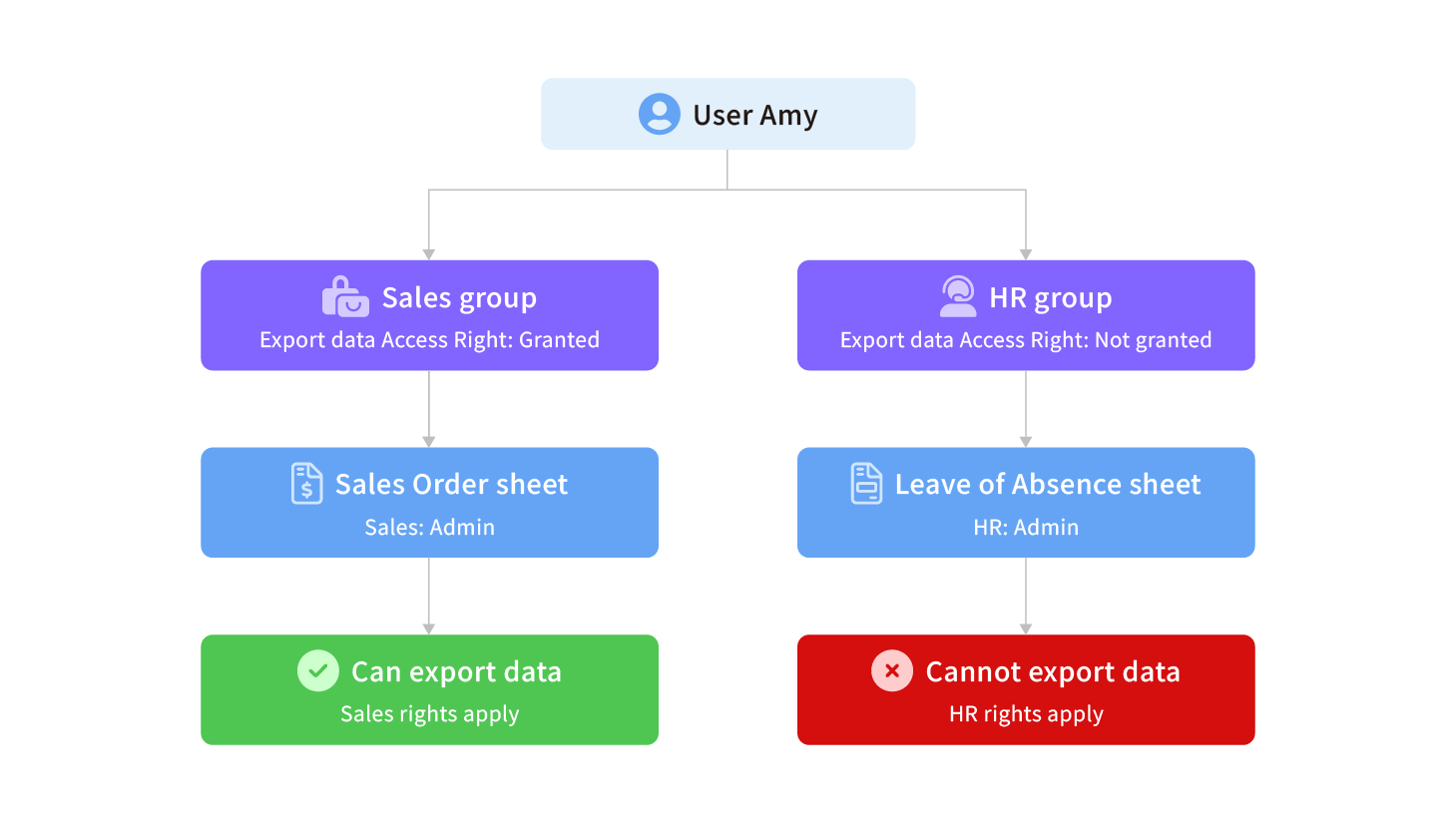
Conclusion: Whether a user can use a feature on a given sheet depends on the user group through which they access that sheet. If you want a feature to be available to certain users only on certain sheets, you can create a new user group and grant it both the feature access and the sheet access rights.
Amy belongs to the "Sales" user group. The "Sales" group is not granted feature access to Download Form Page, but the "EVERYONE" group is.
1. On the "Sales Order" sheet, the "EVERYONE" group has no access rights to the sheet itself, but the "Sales" group has Survey User access, which gives Amy access to this sheet.
2. As long as Amy has access to the sheet, the "EVERYONE" group's feature access still applies, so Amy can use Download Form Page on this sheet.
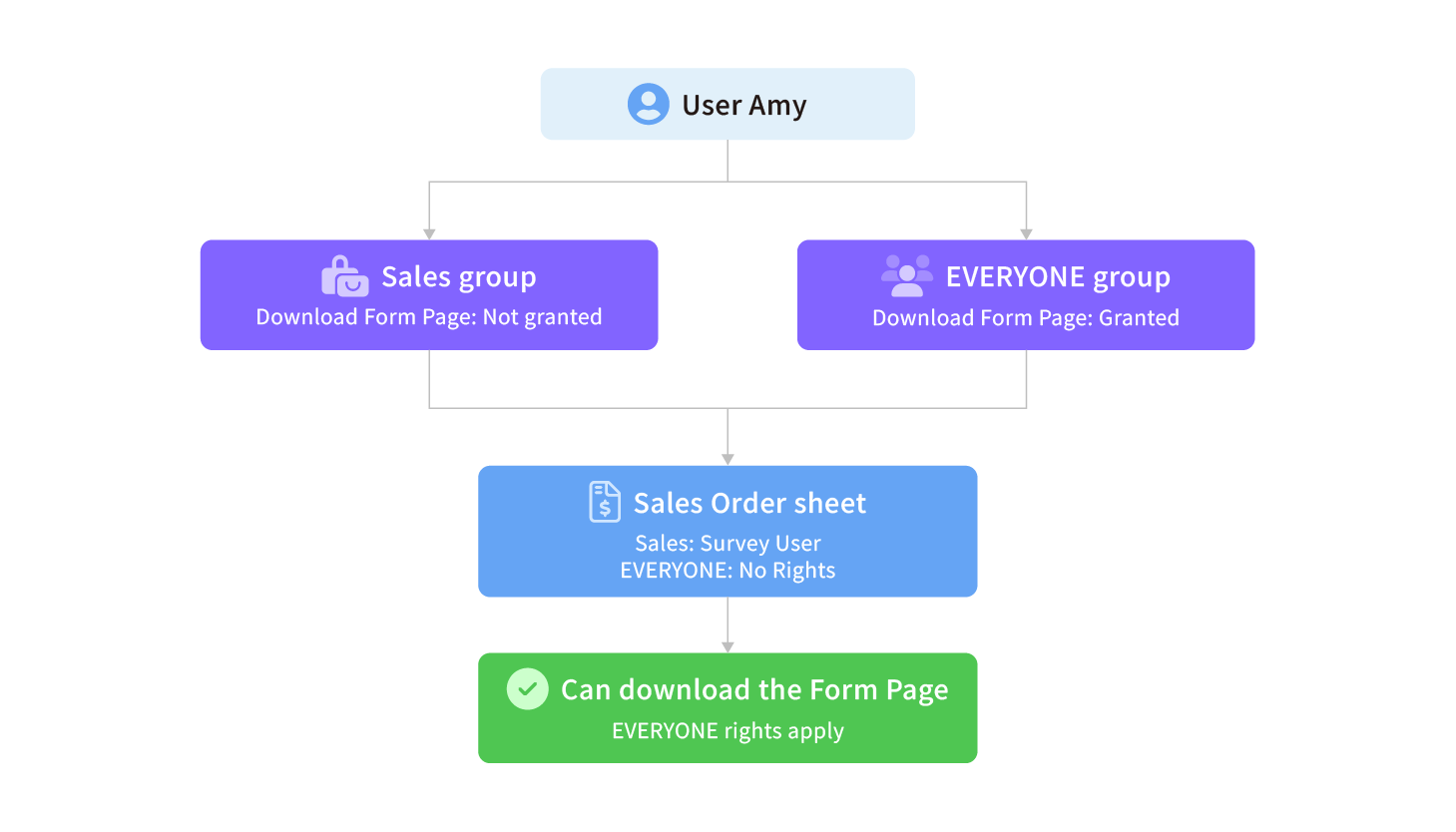
Conclusion: When a feature is granted to the "EVERYONE" group, it applies as long as the user has access to the sheet through any user group, regardless of whether "EVERYONE" itself has access to that sheet. If you don't need to restrict which sheets a feature is available on, just grant the feature access to the "EVERYONE" group instead of creating a separate group.
 Thank you for your valuable feedback!