 Design guide
Design guide
Design guide
You can modify field value formatting or select from available options based on the Field Type.
These settings automatically format input values, enabling quick inputs on entries in Ragic.
You can set the formatting of certain Field Types in the Design Mode of your sheet, under Field Settings > Basic.
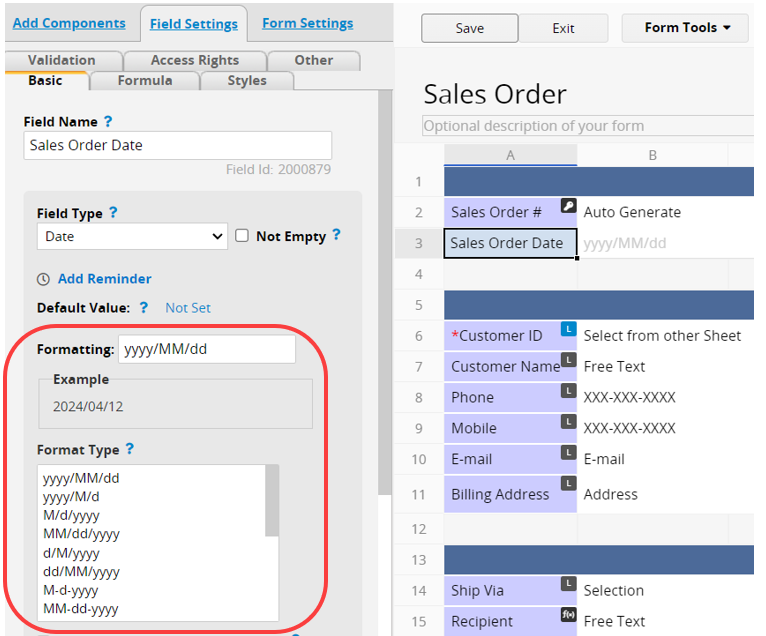
See some of the examples of what you can do with custom field formatting below.
| Field Type | Formatting Applied | Input | Formatted Value | Notes |
|---|---|---|---|---|
| Date | yyyy/MM/dd | 20151022 | 2015/10/22 | Ragic will format your date value according to what you enter. |
| Date | dd-MM-yyyy | 1022 | 22-10-2015 | If you do not enter the year value, Ragic will input the current year. |
| Date | yyyy/MM/dd | 22 | 2015/10/22 | If you only enter the day, Ragic will autofill with the current month and year. |
| Date | yyyy, MMMM, dd EE | 22 | 2015, October, 22 Thursday | Please check the section for custom date formats |
| Numeric | #,###.## | 3266.528 | 3,266.53 | Your input will be rounded to the nearest decimal according to the formatting. |
| Numeric | #,##0.00 | 3266 | 3,266.00 | If no value exists in a position, access displays a zero (0). |
| Auto Generate | PO-{1,date,yyyyMMdd}-{0,number,000} | PO-20150519-029 | Auto Generate fields do not require input from the user and will generate a serial number in sequence. | |
| Money | $#,###.## | 12859.2 | $12,859.2 | You can change the currency symbol in the formatting box by replacing $. |
| Phone | (XXX) XXX-XXXX | 9497692270 | (949) 769-2270 | You can enter your formatting if your country isn't listed. |
| Special Format | XXX-X-XX-XXXXXX-X | 9781451673319 | 978-1-45-167331-9 | Some options include the standard ISBN, SSN, and VIN, but you can also enter your custom format. |
After configuring the format, if it is a commonly used format for numeric, currency, or date fields, you can click Update Default Format next to it. This way, when designing and adding fields of the same type (including Numeric, Aggregate, Percentage, Money, and Date), the default format will be applied automatically.
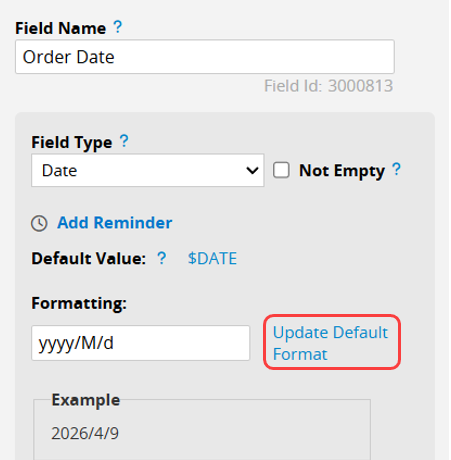
After updating the default format, it will also be synchronized with the default format settings in Company Settings. You can also configure the default format directly in Company Settings..
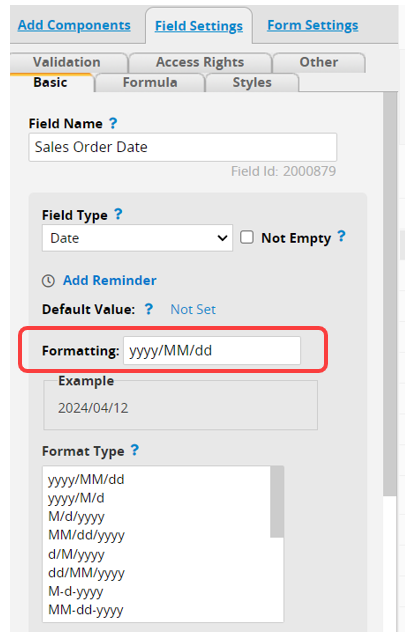
If none of the available date formats fit your requirements, you can write your formatting with the table below:
| Field | Full Form | Short Form |
|---|---|---|
| Year | yyyy (4 digits) | yy (2 digits), y (2 or 4 digits) |
| Month | MMMM (name. Ex. January),MMM (abbr. Ex. Jan), | MM (2 digits), M (1 or 2 digits) |
| Day of Month | dd (2 digits) | d (1 or 2 digits) |
| Day of Week | EEEE (Monday) | E (Mon) |
| Hour (1-12) | hh (2 digits) | h (1 or 2 digits) |
| Hour (0-23) | HH (2 digits) | H (1 or 2 digits) |
| Hour (0-11) | KK | K (1 or 2 digits) |
| Hour (1-24) | kk (2 digits) | k (1 or 2 digits) |
| Minute | mm (2 digits) | m (1 or 2 digits) |
| Second | ss (2 digits) | s (1 or 2 digits) |
| AM/PM | a |
If you would like to display the date information in the Japanese calendar format, you can create your custom date formats by using the code from the table below. For example, if you want to display the date information as “Nov 11, Reiwa 3”, you can do it by typing “MMM dd, JGGG Jyy” in the formatting.
| Code | Meaning | Display in English |
|---|---|---|
| JGGG | Japanese era name | Reiwa |
| JGG / JG | Short form of the Japanese era name | R |
| Jyy / Jy | Japanese year | 1, 3, 5 |
| EEEE | Days of the week | Tuesday |
| E / EE / EEE | Short form of the days of the week | Tue |
| a | AM/PM | AM, PM |
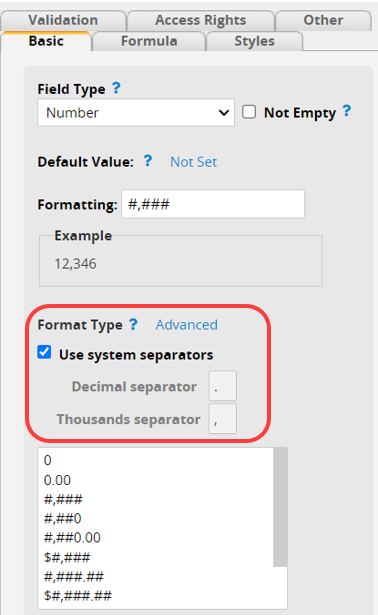
You can also adjust the numeric format for "decimal" and "thousand" separators. On the left sidebar numeric field setting, click on Advanced next to the Format Type. Then, uncheck the Use system separators checkbox and modify the separator format as shown below.
 Thank you for your valuable feedback!
