 Design guide
In case you mistakenly changed something in your sheet design, or simply prefer the previous design to the current one, you can always revert it to the previous design that was saved earlier.
Note: When restoring a specific version, Mail Merge and Custom Print Report settings will also revert to the state they were in at the time that version was saved.
In Design Mode, click the Previous Versions button in the upper right corner.
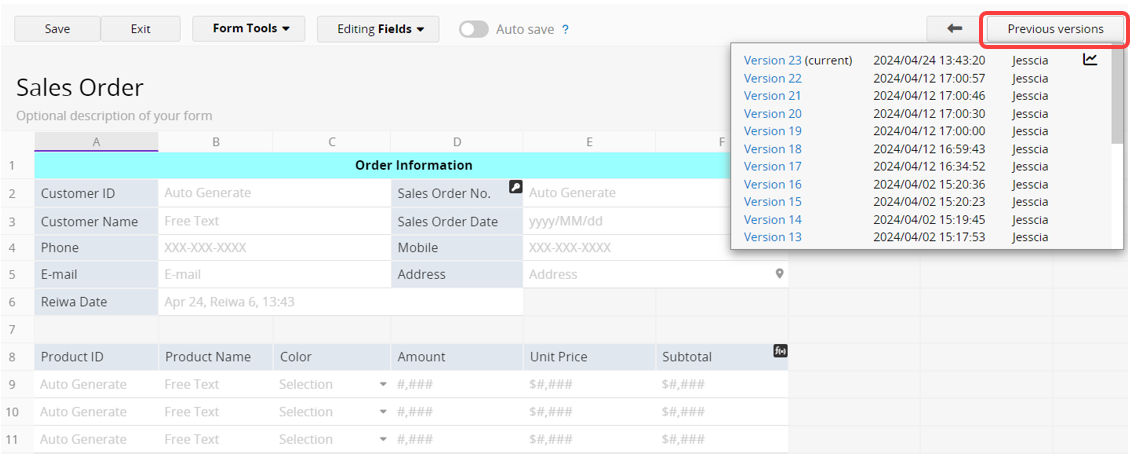
You'll be able to view all previously saved design versions in the menu. After selecting one of the versions to restore, click Restore to view its design.
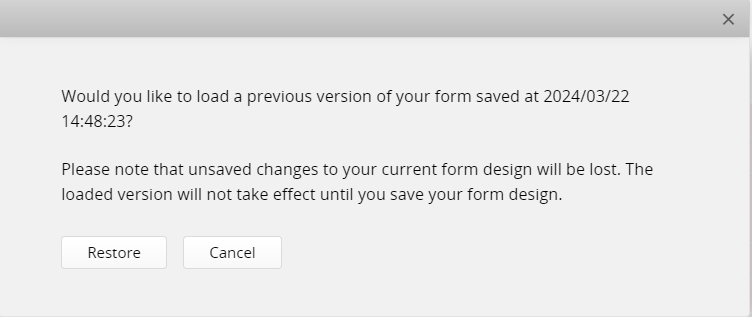
To revert to the chosen version, remember to click Save. If you select the wrong version, it won't be applied as long as you don't save.
Note: It is recommended to save your design periodically while working on a sheet design, rather than making numerous changes before saving.
This way, a minor mistake won't cause you to lose all your design changes when reverting to a previous version.
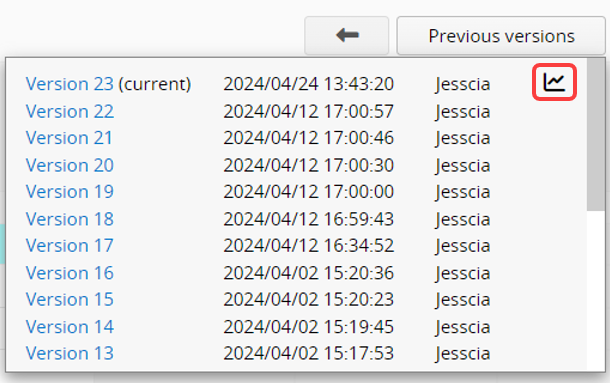
If you would like to check major design changes between each design version, you can use the History Analyzer, which can be found by clicking the graph icon within the Previous Versions menu.
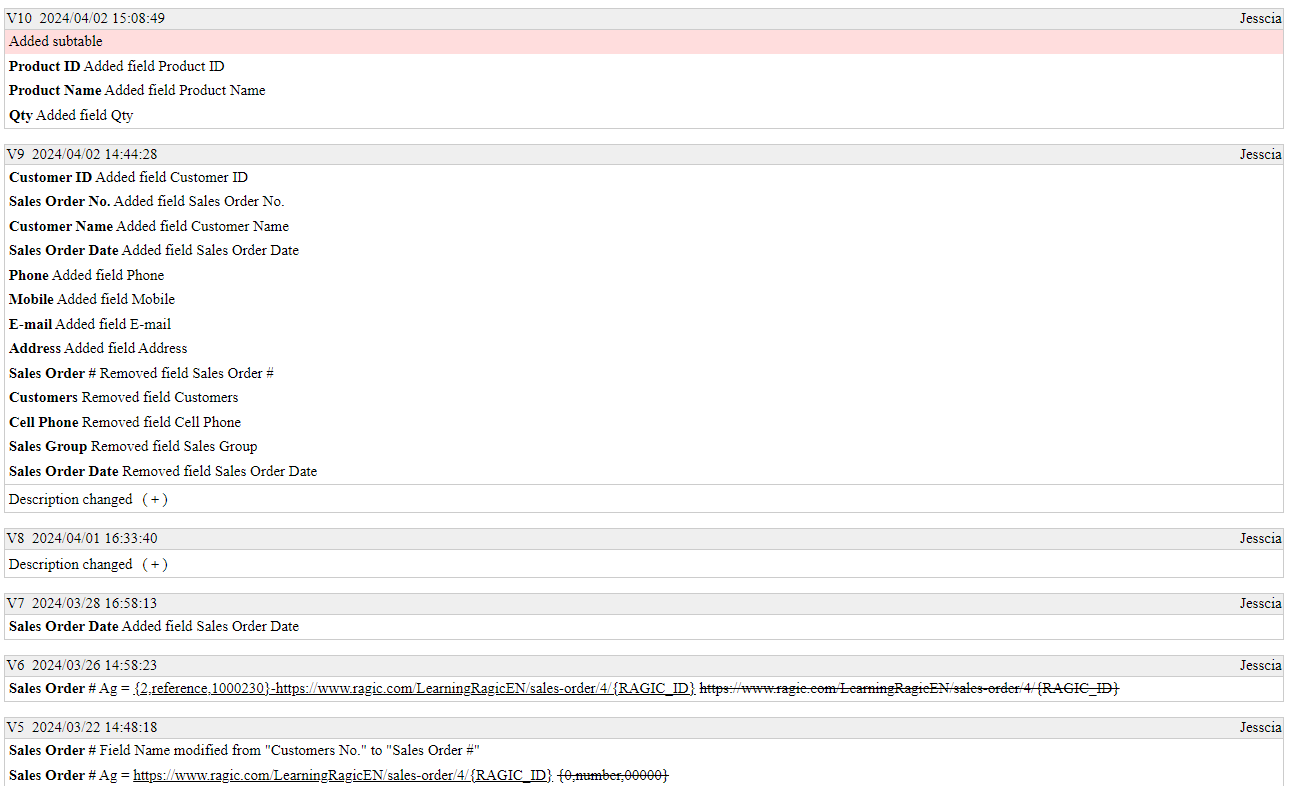
In the History Analyzer, details of significant design changes for each version, such as added fields, modified Field Types and names, and Formulas, will be displayed.
Adjustments to column width, layout, or color won't be displayed.
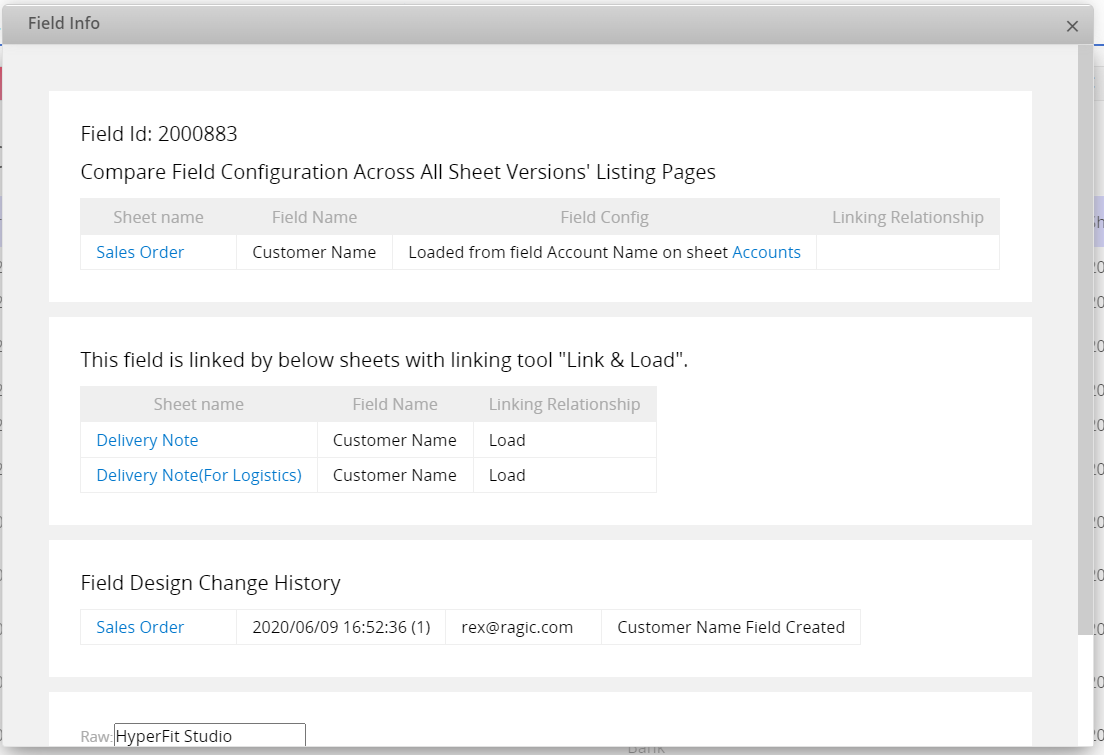
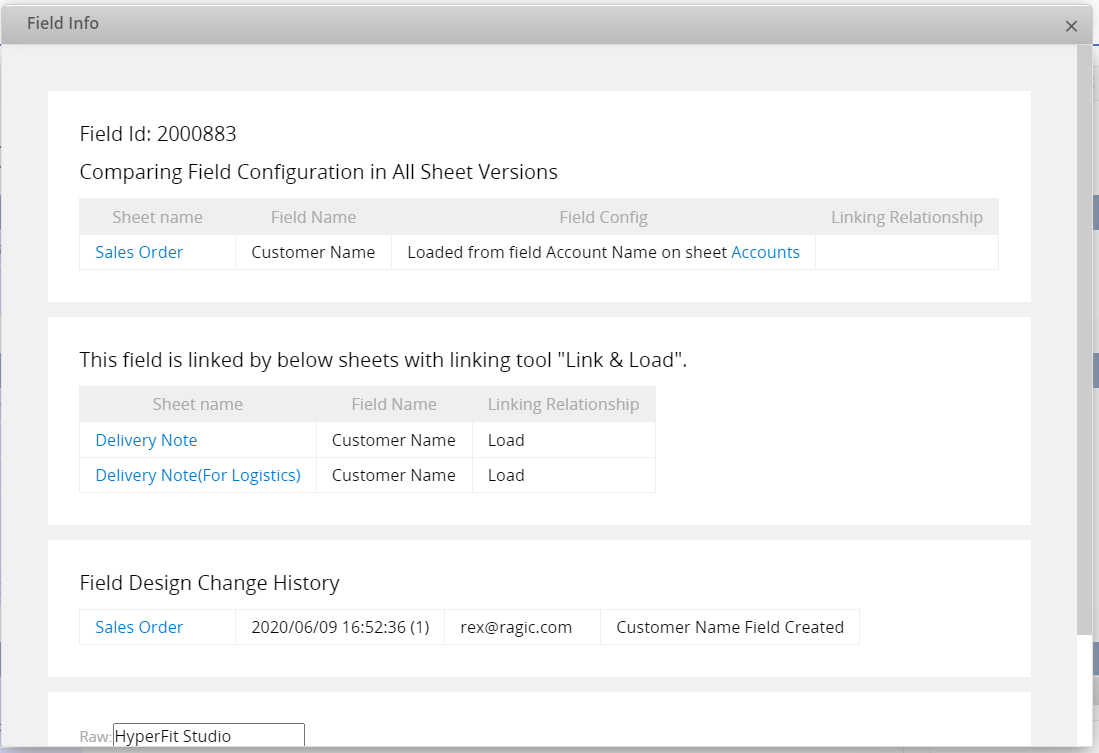
Right-click any field in view mode, edit mode, or Design Mode to open Field Info, which shows the field's settings and design change history across all Multiple Versions of the sheet.
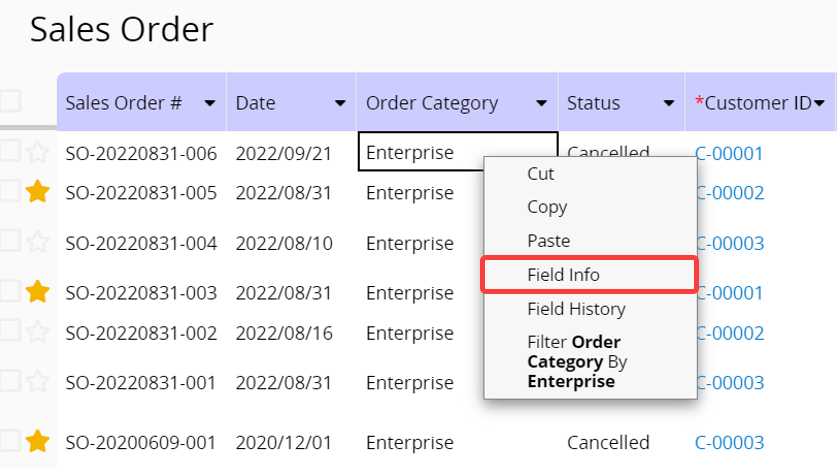
When opening Field Info on the Listing Page, it will display the settings and change history of the field on the Listing Page.
When opening Field Info on the Form Page, it will display the settings and change history of the field on the Form Page.
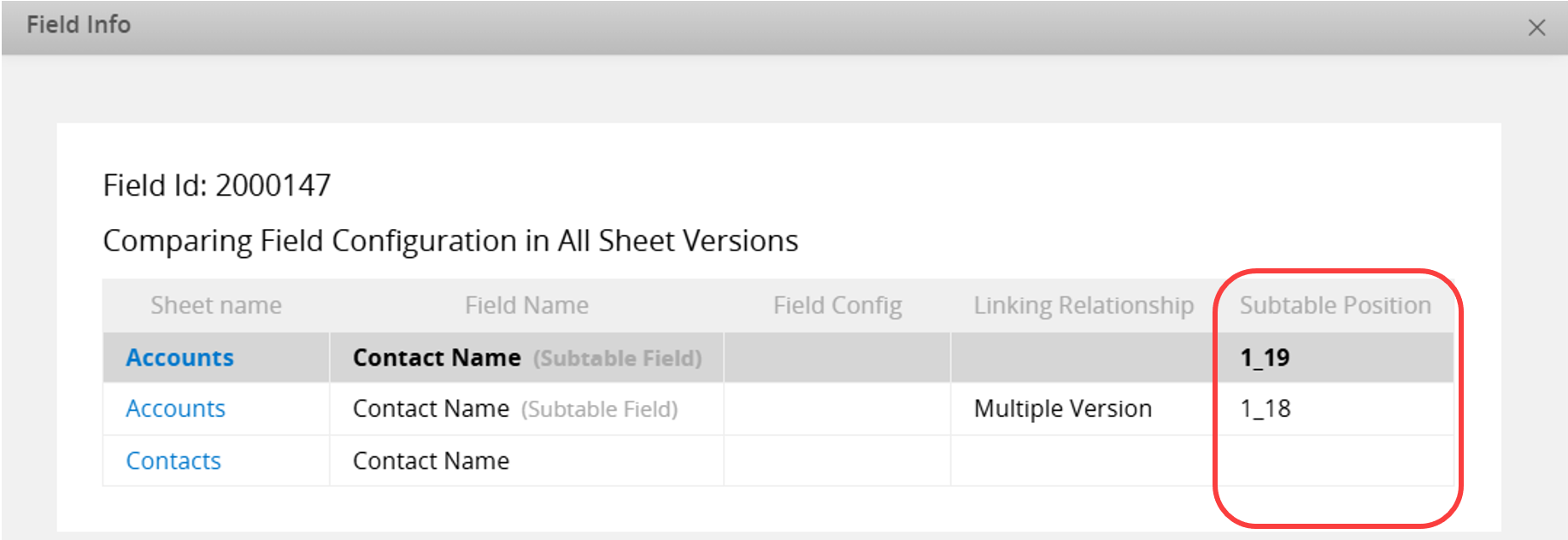
When viewing the Field Info of a Subtable field, you can see its Subtable Position within the sheet.
 Thank you for your valuable feedback!