 Design guide
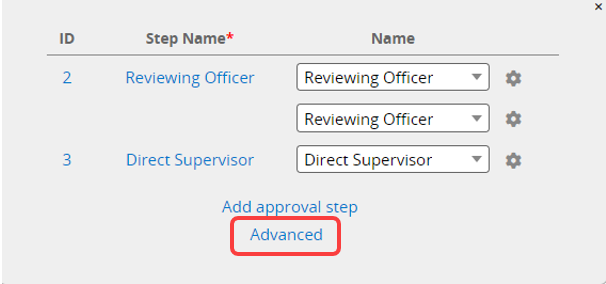
Click Advanced below to view and configure additional settings for your approval workflow.
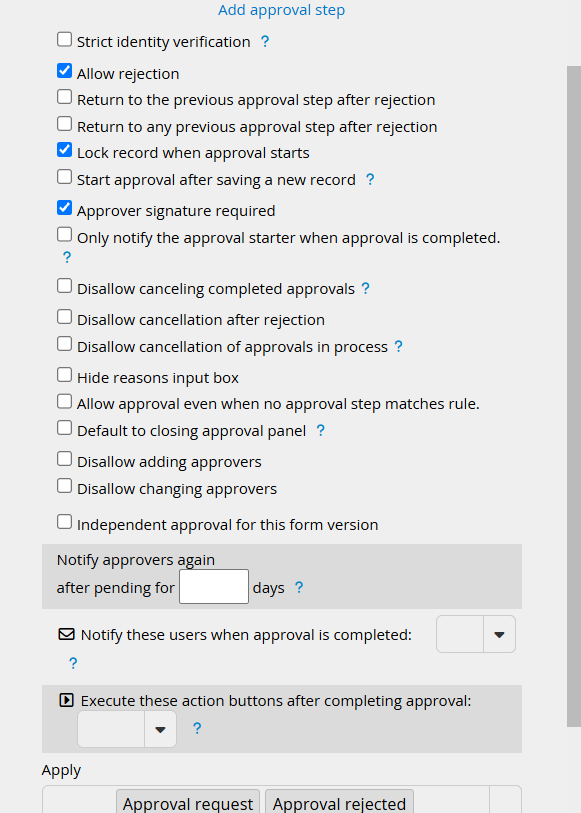
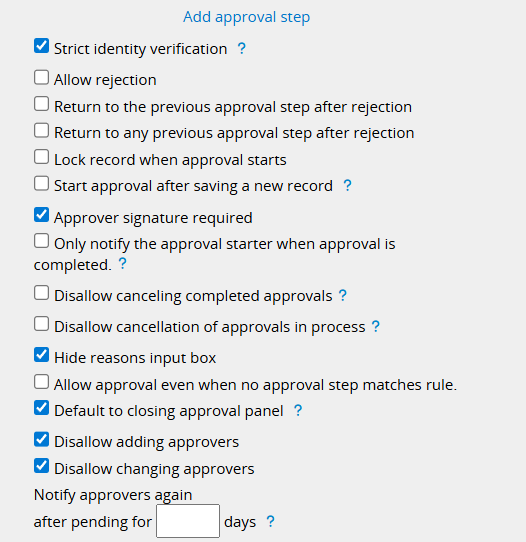
Requires approvers to enter their login password during approval to verify user identity and ensure the authenticity of electronic records.
Note: If you log in to Ragic with your Google account, follow this method to set a password and use it to approve records.
Approvers will be required to provide a signature when approving. Once checked, users cannot use Subsequent Step Approval.
The field for the approver to enter the reason will not be displayed. Once checked, Subsequent Step Approval will be automatically enabled and cannot be disabled.
When checked, the approval panel will be closed by default when opening a sheet, so it doesn't block content. When unchecked, the panel will remember your last open/close state in this browser.
When enabled, adding approvers is not allowed in this approval process.
When enabled, changing approvers is not allowed in this approval process.
Only one of the following three options can be selected.
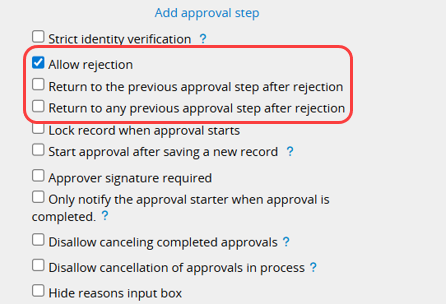
When enabled, the option to reject the approval is available to approvers, and rejecting the request will cancel the entire approval process.
When enabled, rejecting the request will return it to the previous approval step. When disabled, rejecting the request will cancel the entire approval process.
When enabled, approvers can return the request to any previous approval step when rejecting it. When disabled, rejecting the request will cancel the entire approval process.
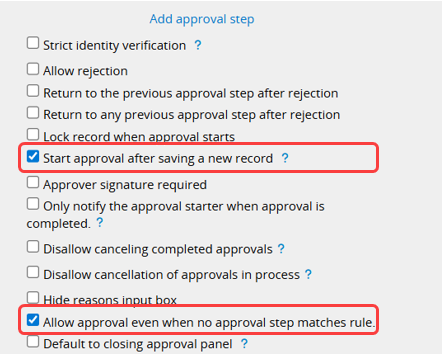
The approval process will only start automatically if a record meets all the following criteria:
1. No manual selection of approvers is required in any approval step.
2. At least one approval step matches the approval rules.
3. Created by internal users.
When enabled, approval can start even when no approval steps meet their rules, and users can decide whether to complete it.
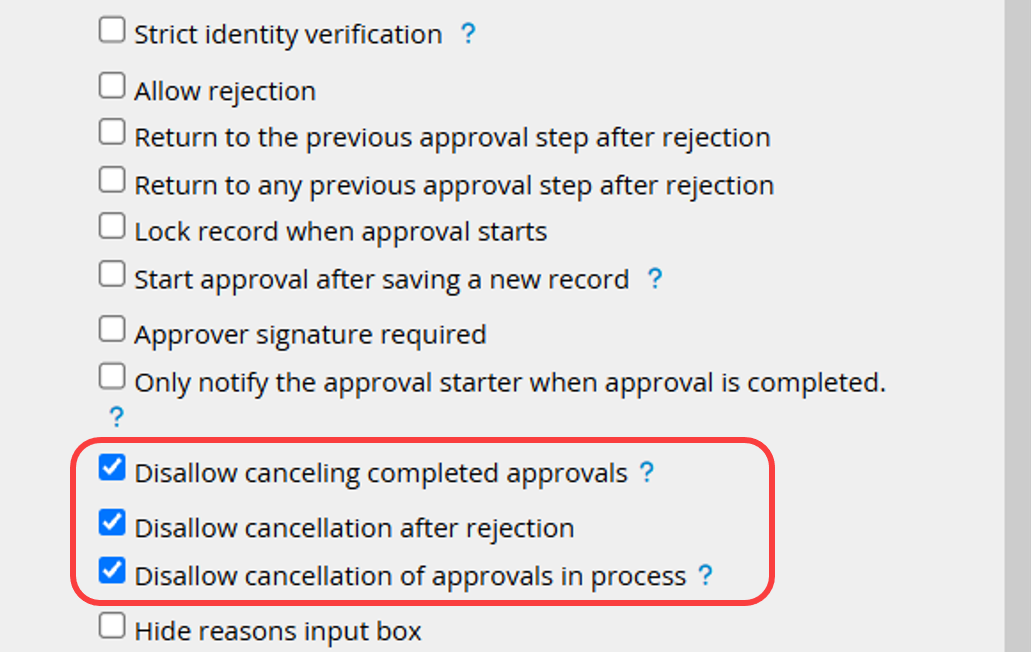
If this setting is not enabled, only the SYSAdmin, Group Administrator (who manages the group tab associated with the sheet), and users with Feature Access to cancel approvals can cancel a completed approval by default. Once enabled, the Cancel Approval option will no longer be available after the approval is completed.
Note: This option will be automatically enabled if Execute These Action Buttons After Completing Approval is set.
By default, after a record is rejected, the approval starter can cancel the approval and start it again. Once enabled, rejected records cannot be canceled by any user, regardless of their role or Feature Access, which helps preserve the final result of each record.
By default, only the approval starter, SYSAdmins, Group Administrator (who manages the group tab associated with the sheet), and users with Feature Access can cancel the ongoing approval process. If you want to disallow the approval starter from canceling the ongoing approval, please enable this setting.
Note: Enabling this setting overrides all access rights settings, including Feature Access Settings. The approval starter cannot cancel the approval in this sheet, whether they are SYSAdmins or part of a group with Cancel Approval permission.
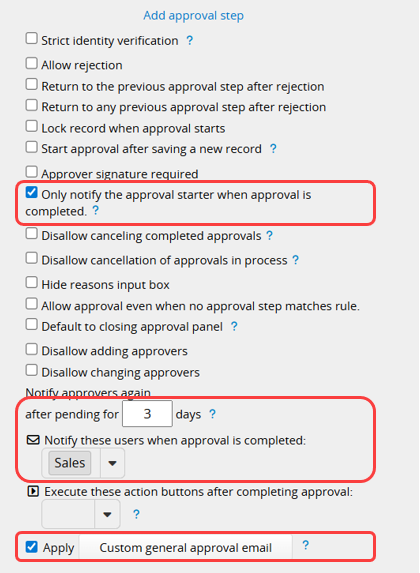
This setting does not affect the users selected in Notify these users when approval is completed. Those users will still be notified.
When no approvers have completed an approval step in a specified number of days, the system will automatically notify all approvers in this step again.
You can notify any user, user group, or Select User field.
Note: Notification recipients set here will be added as Record Managers, like approvers, so they can view the record and receive notifications. They'll still receive notification emails even if their own settings are turned off, so make sure they've agreed before adding them.
Please refer to this section.
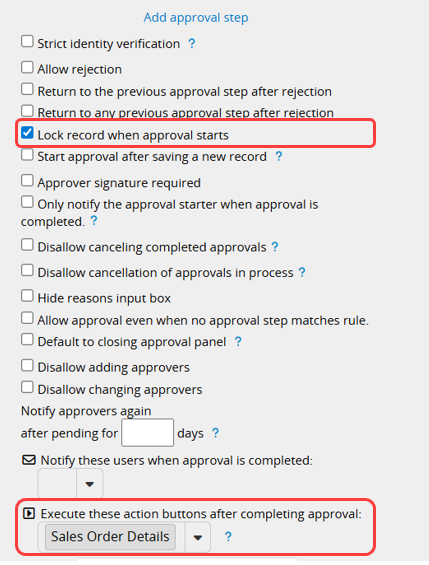
The record will be locked once the approval process starts to prevent users from modifying it.
Set the action buttons to execute automatically after the approval is completed. The supported action buttons are as follows:
1. Custom Action Buttons (excluding Convert Records: Generate Draft)
2. Lock Record
3. Unlock Record
4. Apply All Formulas to This Record
5. Link and Load Sync
Mail Merge and Custom Print Report are not Custom Action Buttons in Design Mode, so they are not supported.
Note:
(1) Even if the last approver doesn't have permission to execute the action button, or to create records in the target sheet (e.g., when converting a record to the target sheet) because their access rights are "Viewer" or "No Rights", the system will still execute the action button under the last approver's identity when the approval is completed.
(2) Canceling approval will not undo actions performed by previously executed action buttons. Therefore, when this setting is enabled, Disallow Canceling Completed Approvals will also be enabled, and approval cannot be canceled once the approval flow is complete. Disabling this setting will make the Cancel Approval button visible again. However, if you need to cancel the approval of records whose actions have already been executed, it's recommended to manually reverse the affected data and actions first to avoid data errors.
After configuring the Advanced settings, don't forget to click Save.
 Thank you for your valuable feedback!