 Design guide
SYSAdmins can assign multiple long-term and ongoing tasks to Ragic AI, for example automatically checking form input, filling in fields, sending email notifications, or replying to emails. It can also analyze images and uploaded files to assist with tasks, for example, generating product descriptions from uploaded product images.
First, click No assigned agents in the upper right corner of the Ragic AI window.
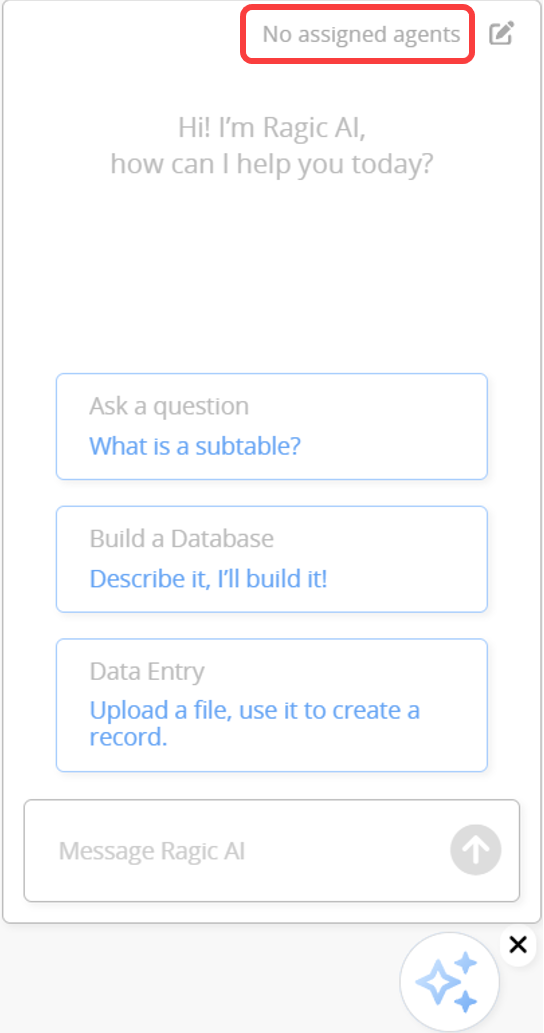
You can choose to create a new Agent or apply a template directly.
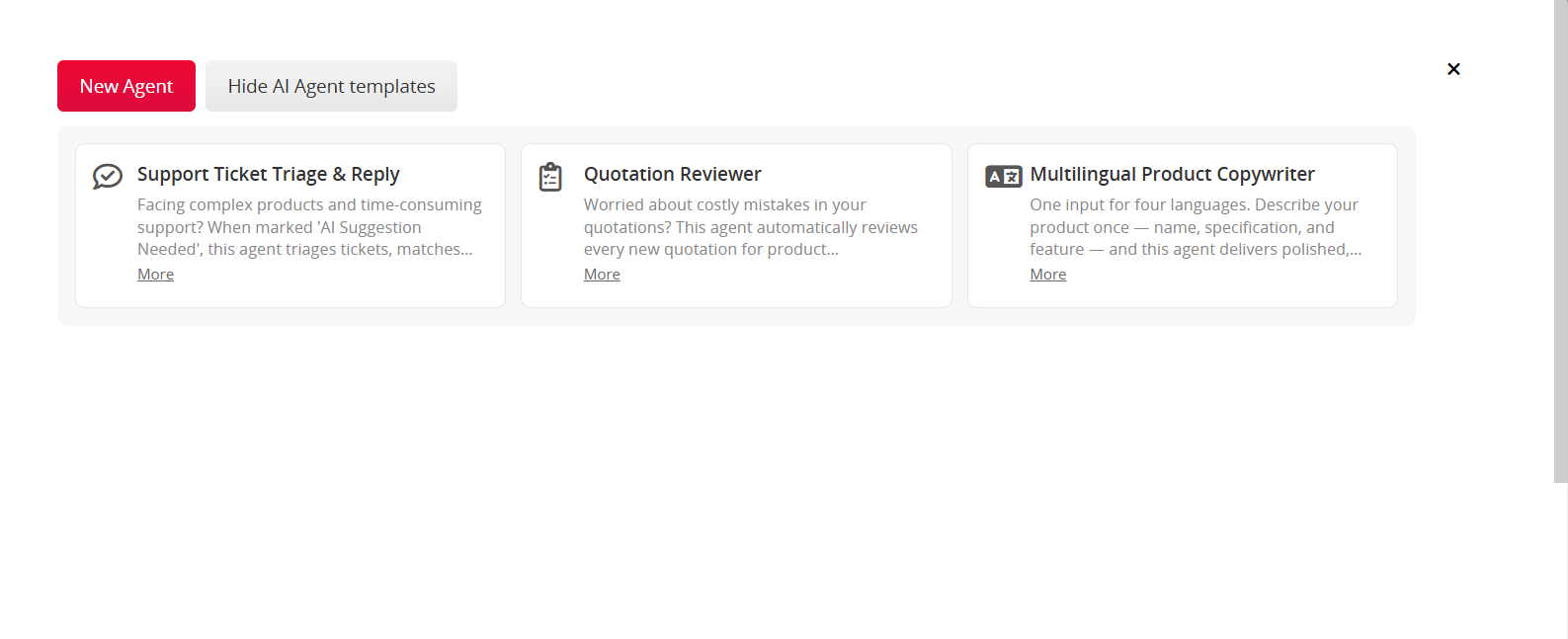
After clicking New Agent, select an Agent Type and configure the rule manually.
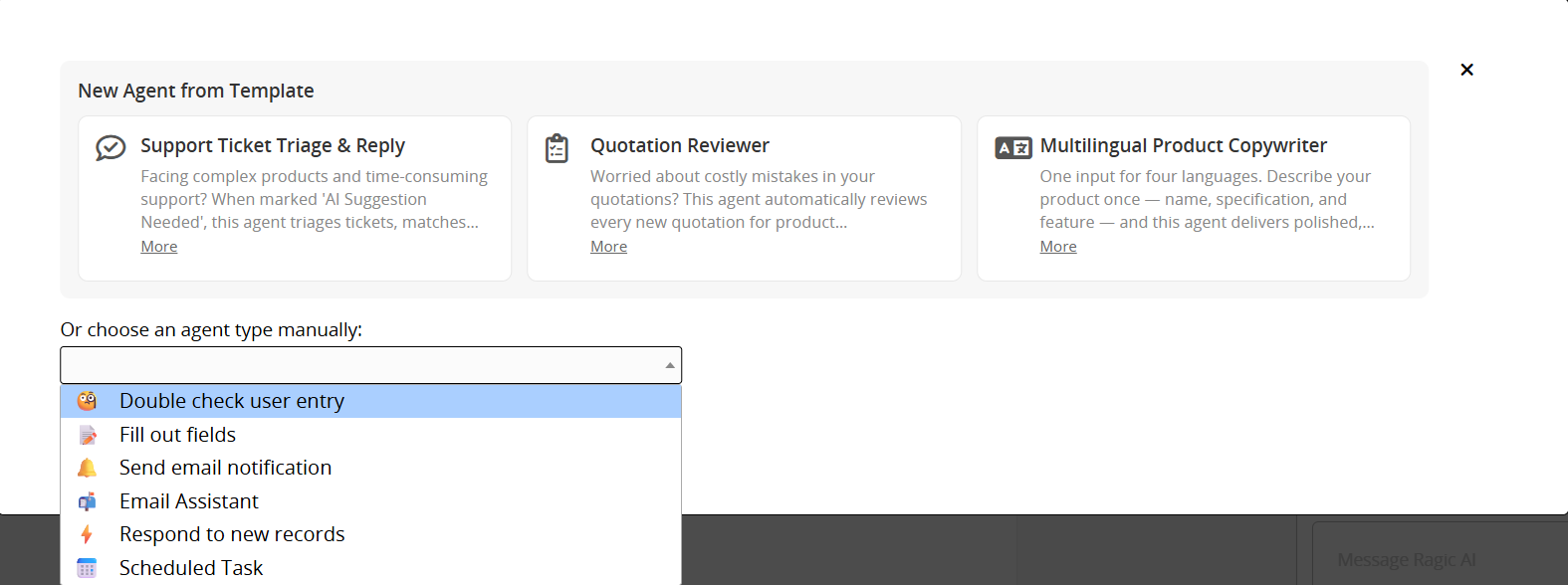
After saving, Ragic AI will automatically execute the agent according to the configured rules. You can also adjust additional settings as needed. If the Agent meets the conditions, the system will automatically switch to the Jev model.
The following Agent Types are currently available:
Verify whether sheet contents meet specified conditions or contain errors or unexpected values. If the conditions are not met, Ragic AI can automatically leave a comment to notify the user.
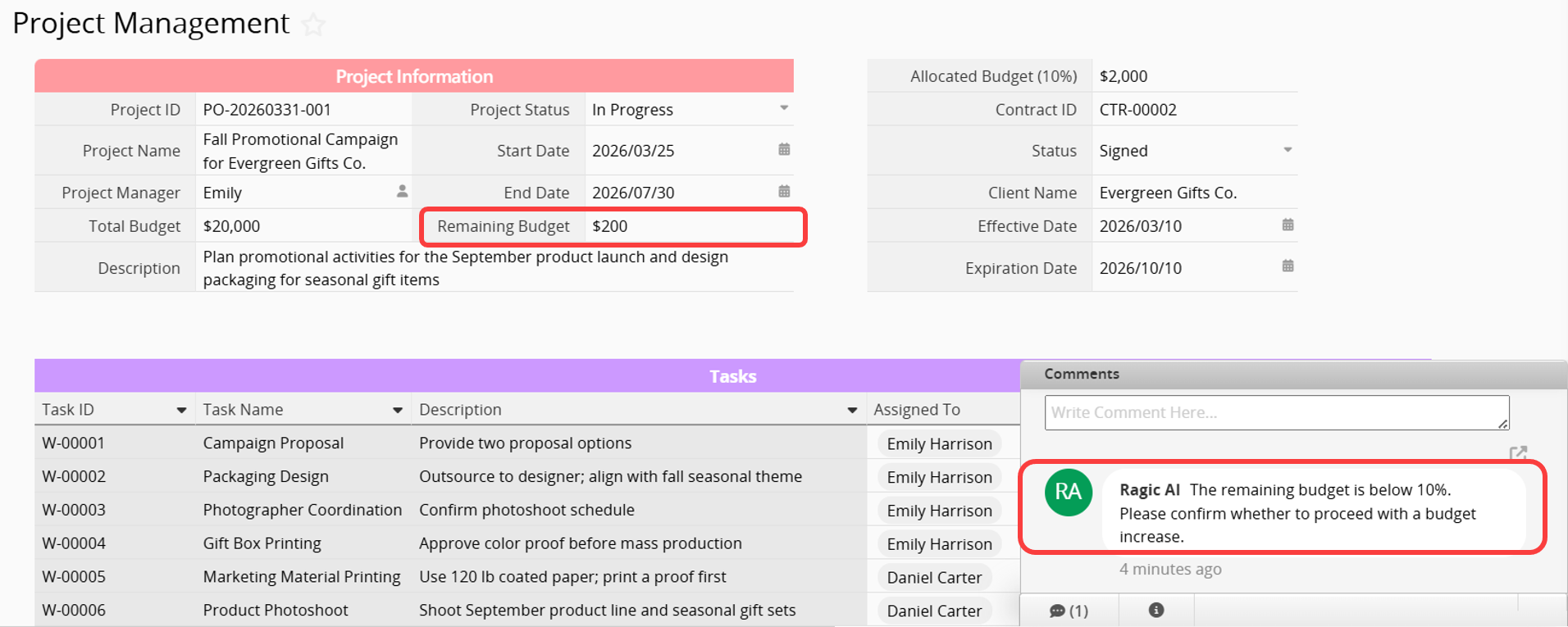
Example: Ask Ragic AI to check the "Remaining Budget" field in the "Project Management" sheet. When the remaining budget drops below 10% of the total budget, leave the following comment: "The remaining budget is below 10%. Please confirm whether to proceed with a budget increase."
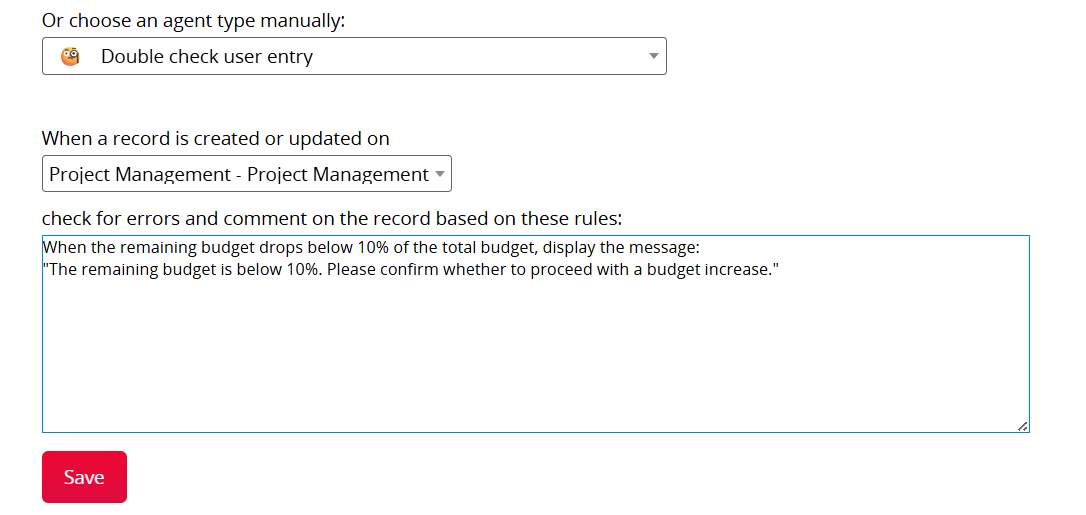
After saving, when the remaining budget drops below 10% of the total budget, Ragic AI will automatically leave a reminder comment.
Automatically populate a field based on existing field values, or fill in specified content according to defined conditions.
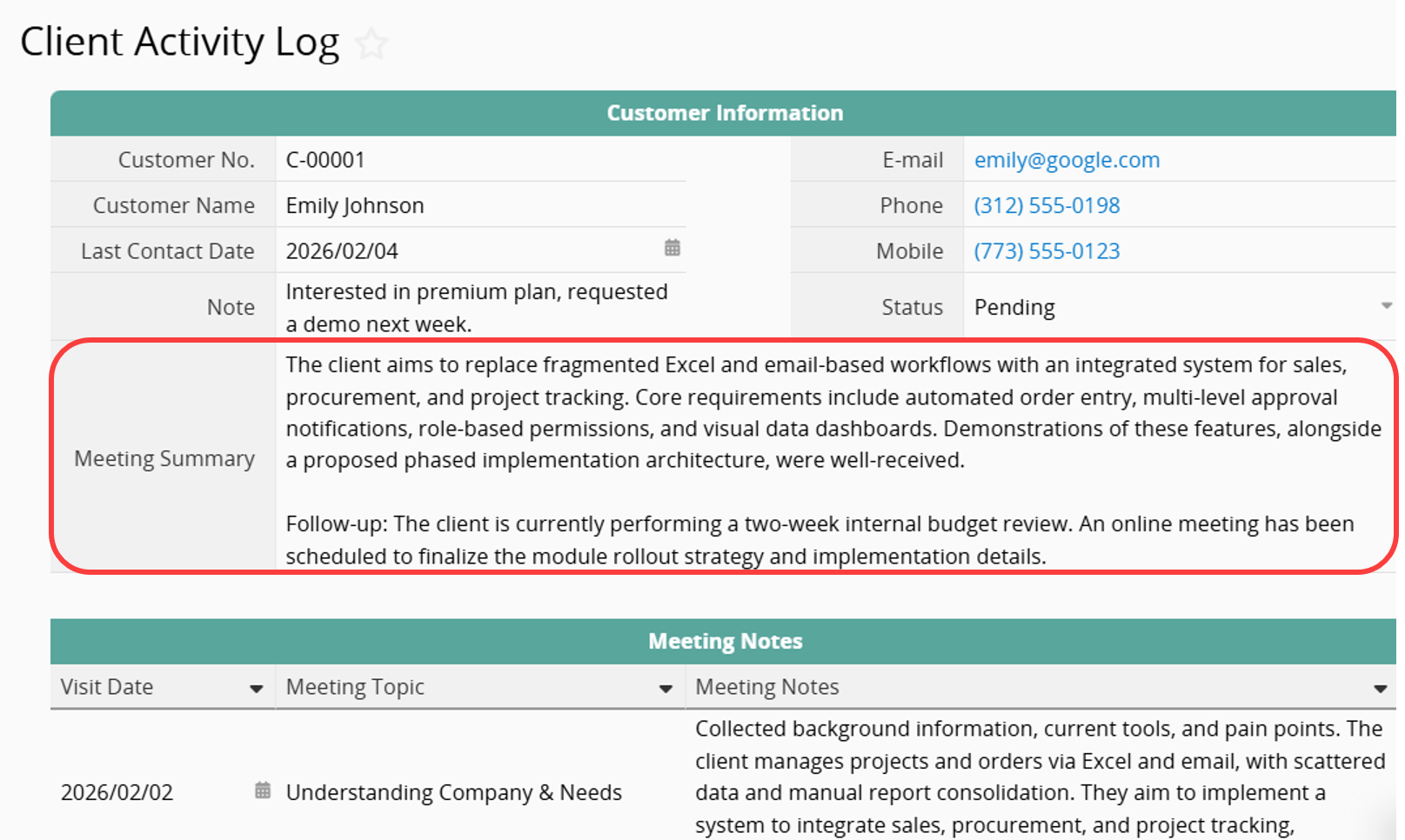
Example: Ask Ragic AI to generate a summary of no more than 150 words in the "Meeting Summary" field based on the "Meeting Notes" Subtable in the "Client Activity Log" sheet. The summary should include customer requirements and key follow-up points.
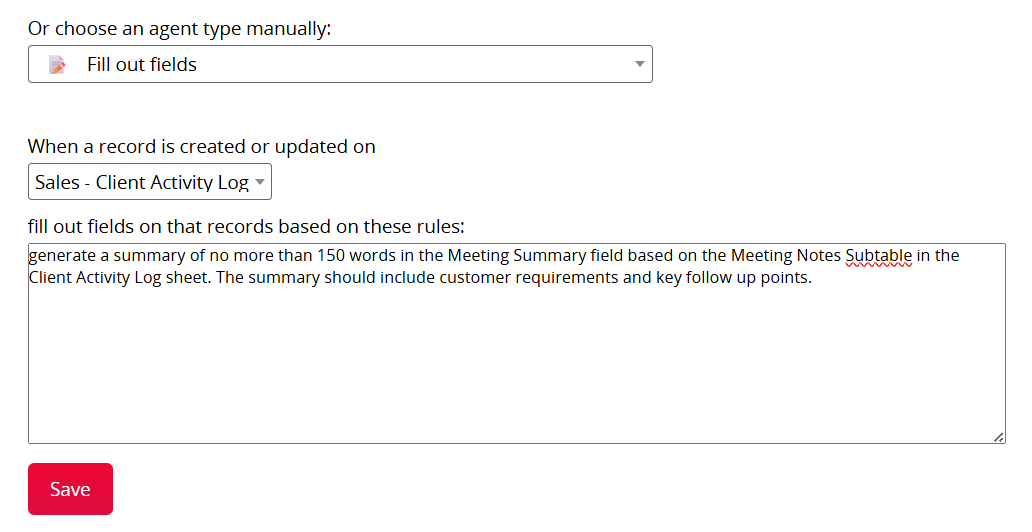
After saving, Ragic AI will automatically summarize the "Meeting Notes" and populate the designated field.
Automatically send notification emails based on specified conditions.
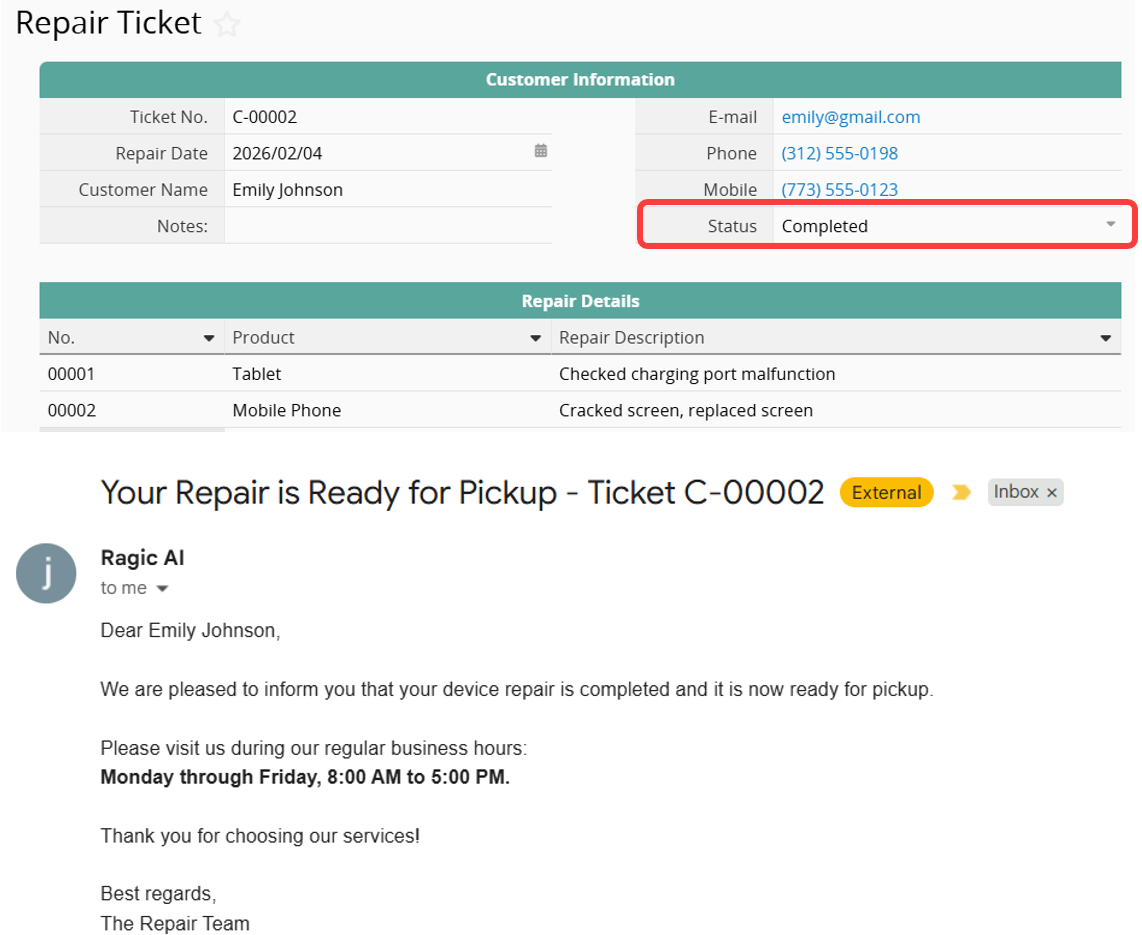
Example: When the status of a "Repair Ticket" changes to "Completed", automatically send an email to the customer notifying them that their device is ready for pickup. The email should remind them to pick up the device during regular business hours, Monday through Friday, 8:00 AM to 5:00 PM.
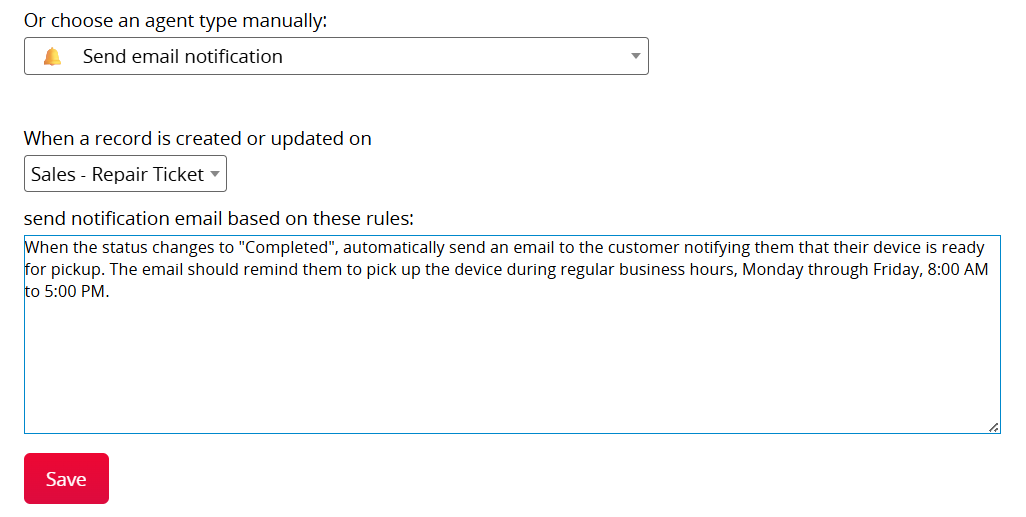
After saving, when the status is updated to "Completed", Ragic AI will automatically send the notification email.
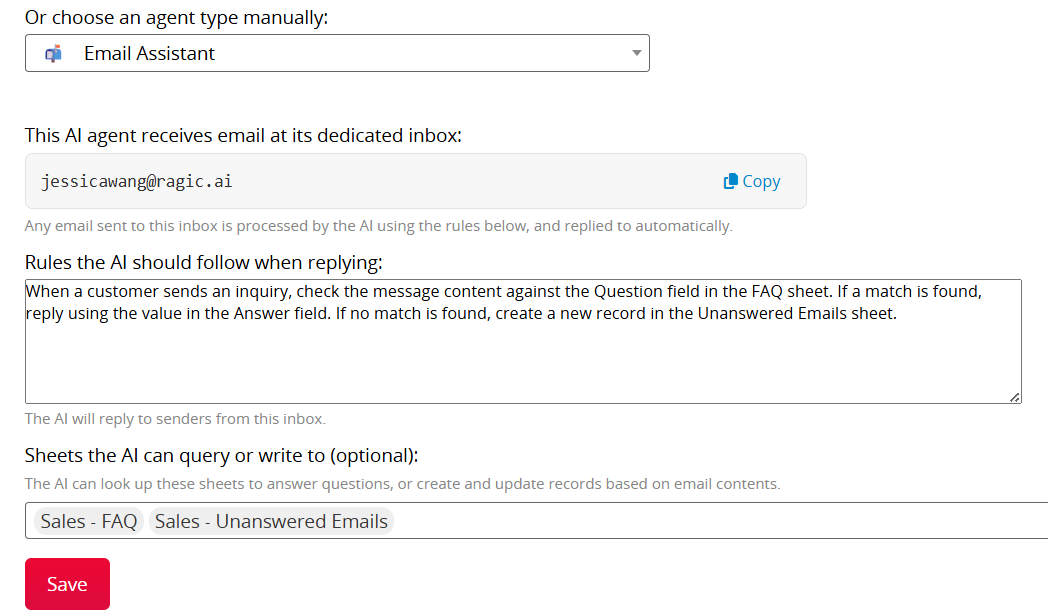
When the dedicated email address receives a message (for example, if your Account Name is example, the email address is example@ragic.ai), Ragic AI can automatically compose a reply based on defined rules.
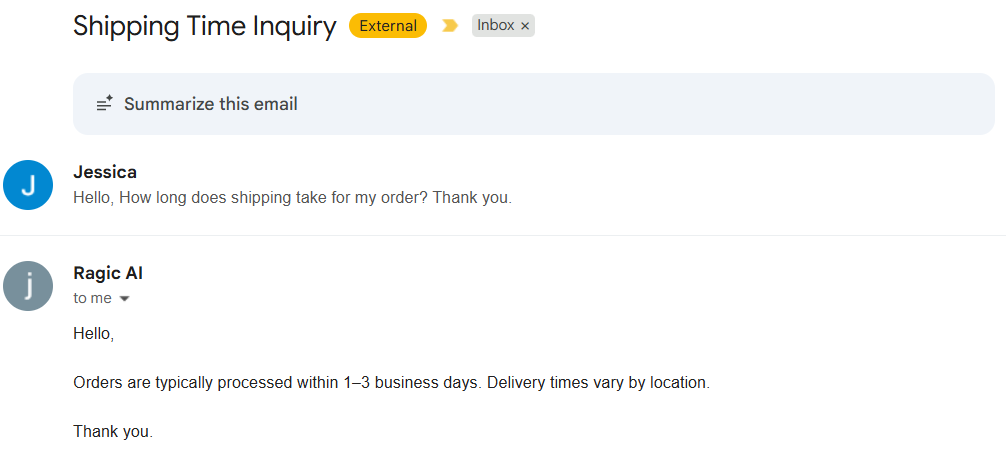
Example: When a customer sends an inquiry, check the message content against the "Question" field in the "FAQ" sheet. If a match is found, reply using the value in the "Answer" field. If no match is found, create a new record in the "Unanswered Emails" sheet.
After saving, when a customer emails a question listed in the "FAQ", Ragic AI will automatically send the matching reply.
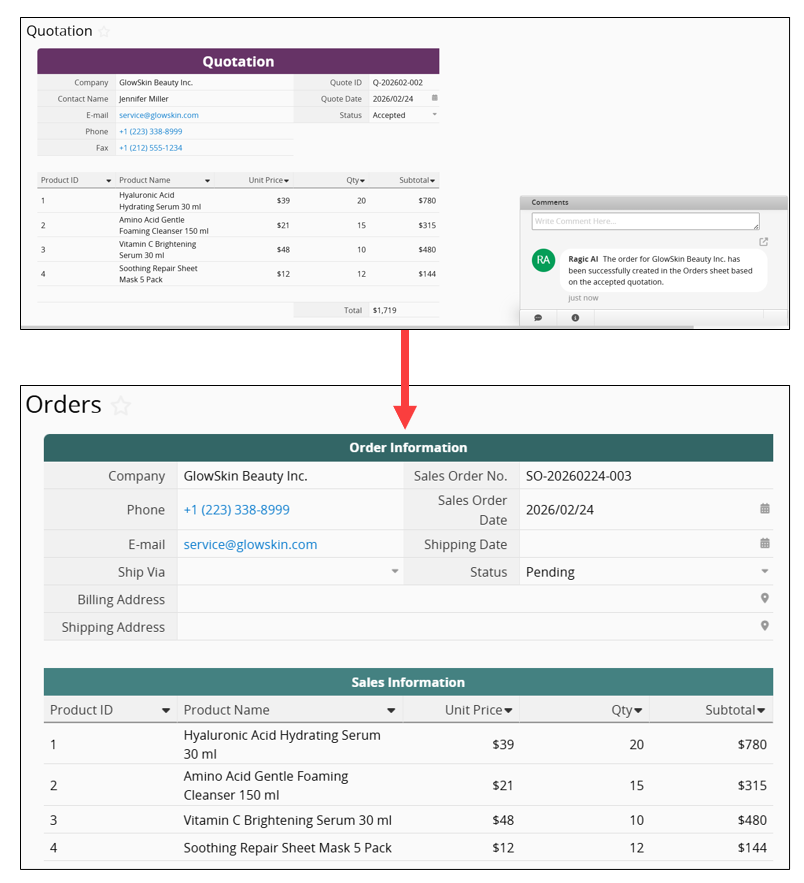
Automatically execute specified actions when records are created or modified.
Example: When the status of a "Quotation" is set to "Accepted", a new record is created in "Orders" based on the quote details, and its status is set to "Pending".
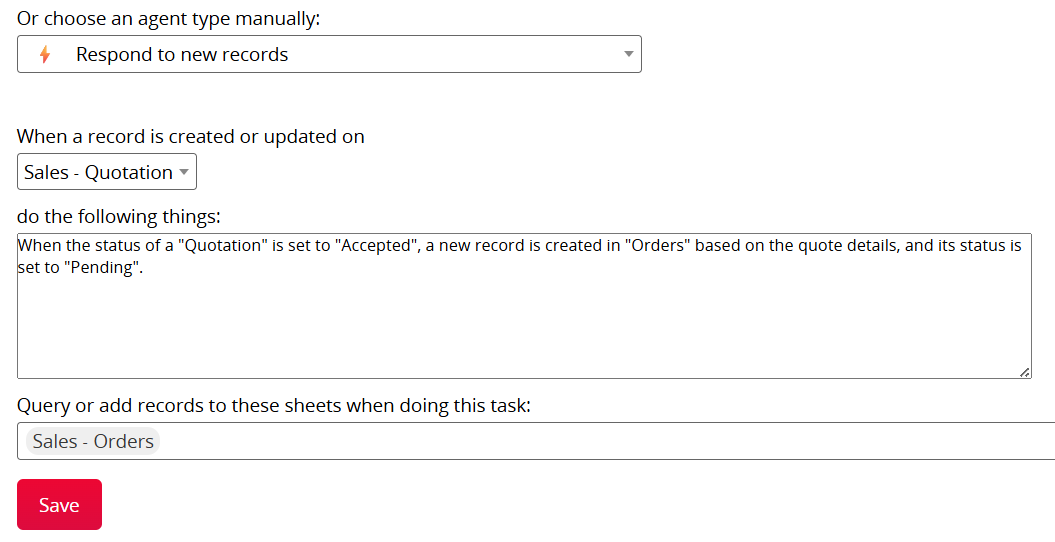
After saving, when the "Quotation" status is updated to "Accepted", the system automatically creates the corresponding order.
Once configured, an Action Button is automatically added to the sheet. Clicking it on a record triggers Ragic AI to run the specified task, which is useful when you want the user to decide when it should run.
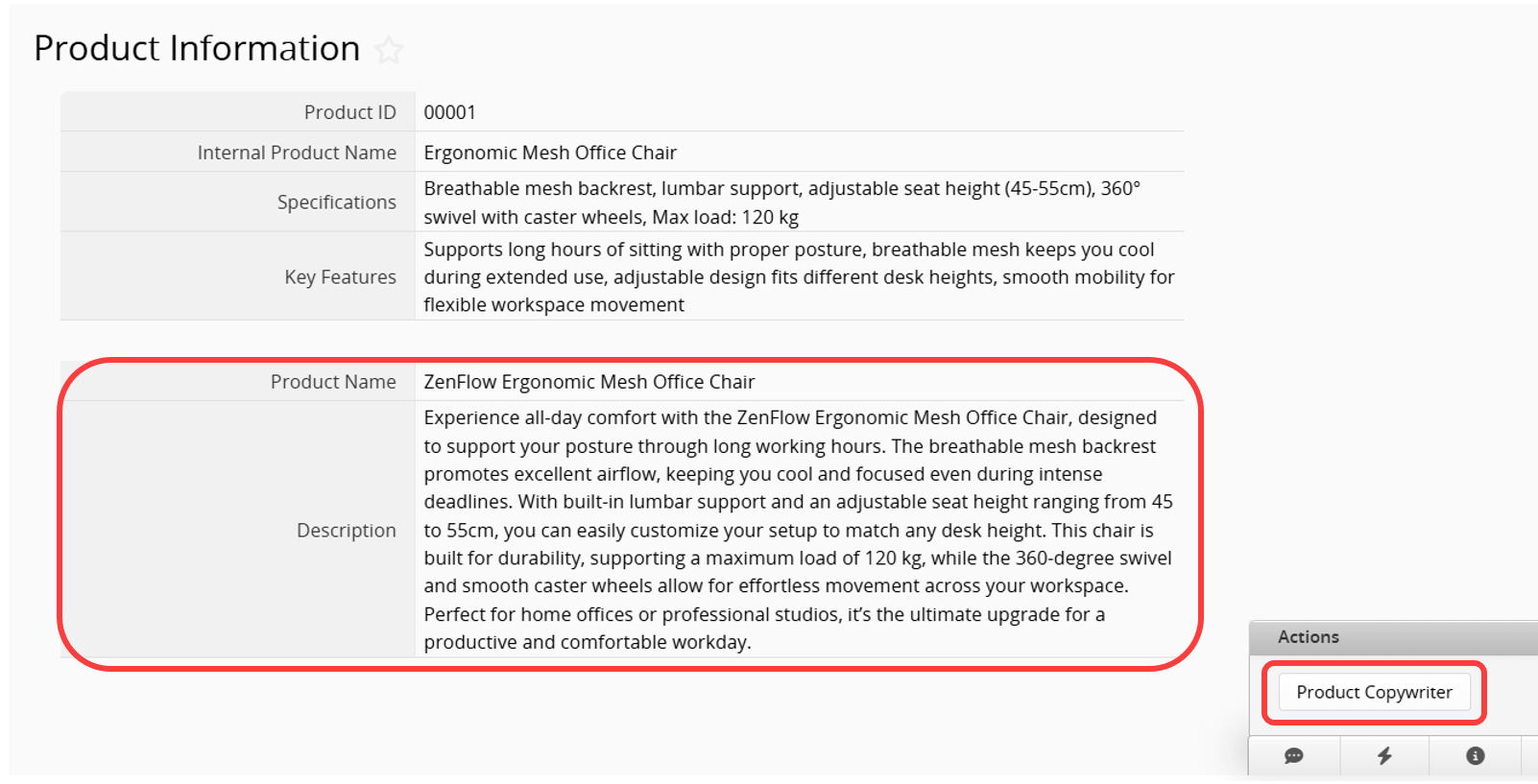
Example: Ask Ragic AI to add a "Product Copywriter" Action Button to the "Product Information" sheet. When clicked, it should generate a "Product Name" and "Description" based on the record's "Internal Product Name", "Specifications", and "Key Features" fields.
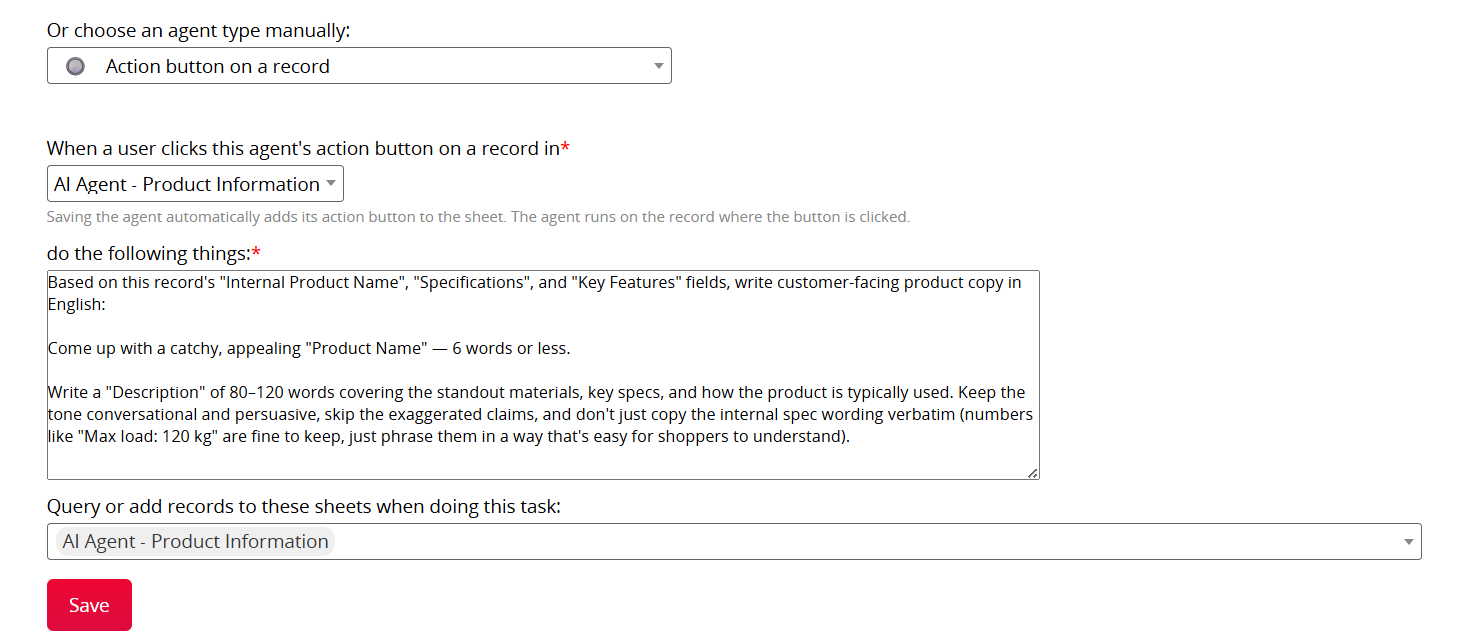
After saving, Ragic AI will automatically add the Action Button to the "Product Information" sheet. From then on, clicking this button on any record will prompt Ragic AI to generate the "Product Name" and "Description" based on the record's field values.
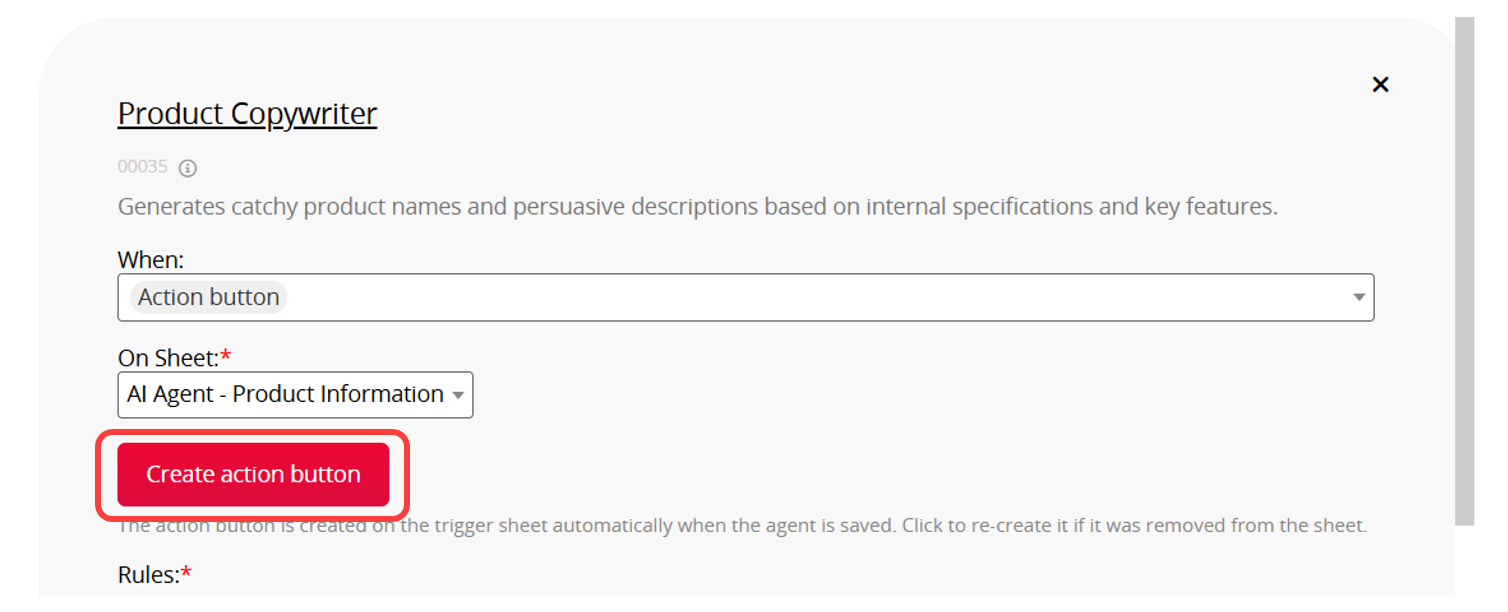
This Action Button also supports additional settings or can be removed in Design Mode. If accidentally deleted, go back to the AI Agent settings and click Create action button to restore it; removing the Agent task will also remove the corresponding Action Button.
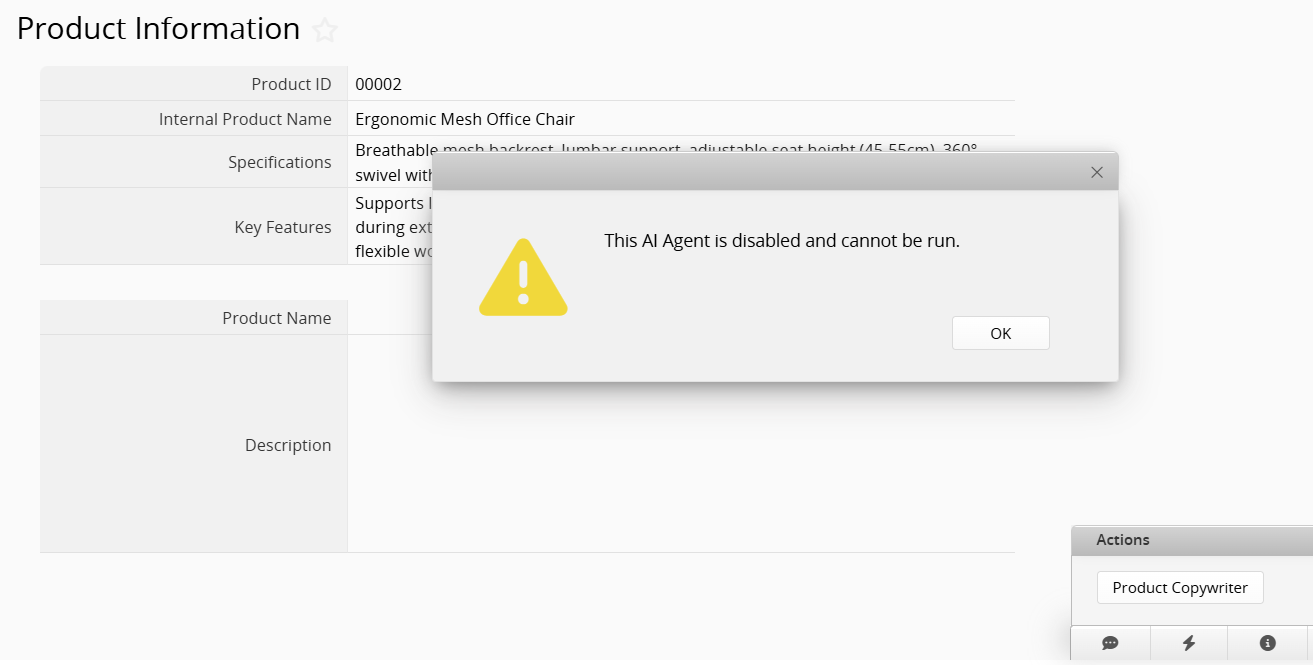
When an Agent is disabled, its Action Button will remain on the sheet. Clicking it will show a message indicating that the Agent has been disabled.
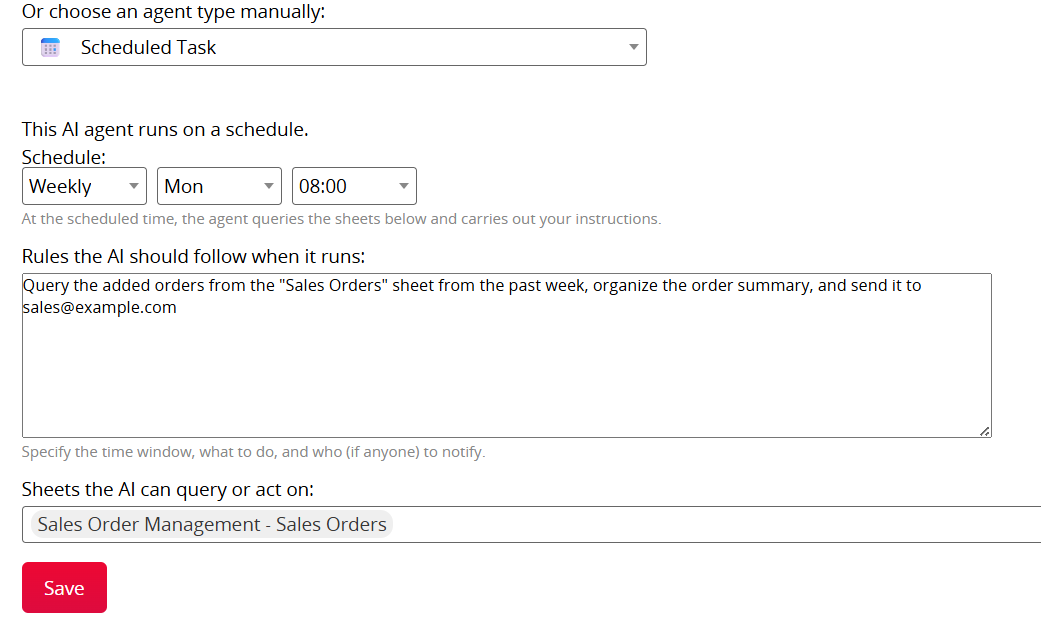
You can configure tasks to run at fixed times, for example, daily, weekly, or at a specified time. This can be used to periodically organize information, send notifications, or perform routine checks.
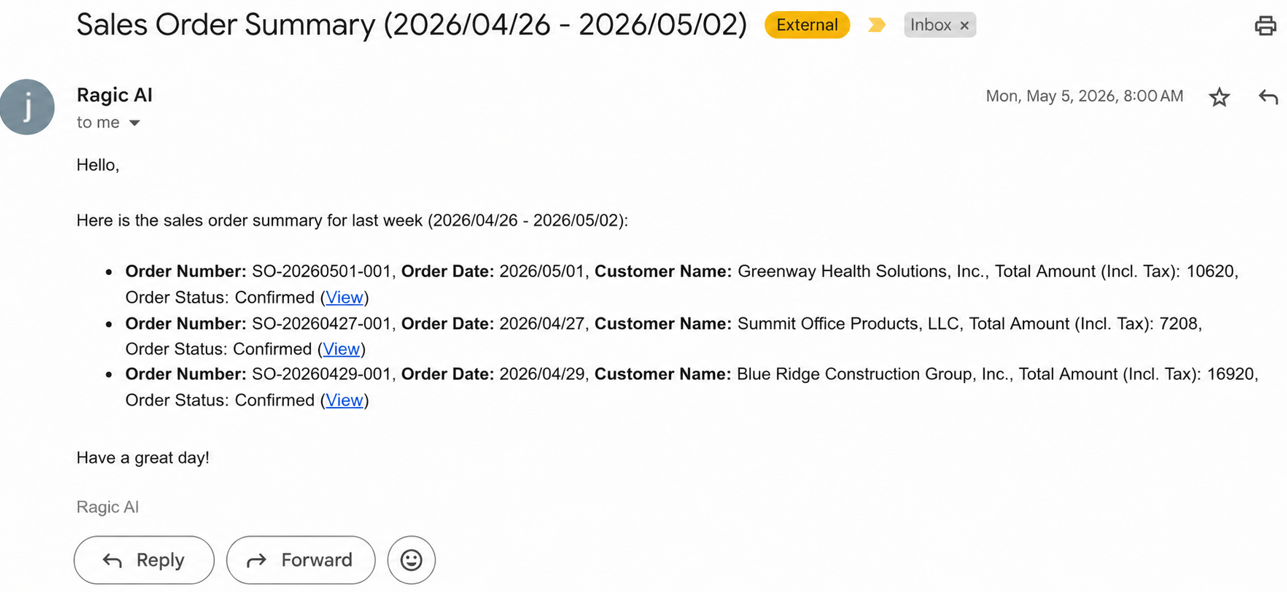
Example: Every Monday at 8:00 AM, query orders added to the "Sales Orders" sheet during the previous week, generate an order summary, and send it to the sales manager.
After saving, the system will automatically organize the related data and send the summary according to the configured schedule.
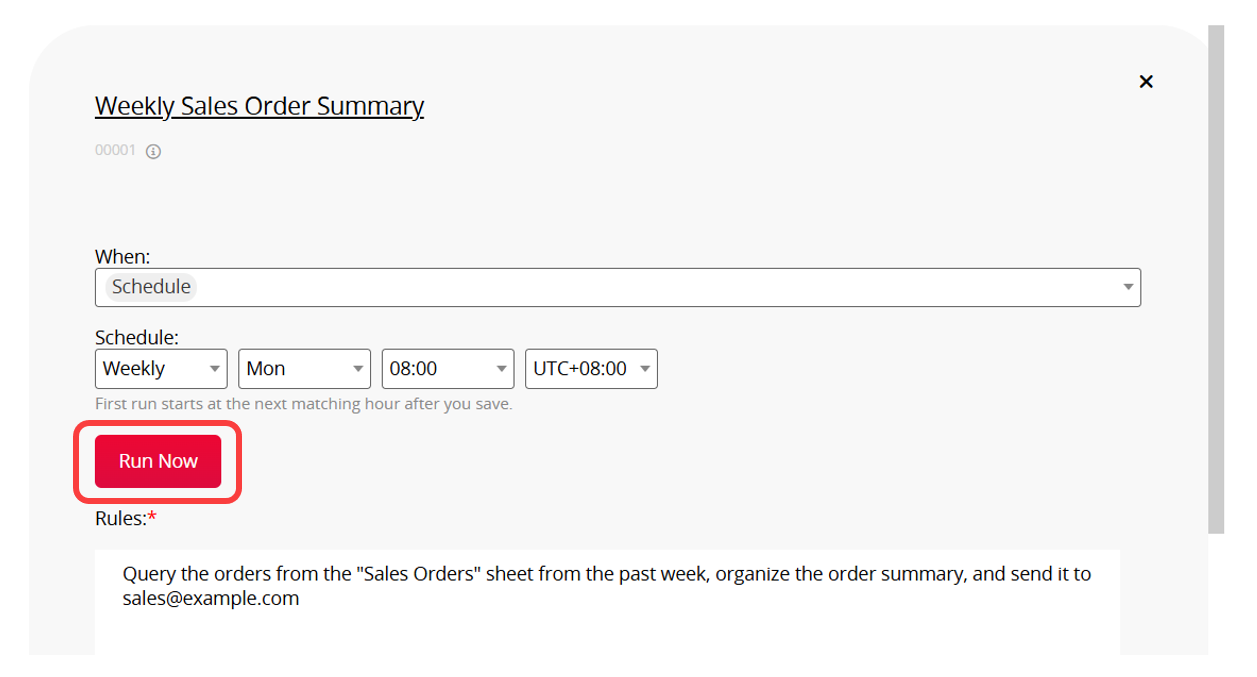
You can also click Run Now on the settings page to run the task immediately, without waiting for the schedule.
The system provides Agent templates that can be applied directly to quickly create common AI automation workflows.
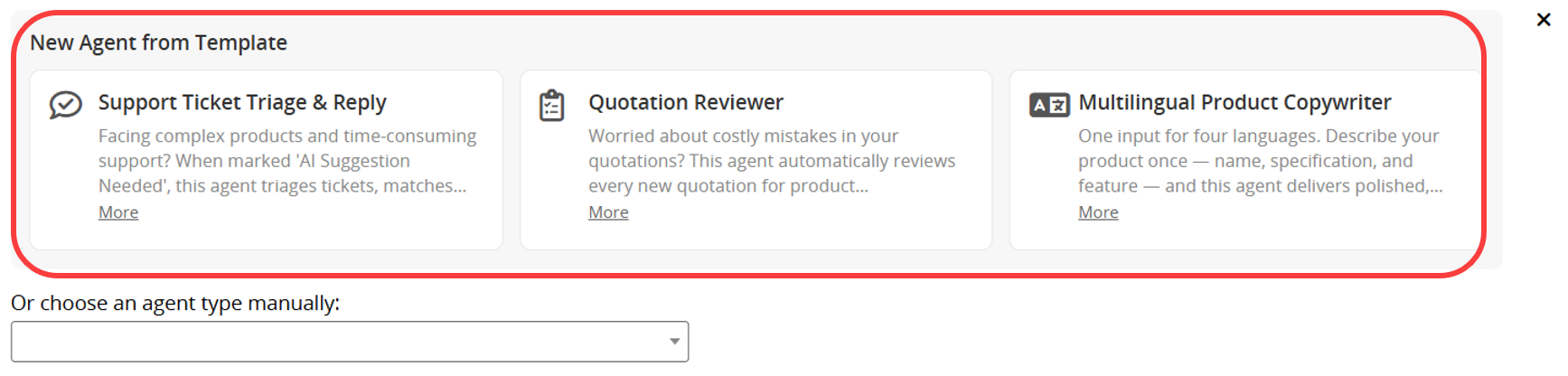
After selecting a template, you can use the template sheets (which will be automatically installed after saving) or select your own sheets. You can also customize the AI instructions and other settings as needed.
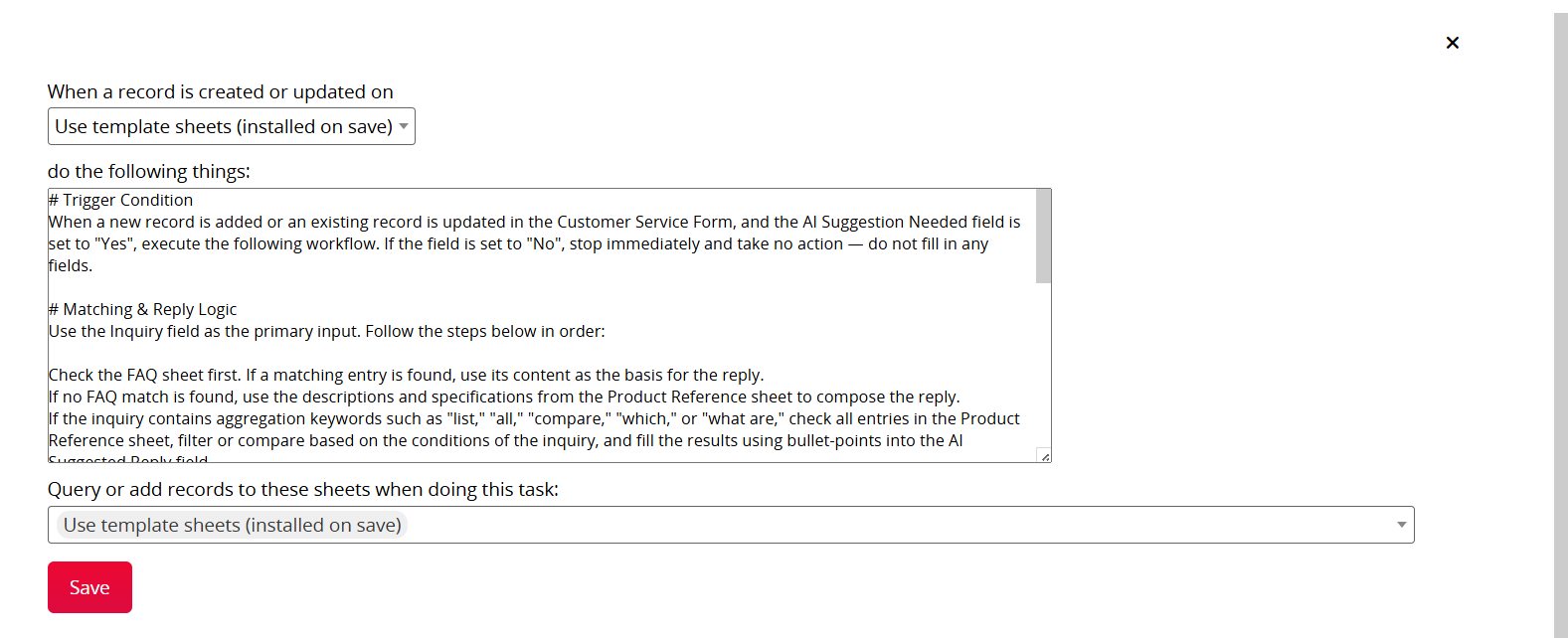
For more information about Agent templates and how to use them, please refer to the Learning Center.
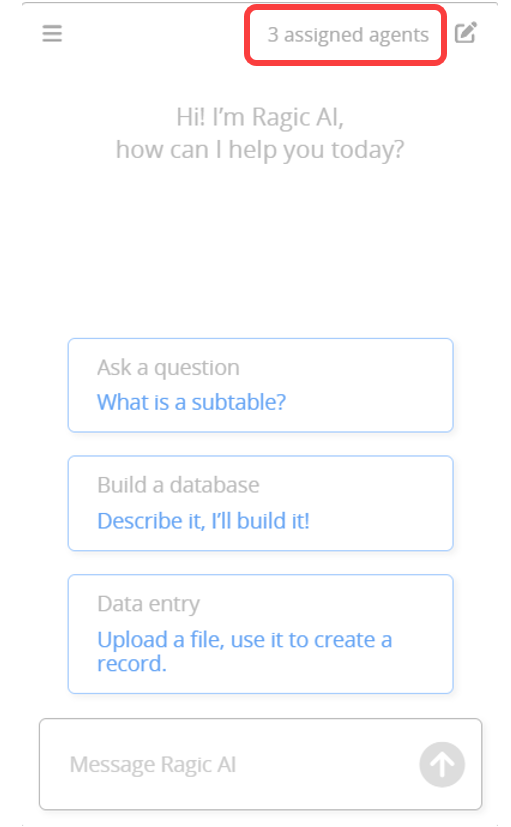
In the upper-right corner of the Ragic AI window, you can see the number of agents currently assigned.
Click to view the saved AI Agent list and related information for each Agent, including trigger events, actions, and related sheets. You can also click the sheet directly for quick access.
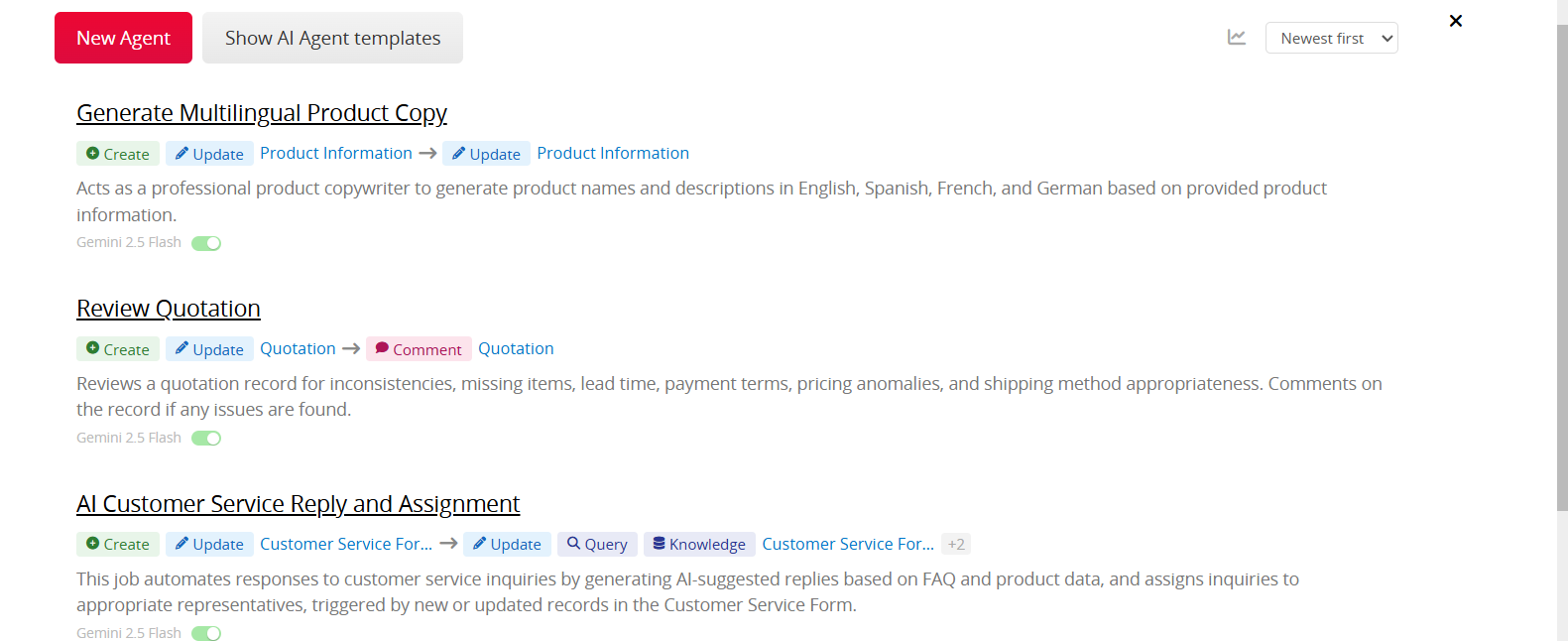
After creating an Agent, the system will automatically generate a name. You can click the pencil icon next to the name to customize it, or rename the Agent in the detailed settings page.
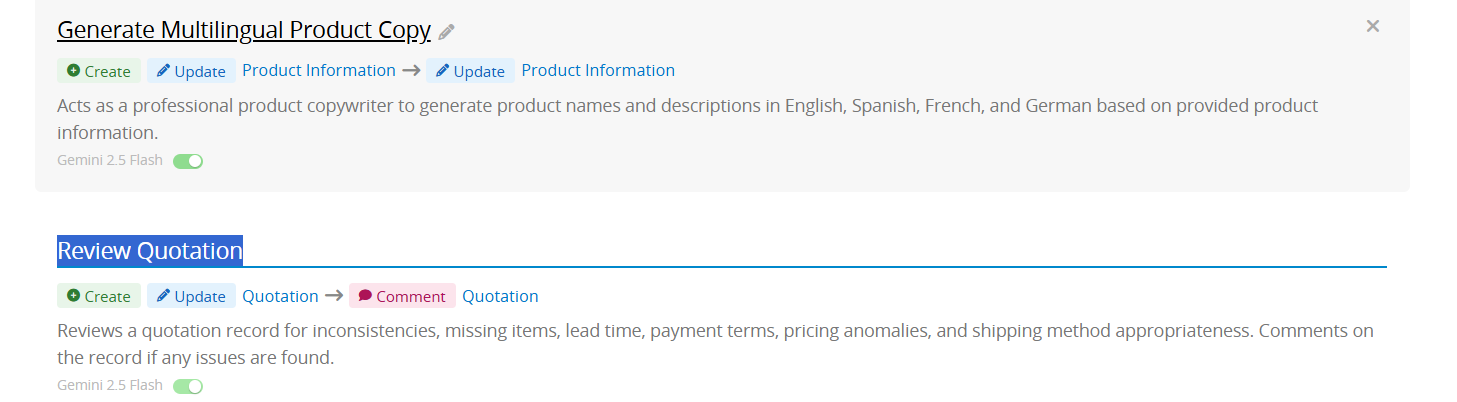
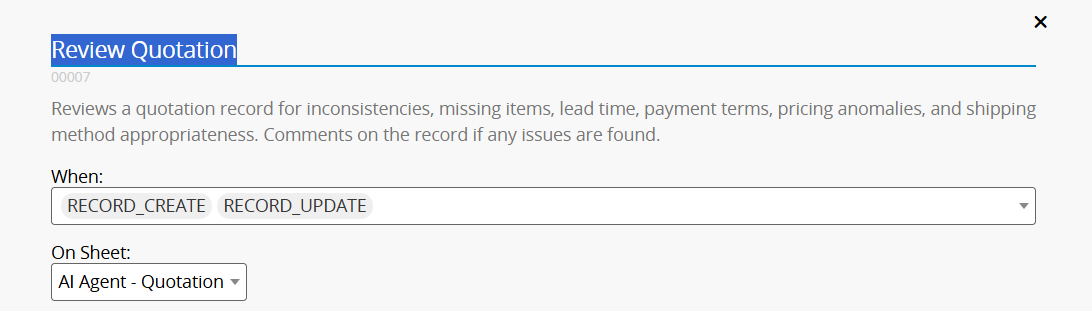
To disable an Agent, use the toggle switch below the Agent card.

To remove an Agent, click the X in the upper right corner of the item.

A sorting menu is available in the upper right corner, allowing you to sort Agents by creation time, name, or type.

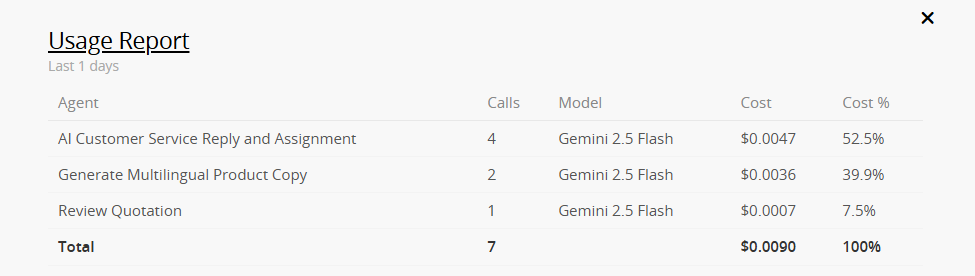
Click the  icon in the upper right corner to view the Agent usage report for the past 30 days, including call counts and usage costs. This helps you monitor AI Usage and optimize Agent settings, for example, by changing models or modifying rules.

Click an individual agent to edit the following settings:
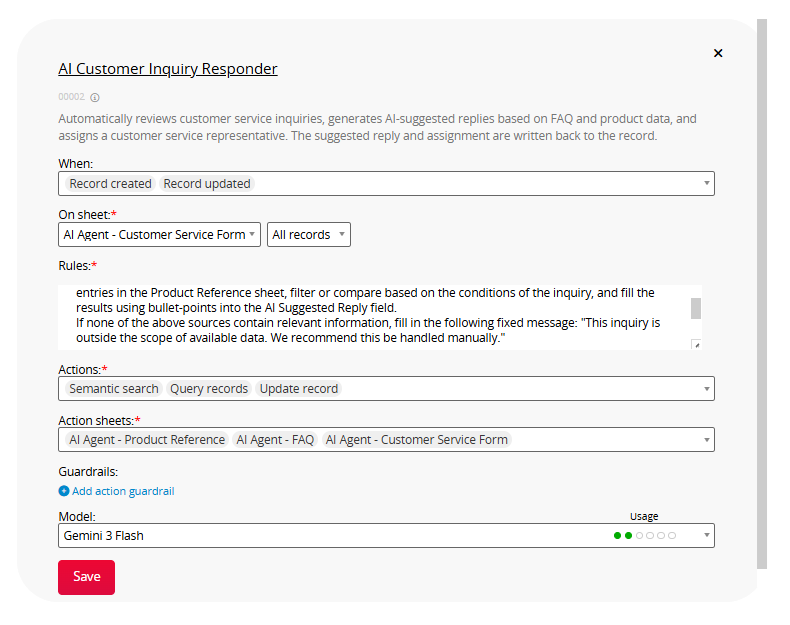
When (Trigger Events): Determine when to start the AI Agent. The following trigger events are available:
| Trigger Event | Description |
|---|---|
| Record created | Triggered when a new record is created. |
| Record updated | Triggered when an existing record is updated. |
| Comment posted | Triggered when a comment is added to a record. |
| Agent action button clicked | Triggered when a user clicks an Action Button. |
| Email received | Triggered when an Email is received. |
| Scheduled | Triggered automatically at the specified time. |
On Sheet (Trigger Sheet): Select the sheet for the trigger event. Not required for some trigger events.
If the sheet hasShared Views, you can set the AI Agent to trigger only when records matching specific Shared Views are created or updated.
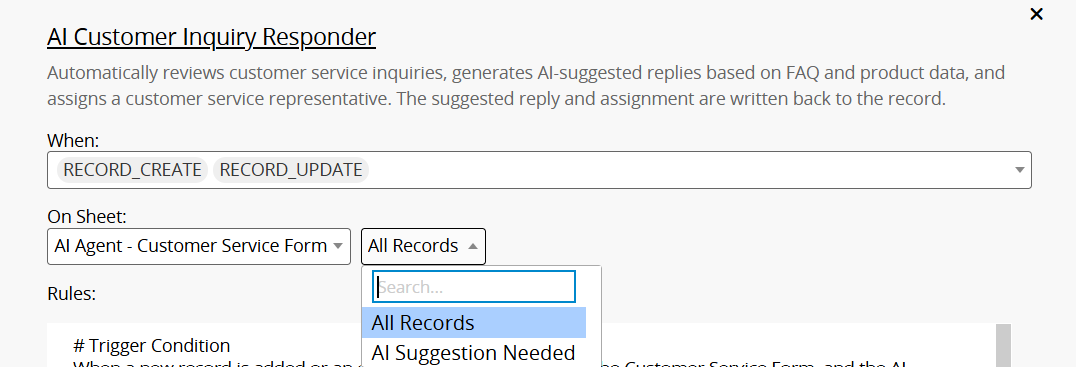
Rules: Define the tasks, conditions, and instructions for the AI Agent. Describe the expected behavior as clearly as possible.
Actions: Select the actions the AI Agent can perform. The following actions are available:
| Action | Description |
|---|---|
| Reply | Generate responses such as replying to Emails, comments, or messages. Responses will be automatically sent through the appropriate channel based on the message source. |
| Semantic search | Search the sheet for semantically related data. |
| Query records | Search sheet data based on field conditions. |
| Create record | Create a new record. |
| Update record | Modify specified records or records selected by the AI. |
| Post comment | Add a comment to a record. |
| Send email | Automatically send Emails. |
| Fetch from URL | Call the specified URL and retrieve the response. |
| Generate PDF | Edit content and generate PDF documents. |
| Execute action button | Execute an Action Button in the sheet. |
Action Sheets: Select the sheets the AI Agent can access and use when executing tasks.
Guardrails: Configure what the AI Agent is allowed to access and modify, for example, editable fields, Email recipients, or accessible sheets.
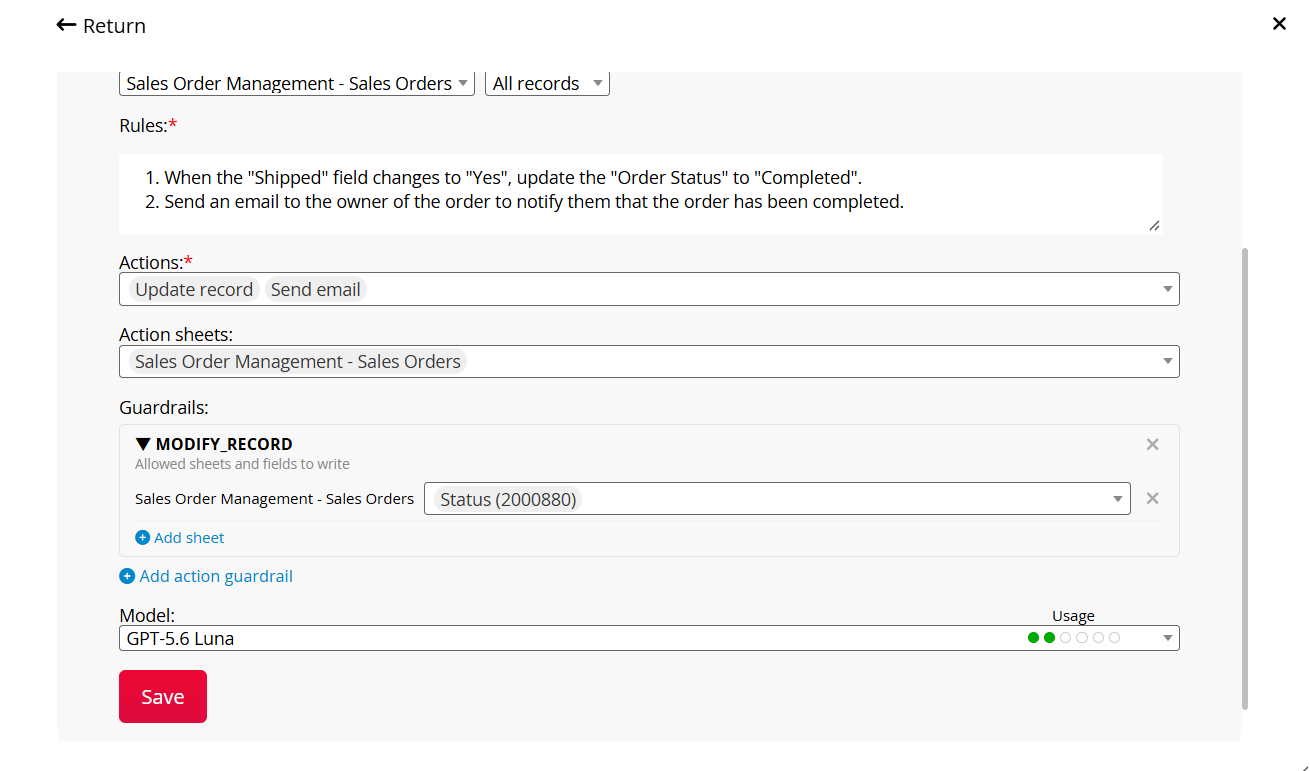
Select the AI model used by this agent. The default model is GPT-5.6 Luna. Different models vary in usage cost and reasoning capability. Choose a suitable model based on task complexity, response quality requirements, and usage budget. Please refer to the table below:
| Model | Recommended Use Cases | Usage Level | Reasoning Capability |
|---|---|---|---|
| Gemini | |||
| Gemini 3.8 Flash | Complex data processing, multi-step Agent tasks, and advanced workflow automation | ●● | ●●● |
| Gemini 3.5 Flash Lite | Simple notifications, lightweight record update actions, and simple scheduled tasks | ● | ● |
| Gemini 3.1 Pro | Complex AI Agent scenarios, multimedia content analysis, and advanced multi-step scheduled tasks | ●●●● | ●●●●● |
| Gemini 3.1 Flash Lite | Simple notifications, lightweight record update actions, and simple scheduled tasks | ● | ● |
| Gemini 3 Flash | Email assistant, field auto-fill, daily notifications, and automation tasks | ●● | ●● |
| GPT | |||
| GPT-6.1 Sol | Complex multi-step Agent tasks, advanced workflow decisions, and deep analysis | ●●●● | ●●●● |
| GPT-6 Luna | High-volume simple tasks, lightweight validation, and high-frequency automation | ● | ● |
| GPT-5.6 Sol | Complex multi-step Agent tasks, advanced workflow decisions, and deep analysis | ●●●●●● | ●●●●●● |
| GPT-5.6 Terra | General Agent tasks, email assistant, data processing, and workflow automation | ●●●● | ●●●● |
| GPT-5.6 Luna | High-volume simple tasks, lightweight validation, and high-frequency automation | ●● | ●● |
| GPT-4o Mini | Simple record update actions and lightweight scheduled notifications | ●● | ●● |
| Claude | |||
| Claude Opus 5.5 | Complex email assistant, long-form field content generation, and advanced multi-step workflow analysis | ●●●●●● | ●●●●●● |
| Claude Sonnet 5.5 | Email assistant with auto-reply, composing notification content, and general workflow automation | ●●●● | ●●●● |
| Claude Opus 5 | Complex email assistant, long-form field content generation, and advanced multi-step workflow analysis | ●●●●●● | ●●●●●● |
| Claude Sonnet 5 | Email assistant with auto-reply, composing notification content, and general workflow automation | ●●●● | ●●●● |
| Claude Opus 4.8 | Complex email assistant, long-form field content generation, and advanced multi-step workflow analysis | ●●●●●● | ●●●●●● |
| Claude Sonnet 4.6 | Email assistant with auto-reply, composing notification content, and general workflow automation | ●●●● | ●●●● |
| Other Models | |||
| Grok 4.6 | Email assistant, input validation, and general automation tasks | ●● | ●● |
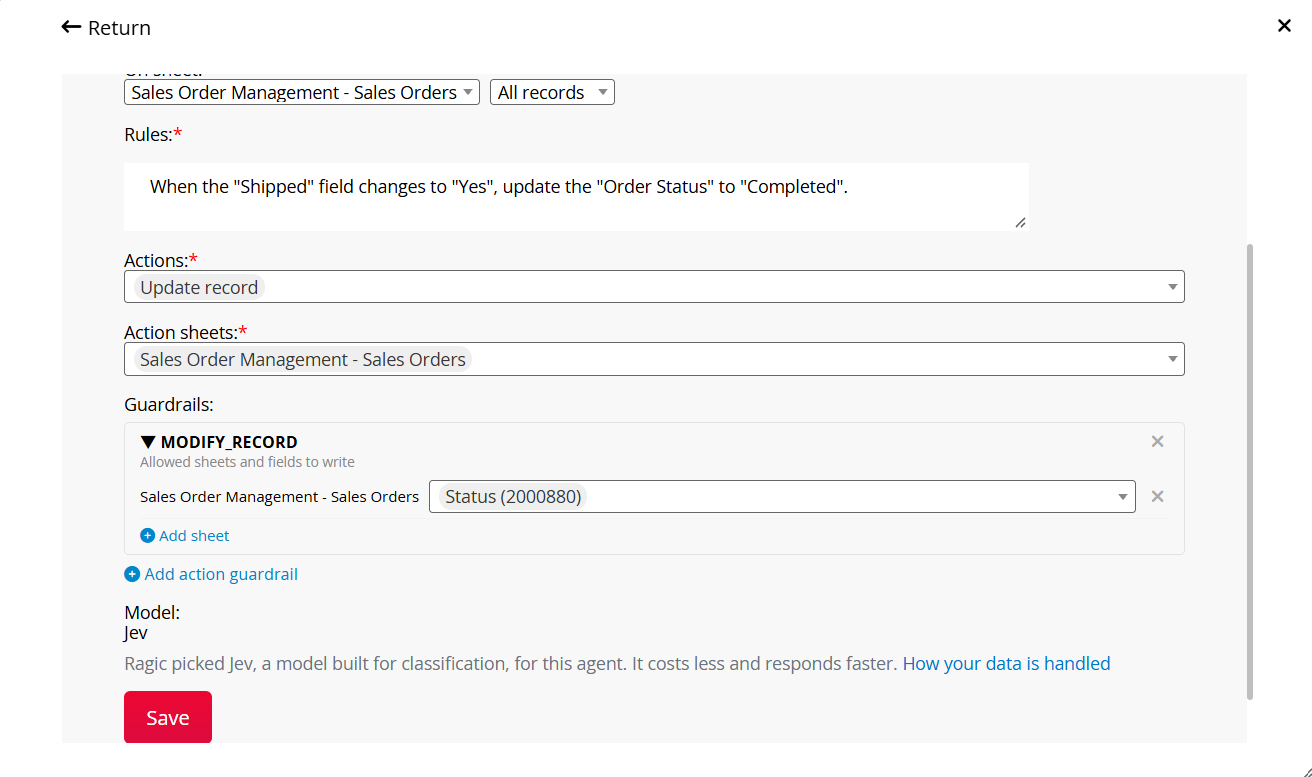
If an Agent meets the conditions, the system will automatically switch to the Jev model. See the section below for details.
Jev is a model for classification and decision-making tasks. It is faster and uses less AI Usage than general AI models, but supports a narrower range of tasks. When an Agent meets certain conditions, the system automatically switches to Jev to lower costs and speed up processing. Jev does not appear in the model list and cannot be selected manually.
Note: On-premises servers need to add the parameter JEV_AI before they can use the Jev model. See this section for details.
Conditions for Automatic Selection:
Each time you save, the system checks whether the Agent meets the following conditions. If not, or if it cannot be determined, the original model is kept.
1. Trigger Sheet and Action Sheet: The Agent can only have one Trigger Sheet and one Action Sheet.
2. Trigger Events and Actions: The Agent can only have one action, either Create record or Update record, and cannot include others such as Semantic search or Query records. The supported trigger events are Record created, Record updated, and Agent action button clicked (other trigger events, such as Scheduled, keep the original model), and they must be paired with the corresponding action, as shown below:
| Action (select one) | Allowed Trigger Events (multiple allowed) | Restrictions |
|---|---|---|
| Update record | Record created, Record updated, Agent action button clicked | Can only modify the record that triggered the Agent |
| Create record | Record created | Must always create exactly one record, regardless of conditions |
3. Rules:
(1) Rules can include simple calculations, the number of days between two dates, and the row count or total of a Subtable. Anything beyond this keeps the original model.
(2) Jev can read the triggering record and its Subtables, but cannot query other sheets. Write any classification criteria or reference rules directly in the Rules.
(3) With Create record, the Agent must always create exactly one record, regardless of conditions. With either Create record or Update record, the Agent also cannot fill in one field first and then decide other fields based on that value. Otherwise, the original model is kept. For example:
4. Guardrails: The Agent can only fill in editable independent fields (not Subtable fields) that are Selection fields with fixed options or Checkbox fields. Other field types, such as Multiple Select, Select From Other Sheet (Linked Field), or Free Text (for example, a "Reason" written by the AI), do not qualify.
Notes After Jev Is Selected:
1. The Model field on the settings page shows Jev and cannot be changed. If the Agent no longer meets the conditions after you change the sheet design or Agent settings, for example, by changing a Selection field to a Free Text field or adding a Send email action or Scheduled trigger, the system switches back to the original model. After you adjust the settings and save, the system checks again whether to switch to Jev.
2. If Jev cannot select an answer with enough confidence, or the call fails, the system does not fall back to the original model. When confidence is too low, an Update record Agent keeps the field's existing value (the record is not saved again if no fields change), and a Create record Agent leaves the field blank, you can review the record manually.
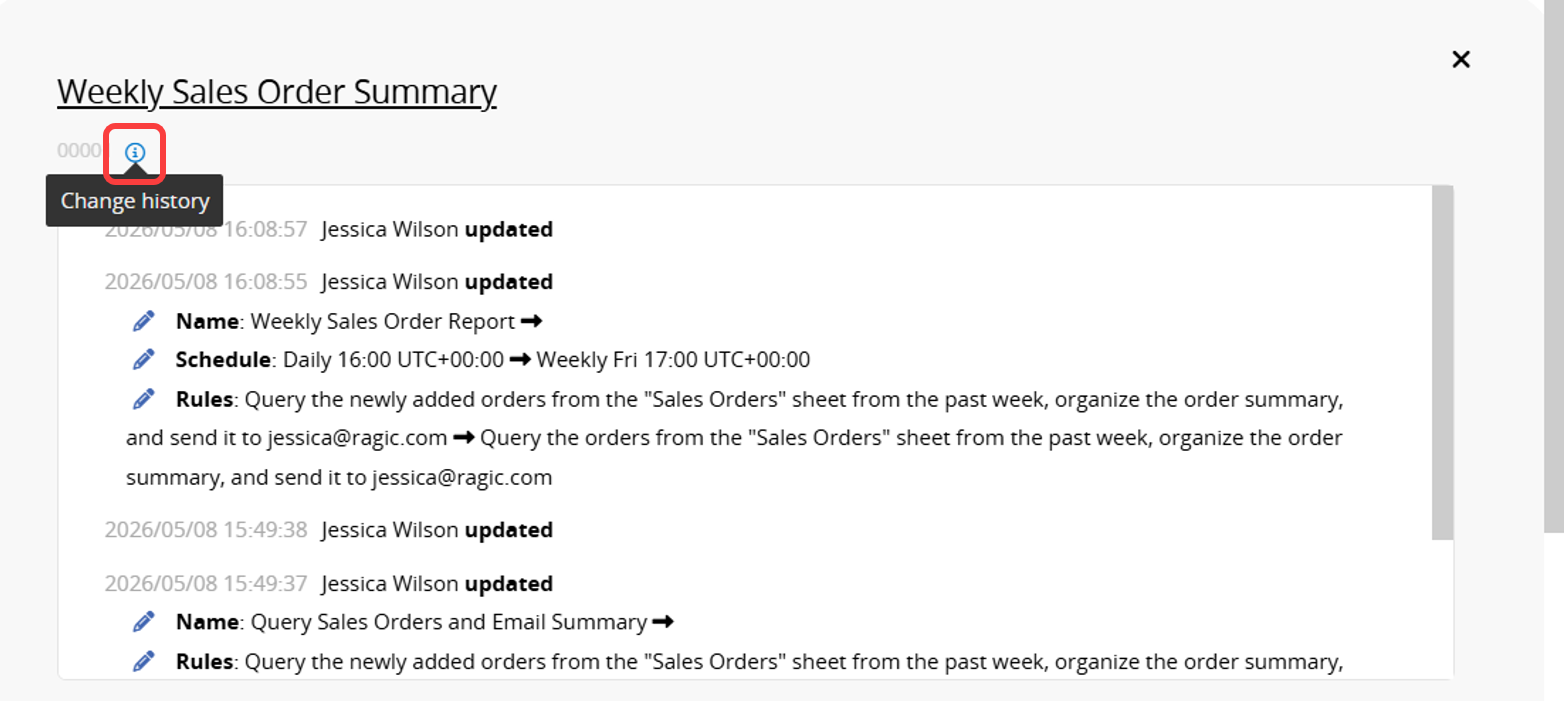
Click the icon to view the change history for this Agent, including the modification time, the user who made the change, and what was changed.
 Thank you for your valuable feedback!